

Screen time tools fail for one simple reason: they’re either too weak (kids bypass them) or too strict (parents turn them off after a week). uMobix sits in the middle—built for fast parent checks, with controls that can work well if you set them up correctly.
This uMobix screen time monitoring review focuses on the features parents actually care about: app blocking, daily limits, and schedules—plus the real-world reliability differences between Android vs iPhone.
If you’re still choosing a tool category, start with the overview: best screen time control apps for kids’ phones.
Short on time? Quick verdict
- Best for: parents who want a simple dashboard + practical screen time rules (limits + blocking) without turning setup into a project.
- Best platform: Android is usually the most “complete” experience for control + monitoring.
- Reality check: iPhone capabilities can be more method/iOS dependent—validate your exact use case early.
- If you need a more family-first rules ecosystem: Bark is often the better long-term fit.
Quick jump: 60-sec checklist · Verdict · Comparison table · What really matters · Best for your situation · Setup tips · Reviews · Legal notes · FAQ
60-second decision checklist
- Android or iPhone? If you want the most reliable “controls + monitoring,” Android usually wins. For iPhone, validate early.
- Hard blocking or soft limits? If your kid is techy, you’ll need stronger blocking + fewer loopholes. If not, daily limits + schedules may be enough.
- Scheduling is the real feature: nighttime downtime + homework window beats “arguing over daily minutes.”
- Choose your “must allow” apps: calls, navigation, school apps, and family chat should stay available.
- Plan your first 48 hours: test phone restart, Wi-Fi drop, low battery mode, and app install attempts.
Verdict: is uMobix good for app blocking and daily limits?
uMobix is a good pick if you want screen time rules you can actually maintain: quick checks, simple limits, and the ability to intervene when usage gets out of hand. It’s especially practical on Android, where screen time enforcement tends to be more consistent when set up correctly.
uMobix is not the best pick if you want a “family system” that stays consistent across kids/devices with a more guided parent-first rules philosophy—Bark often wins there. If you want stricter schedules and more rule levers, Eyezy can be stronger.
Try uMobix · Compare the best screen time apps
Comparison table: uMobix vs best screen time alternatives
This comparison focuses on what parents feel day-to-day: scheduling flexibility, blocking strength, and how “stable” the setup remains once real life happens.
| App | Best on | Schedules | App blocking | Reports | Best for |
|---|---|---|---|---|---|
| uMobix | Android (most practical), iPhone (varies) | Good (simple parent workflow) | Good (validate per device) | Good quick checks | Busy parents who want “simple but real” controls |
| Bark | Android + iPhone | Strong (family rules mindset) | Strong (balanced controls) | Good parent dashboard | Best overall for families |
| Eyezy | Android (most practical), iPhone (varies) | Very strong (strict schedules) | Strong (suite-style controls) | Strong suite visibility | Families who need stricter enforcement |
| mSpy | Android + iPhone (varies) | More monitoring-first | Limited vs control-first tools | Very strong (usage visibility) | Parents who want visibility more than strict blocking |
| Parentaler | Android + iPhone | Simple and practical | Basic-to-mid controls | Practical visibility | Non-techy parents who want simple limits |
Helpful deep dives: Bark screen time review · Eyezy screen time control review · mSpy screen time & app usage review
What really matters in uMobix screen time monitoring
1) Schedules beat “daily minutes” (less arguing, more routine)
Daily limits are easy to negotiate. Schedules are simpler: a clear night downtime and a homework window. If you want a complete routine-based approach, follow: how to limit screen time on kids’ phones automatically.
2) App blocking must include exceptions
Blocking everything causes problems. The most stable setups allow:
- Calls (and emergency contacts)
- Navigation
- School apps
- Family messaging apps
3) Android vs iPhone is the biggest reliability difference
- Android: usually more flexible and practical for control/monitoring, but you must prevent battery/power saving from breaking enforcement.
- iPhone: capabilities can be more dependent on iOS and setup method—validate early. If you need help setting up safely, use: iPhone monitoring setup guide.
4) “Bypass resistance” is mostly setup
In real life, the bypasses usually aren’t hacker-level. It’s things like phone restarts, battery saver, OS updates, or uninstall permissions being too loose. Your first 48 hours of testing matters more than the marketing page.
Best for your situation
- I want quick checks + simple limits: uMobix
- I want the best overall family screen time approach: Bark
- My kid needs strict schedules and stronger restrictions: Eyezy
- I mostly want reports and visibility: mSpy
- I want the simplest possible tool (non-techy): Parentaler
Platform-specific shortlists: best screen time apps for Android · best screen time apps for iPhone
Setup tips (the ones that prevent “it stopped working”)
Tip 1: Start with one schedule + one rule
Example starter setup:
- Night downtime: block entertainment apps during sleep hours
- Homework window: allow school apps, block games/social if needed
Tip 2: Test the “real life” failure points
- Restart the phone (do limits still apply?)
- Turn on battery saver (does enforcement/sync degrade?)
- Switch Wi-Fi to mobile data (do dashboards update?)
- Try installing a new time-wasting app (do you notice quickly?)
Tip 3: Keep your enforcement consistent
Tools don’t fix inconsistency. The best results happen when your kid knows the rules are predictable, not emotional.
Tip 4: For younger kids, use safer defaults
If you’re setting up controls for a younger child, start with a safer baseline and add freedom over time: the safest parental control apps for kids under 13.
Reviews
uMobix (screen time monitoring + practical limits)

Description
uMobix is best described as a busy parent’s dashboard. It’s designed for quick checks and practical rules: limit usage, block distractions when necessary, and keep routines consistent. It tends to feel strongest on Android, while iPhone results should be validated early based on your exact setup.
Product highlights
- Screen time monitoring workflow designed for quick parent checks
- App blocking and rule-based restrictions (validate per device)
- Daily limits and schedule-style routines (downtime/homework windows)
What’s to like
- Simple parent workflow (less settings fatigue)
- Good “set rules, then check quickly” style
- Works well when you combine schedules + exceptions
What’s not to like
- Android vs iPhone differences can be noticeable—test early
- Strictness depends on correct configuration (restarts, battery saver, permissions)
- If you want the most family-first system, Bark may fit better long-term
PROS
- Great for busy parents who want a quick dashboard
- Practical limits + blocking when needed
CONS
- Needs early validation on iPhone
- Not the most “ecosystem-style” family rules solution
Try uMobix: Official page
Bark (best overall alternative for families)
Description
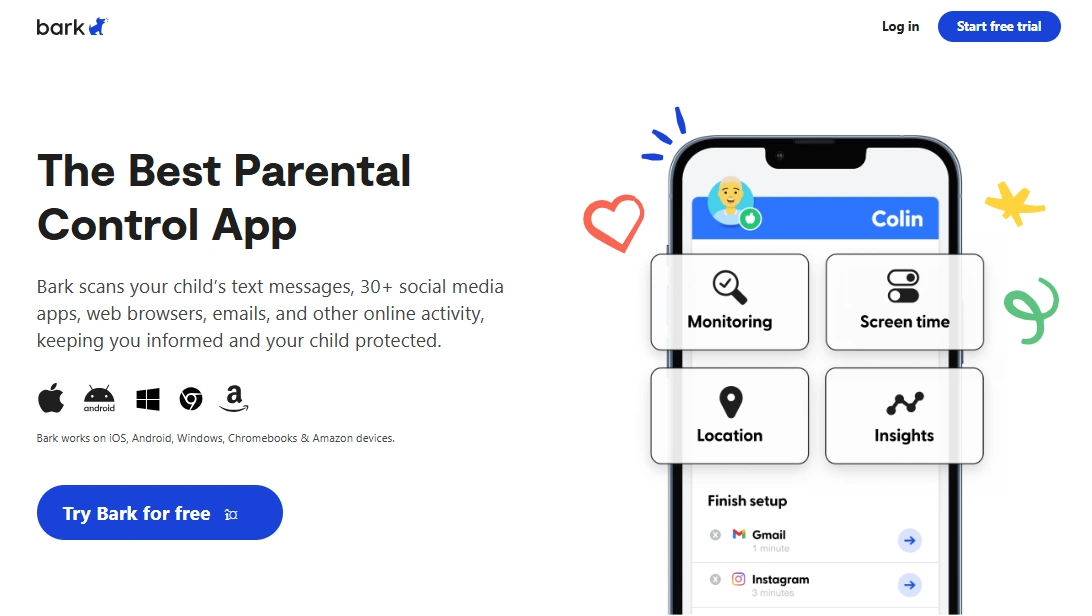
Bark is often the best “long-term family” option because it supports a more natural rules-based approach: schedules, boundaries, and protections that parents actually keep using. If you want screen time control without turning every day into negotiations, Bark is a strong pick.
Product highlights
- Family-first rules mindset
- Strong screen time controls + broader protection
- Good balance of strictness and usability
What’s to like
- Great “set it and stick with it” experience
- Good balance: not too strict, not too weak
What’s not to like
- Some parents prefer a more suite-style, strict control approach
PROS
- Best overall for families
- Strong parent usability
CONS
- Not always the strictest possible setup
Try Bark: Official page
Eyezy (stronger schedules and stricter rules)
Description
Eyezy is better when your family needs stricter enforcement: tight schedules, firmer restrictions, and a suite-style dashboard that gives parents more levers. If uMobix feels “simple,” Eyezy often feels more “power user.”
Product highlights
- Very strong scheduling and rule controls
- Suite-style monitoring + parental controls
- Good fit for older kids when boundaries need to be firmer
What’s to like
- Excellent for strict school-night structure
- More control options than lighter parental tools
What’s not to like
- More complexity than some parents want
- Android is typically most practical; iPhone results may vary
PROS
- Best “strict rules” alternative
- Strong suite-style controls
CONS
- Can feel heavy if you only want basic limits
Try Eyezy: Official page
mSpy (best if you mostly want screen time visibility)
Description
mSpy shines when your goal is monitoring: understanding usage patterns, app time, and behavior trends. If you’re not ready for strict blocking (or you’re dealing with an older teen), monitoring-first can be a calmer approach.
Product highlights
- Strong screen time and app usage visibility
- Useful for pattern detection (late-night spikes, app loops)
- Good “coach first, enforce later” workflow
What’s to like
- Great visibility for parents
- Less conflict than heavy blocking for some families
What’s not to like
- More monitoring-first than control-first
- If you need strict enforcement, Bark/Eyezy can be better fits
PROS
- Best visibility-focused option
- Great for behavior coaching
CONS
- Not the top pick for “hard lock” families
Try mSpy: Official page
Parentaler (simple limits for non-techy parents)
Description
Parentaler is a practical choice when you want simple boundaries without spending hours tuning settings. It works best when you keep the rules minimal: one schedule, a few blocked apps, and consistent enforcement.
Product highlights
- Simple parental control approach
- Practical limits for everyday parenting
- Good starter tool if you dislike complex dashboards
What’s to like
- Low-friction setup mindset
- Good for “basic but real” screen time rules
What’s not to like
- Less advanced than stricter tools
- Not ideal if you need very granular schedules per app
PROS
- Best simple option
- Good for non-techy parents
CONS
- Not the most advanced control system
Try Parentaler: Official page
Legal notes
Use parental control and screen time tools only on devices you own, devices you manage (for example, your child’s phone under your care), or where you have clear consent. Controlling or monitoring someone else’s device without permission can be illegal.
Practical overview: legal phone tracking: what’s allowed and what’s not.
FAQ
Is uMobix good for screen time control?
It can be a good fit for parents who want a simple dashboard and practical limits (blocking + daily rules), especially on Android. On iPhone, results can be more dependent on iOS and setup method—validate early.
Can uMobix block apps and set daily limits?
uMobix can support app restrictions and screen time-style limits, but effectiveness depends on correct setup, permissions, and how the phone behaves (restarts, battery saver, updates).
Is uMobix better on Android or iPhone for screen time monitoring?
Generally Android. iPhone capabilities can vary more, so it’s smart to test your real routine in the first 24–48 hours.
How do I stop my child from bypassing screen time limits?
Use schedules (night downtime + homework window), keep exceptions clear, and test the real failure points: restarts, battery saver, Wi-Fi drops, and new app installs.
What’s the best alternative if I want stricter enforcement?
Eyezy is often stronger for strict schedules and tighter controls. If you want the best overall family-first approach, Bark is a popular long-term option.
Do I need monitoring, control, or both?
For younger kids, control-first tools work best. For teens, monitoring plus accountability can reduce conflict. Many families start with monitoring and add stricter limits only if needed.