

Apple’s built-in parental controls are actually strong — but most parents still search for a “parental control app” because they want one (or more) of these:
- Less stress: an easier parent dashboard than Apple menus
- Safety alerts: warnings that help you intervene early (instead of constant checking)
- Better routines: a system you can use consistently for months
This guide covers the best parental control apps for iPhone in 2026, starting with the best free option (Screen Time), then moving to the best parent-friendly tools to layer on top.
Prefer a wider “monitoring” angle? See: Best iPhone Monitoring Apps for Parents.
Short on time? Best iPhone parental control picks (2026)
- Best free option (built-in): Apple Screen Time + Family Sharing
- Best for safety alerts (less micromanaging): Bark
- Best “keep it simple” parent workflow: Parentaler
- Best clean dashboard for routine check-ins: Eyezy
- Best all-round dashboard (when you want more than limits): mSpy
Important note: parental control vs “monitoring app” on iPhone
On iPhone, iOS restrictions matter. True “hidden monitoring” expectations often don’t match reality. For most families, the best results come from:
- Boundaries (Screen Time limits, downtime, content restrictions)
- Safety signals (alerts and pattern awareness)
- Consistency (a routine you actually use)
If you’re specifically searching for “hidden monitoring,” read: Best iPhone Monitoring Apps for Discreet Monitoring.
Is it legal to use parental control apps on iPhone?
In most situations, parents can set up parental controls on devices they own or manage for their child. Secretly monitoring another adult without consent is usually illegal.
Read first: Legal Phone Tracking: What’s Allowed and What’s Not.
Quick comparison table (best parental control apps for iPhone)
| App | Best for | Platforms | Highlights | Refund or Trial |
|---|---|---|---|---|
| Apple Screen Time | Limits, downtime, purchases, web filtering | iPhone | Best foundation for most families (free) | Free |
| Bark | Safety alerts + intervention | iPhone + Android | Alerts-first parenting (less micromanaging) | See official site |
| Parentaler | Simple rules + routines | iPhone + Android | Parent-friendly, low-overwhelm workflow | See official site |
| Eyezy | Clean dashboard + routine check-ins | iPhone | Great usability for parents (setup-dependent) | See official site |
| mSpy | All-round monitoring dashboard | iPhone | Best when you need “more than limits” (setup-dependent) | See official site |
1) Apple Screen Time (free) — best first step for iPhone parental controls
If you haven’t fully configured Screen Time yet, do that first. It solves the most common parent problems on iPhone:
- Stops surprise purchases
- Sets app limits and bedtime downtime
- Filters web content and restricts explicit content
- Creates consistent rules (if you use a passcode)
Step-by-step guide: How to Set Up Parental Controls on iPhone.
Best parental control apps for iPhone (detailed picks)
Bark – best for safety alerts and less micromanaging
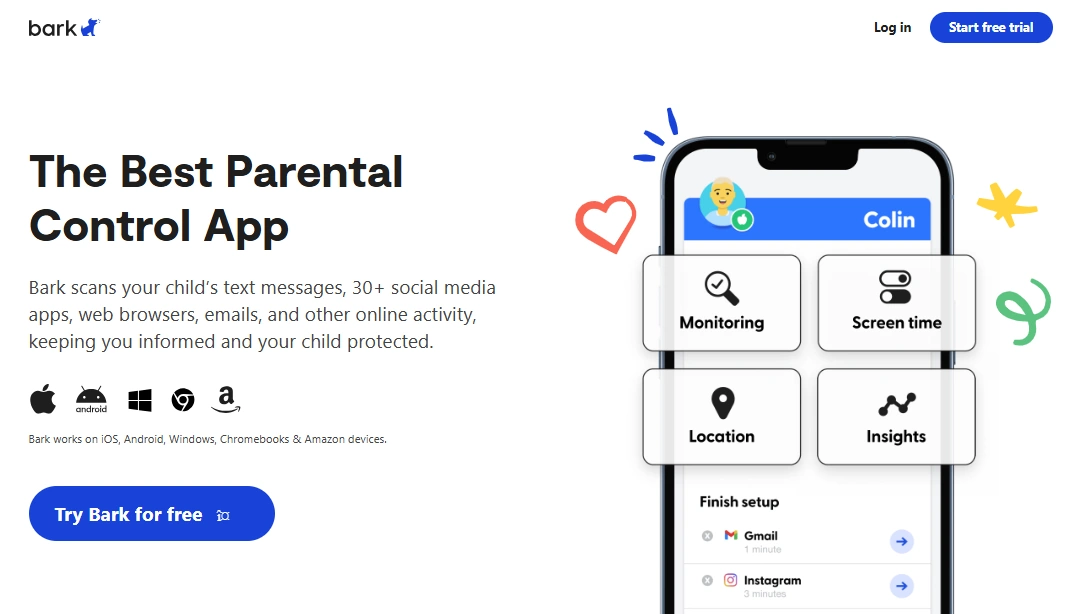
Bark is a top pick for iPhone parental control because it’s designed around alerts and intervention. Instead of checking everything daily, you get safety signals and step in when it matters.
Product Highlights
- Safety alerts that support parenting interventions
- Designed to reduce micromanaging and conflict
- Strong long-term fit for many families
PROS
- Often reduces daily arguments
- Great “sustainable parenting” approach
CONS
- May feel “too light” if you want deep dashboard detail
Check Bark plans: official site.
Parentaler – best for simple rules and routines (low overwhelm)
Parentaler is ideal if your goal is structure: clear boundaries, a simple parent workflow, and consistency. If Screen Time feels too “buried in menus,” Parentaler can be an easier layer on top.
Product Highlights
- Simple, parent-friendly dashboard
- Good for non-technical parents
- Focus on consistency over complexity
PROS
- Easy to maintain long-term
- Great “start simple” alternative beyond Screen Time
CONS
- May feel limited if you want advanced visibility
Check Parentaler plans: official site.
Eyezy – best clean dashboard for routine parent check-ins
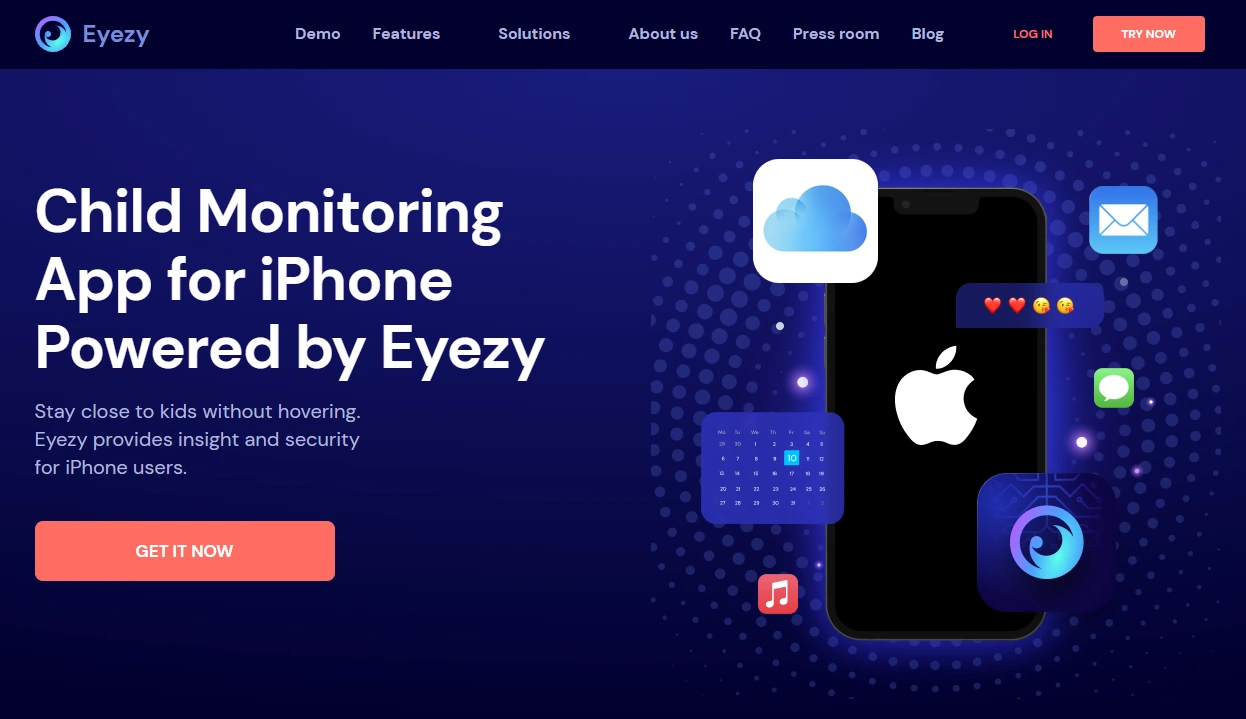
Eyezy is a good fit when you want a parent-friendly dashboard you can actually use daily. If your parental control style is “check patterns, then talk,” Eyezy is one of the easiest iPhone options to live with.
Product Highlights
- Clean iPhone dashboard for parents
- Designed for daily check-ins and clarity
- Strong usability comparison vs mSpy
PROS
- Great usability and low overwhelm
- Good fit for “calm daily routine” parenting
CONS
- iOS monitoring is setup-dependent
Full guide: Eyezy for iPhone: Complete Review & Setup
Check Eyezy plans: official site.
mSpy – best all-round dashboard when you need more than “limits”
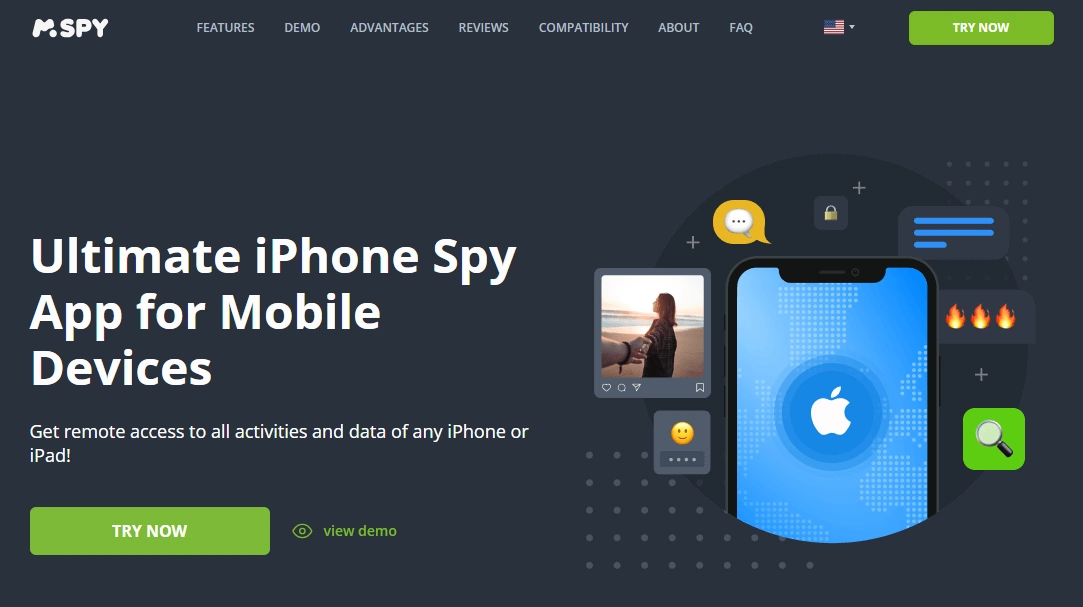
mSpy can be the right choice when Screen Time is not enough and you want a more all-round monitoring dashboard. On iPhone, keep expectations realistic: what you see depends on setup type and iOS constraints.
Product Highlights
- All-round monitoring dashboard approach
- Good for structured parent workflows
- Popular alternative to compare vs Eyezy
PROS
- Stronger dashboard option when you want “more than limits”
CONS
- Setup-dependent on iOS
Full guide: mSpy for iPhone: Full Review & Setup Guide
Check mSpy plans: official site.
How to choose the best iPhone parental control app (simple rules)
- Kids (roughly 6–12): Screen Time + Bark (alerts) is often a great combo.
- Teens (roughly 13–17): Screen Time + a calm dashboard routine (Eyezy or mSpy) can work well.
- High conflict household: Bark is often best because it reduces constant checking.
- Non-technical parent: Parentaler is a strong choice for simplicity.
Related guides
- How to Set Up Parental Controls on iPhone
- Best iPhone Monitoring Apps for Parents
- Best iPhone Monitoring Apps for Discreet Tracking
- Parental Control & Monitoring Apps Comparison Table
FAQ
What is the best parental control app for iPhone?
For most parents, Apple Screen Time is the best starting point (free). If you want safety alerts, Bark is often best. If you want a clean dashboard for routine check-ins, Eyezy is a strong pick.
How do I set up parental controls on my child’s iPhone?
Use Screen Time + Family Sharing, set a Screen Time passcode, enable content restrictions, and configure downtime and app limits. Full guide: How to Set Up Parental Controls on iPhone.
Can kids bypass iPhone parental controls?
They can if Screen Time isn’t locked with a passcode. Most bypass issues happen when parents skip the Screen Time passcode or use an easy-to-guess code.
What’s better for parents: Bark or Screen Time?
Screen Time is best for boundaries (limits, downtime, purchases). Bark is often better if you want safety alerts and fewer daily arguments.
Do iPhone parental control apps require jailbreak?
Most parents prefer no-jailbreak approaches. iOS is stricter than Android, so monitoring depth can be setup-dependent regardless of the brand.