

uMobix Background Mode is one of those features people talk about as if it’s “invisibility.” In reality, it usually means the monitoring service can run in the background so it can keep working without needing to be opened like a normal app.
This guide keeps it parent-safe and realistic: what background mode actually means, what’s still visible in system settings, and how to use it legally on devices you own/manage (typically a child’s phone, or a company-owned phone with clear policy).
Short on time? Start here: uMobix (Official Page). If you want Android-specific options, also check: uMobix Android Tracker.
Quick jump: Checklist · What Background Mode is · Android vs iPhone · Is it detectable? · Comparison table · uMobix review · Best practices · FAQ
Background Mode checklist (read this first)
- Use-case check: only on a device you own/manage (parent/guardian or company-owned with clear policy).
- Goal check: do you need safety visibility, or just time limits and web filtering?
- Platform check: Android typically allows more background monitoring flexibility than iPhone.
- Expectation check: background mode ≠ “undetectable” (system settings may still show installed services/permissions).
- Parenting check: transparency + boundaries usually work better long-term than pure secrecy.
For the legal baseline, see: Legal Phone Tracking: What’s Allowed and What’s Not.
What uMobix “Background Mode” actually means
Background mode is mainly about reliability:
- Runs without being opened (so it can keep working during normal phone use)
- Survives everyday behavior (closing apps, switching networks, reboots—depending on device settings)
- Reduces “quick disable” risk in child-safety scenarios (kids often uninstall/disable what they can see immediately)
It’s helpful to separate these terms:
- Background mode: operational (keeps working in the background)
- Hidden mode / invisible mode: visibility-related marketing language (often misunderstood)
If you want the “big picture” of monitoring features (what’s realistic across apps), read: Monitoring App Features Explained: What You Can (and Can’t) Monitor.
uMobix Background Mode on Android vs iPhone
Android
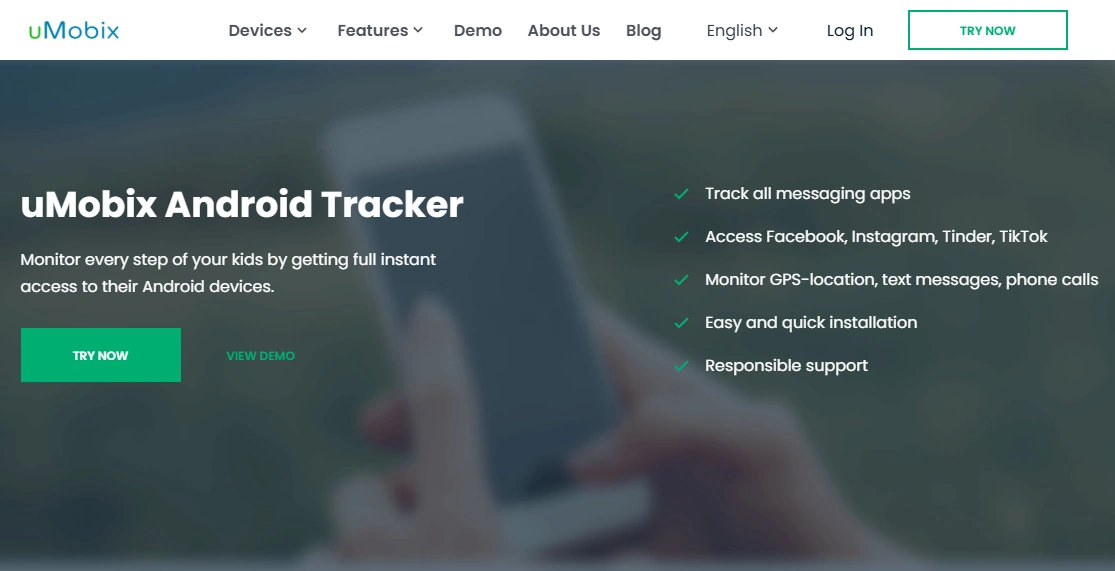
Android is typically where background monitoring is the most practical because permissions and background activity controls can be configured more broadly (varies by device brand and Android version).
If you’re primarily managing an Android device, this offer is a good starting point:
iPhone
iPhones are generally more restrictive, so background-mode expectations should be lower than Android. What’s possible depends on the setup method and Apple’s platform limits.
Use these parent-safe setup guides (recommended):
Is uMobix “Background Mode” detectable?
Here’s the realistic answer: background does not mean invisible.
Even if something isn’t obvious on the home screen, many phones can still reveal signals in system areas like:
- Installed apps list (Settings → Apps)
- Special access / permissions (varies by setup and OS)
- Battery usage / background activity
- Network/data usage
If your goal is child safety without creating a “monitoring vs bypass” dynamic, read: How to Monitor Kids’ Phones Without Invading Their Privacy.
uMobix Background Mode vs similar features (quick comparison)
| Feature angle | Best match | What it usually means | Link |
|---|---|---|---|
| Background Mode | uMobix | Runs reliably in the background on managed devices (results vary by OS/setup) | Try uMobix |
| Hidden Mode | mSpy | Often refers to reduced app visibility + background operation (not true invisibility) | mSpy Hidden Mode (explained) |
| Invisible Mode | Eyezy | Invisibility-focused marketing angle; real results still depend on permissions/OS limits | Eyezy Invisible Mode (explained) |
If you want broader comparisons, use: Top 10 Phone Monitoring Apps That Actually Work (Trusted Picks).
uMobix Background Mode: review-style breakdown
Description: uMobix is commonly used as a managed-device monitoring solution. “Background mode” is usually about keeping the monitoring service running consistently so it doesn’t stop working after everyday phone actions.
Product highlights:
- Good fit when you want ongoing safety visibility (not “check once and forget”)
- Often chosen for social-app oriented monitoring needs (depending on the offer)
- Works best when you keep the setup stable (permissions, background activity allowed, no conflicting apps)
What’s to like
- Designed around continuous background operation (the core point of “background mode”)
- Practical for parents who need consistency across weeks/months
What’s not to like
- Background operation can increase battery/data usage compared to no monitoring at all
- iPhone restrictions may reduce what’s possible compared to Android
PROS
- Strong “reliability-first” angle (when configured properly)
- Good fit for ongoing parenting routines
CONS
- Not the same as “undetectable”
- Setup quality matters (missing permissions = missing data)
Best practices (stability + healthy boundaries)
Keep the setup stable
- Don’t stack multiple monitoring apps (conflicts can cause missing data and extra battery drain)
- Re-check permissions after OS updates (updates can reset special access settings)
- Expect some delays (not all data syncs instantly, depending on network and device state)
Use “least invasive” rules first
In many families, you’ll reduce risk more effectively with limits than with deep message monitoring:
FAQ
What is uMobix Background Mode?
It usually refers to the monitoring service running in the background so it can keep working without being opened like a normal app. The exact behavior depends on device/OS and setup.
Does Background Mode mean uMobix is invisible?
No. Background operation is about reliability, not guaranteed invisibility. Many phones can still show signals in installed apps, permissions/special access, battery usage, or data usage areas.
Is uMobix Background Mode better on Android or iPhone?
Generally, Android allows more flexibility for background monitoring than iPhone. iPhone setups are typically more restricted.
Is it legal to use uMobix in background mode?
Legality depends on consent and device ownership/management. A safe baseline is: use only on devices you own/manage (parent/guardian) or company-owned devices with clear notice and policy. See: Legal Phone Tracking: What’s Allowed and What’s Not.
What should parents do instead of relying on stealth?
Use transparency, rules, and screen time limits first. That reduces bypass attempts and builds better long-term behavior: How to Monitor Kids Without Invading Their Privacy.