

Snapchat is one of the most stressful apps for parents because it’s designed around ephemeral content (messages disappear), fast sharing, and social pressure. If you’re here, your goal probably isn’t “spying” — it’s keeping your child safe.
Important: This guide is for parents/legal guardians supervising a child’s device they own/manage, and it focuses on safe, lawful, privacy-respecting monitoring. If you’re unsure what’s allowed, read: Is It Legal to Install a Monitoring App on Someone’s Phone? and Legal Phone Tracking: What’s Allowed and What’s Not.
Short on time? My top Snapchat picks for parents
- Best safety-first approach (least invasive): Bark
- Best Snapchat-focused toolkit (use responsibly): mSpy Snapchat Tracking
- Best “parent dashboard” for social app oversight: Eyezy for Snapchat
- Best straightforward Snapchat monitoring offer: uMobix Snapchat Monitoring
- Best add-on layer (filtering + guardrails): Parentaler Web Filtering
Jump to: Start with Snapchat’s built-in controls · What you can (and can’t) monitor on Snapchat · Quick comparison · Top app reviews · Setup playbook · FAQ
Start with Snapchat’s built-in controls (do this first)
Before installing anything, tighten Snapchat itself. This prevents the most common risks (strangers, DMs, public exposure, location sharing) and reduces how much monitoring you even need.
Must-do Snapchat safety settings
- Family Center: enable parent/guardian supervision features inside Snapchat (where available).
- Privacy: keep the account private and limit who can contact your child.
- Location (Snap Map): turn off location sharing unless there’s a clear safety reason.
- Discover / Spotlight: reduce exposure to mature content and random creators where possible.
- Report & block: teach the “report, block, tell a parent” loop for suspicious contacts.
If your main battle is “too much time,” don’t overthink monitoring — enforce schedules: How to Limit Screen Time on Kids’ Phones Automatically.
Snapchat Safety Checklist (fast win)
- Enable Snapchat Family Center (parent supervision tools).
- Disable location sharing (Snap Map) unless truly needed.
- Restrict who can contact your child (friends-only / private).
- Automate screen time (bedtime + homework schedules).
- Use monitoring only if there’s a real risk — and keep boundaries clear.
What you can (and can’t) monitor on Snapchat
Snapchat is intentionally built to make full visibility difficult. That’s why it’s important to set expectations:
- You can reliably control access and time: block the app at bedtime, limit daily use, require approval to reinstall.
- You can reduce risk through privacy rules: restrict strangers, disable location sharing, reduce public exposure.
- “Seeing everything” is not realistic (or healthy) for most families: Snapchat’s design + privacy expectations mean you should aim for minimum necessary oversight.
Best practice is a layered approach: rules + schedules first, then monitoring only if there’s a real concern. If you want a trust-preserving framework, read: How to Monitor Kids’ Phones Without Invading Their Privacy.
For a broader overview of parent tools (not just Snapchat), see: Top Phone Monitoring Apps and Parental Control & Monitoring Apps Comparison Table.
Quick comparison: top Snapchat monitoring apps for parents
| App | Best for | Platforms | Snapchat coverage | My take | Link |
|---|---|---|---|---|---|
| Bark | Safety-first alerts + healthier boundaries | Android, iPhone | Best as a “risk signal” layer | Best choice if you want less invasive monitoring | Check Bark |
| mSpy | Snapchat-focused toolkit (high-concern families) | Android, iPhone | Typically deeper visibility (setup-dependent) | Use only with clear boundaries and authority | mSpy Snapchat |
| Eyezy | Parent dashboard + social app oversight | Android, iPhone | Good “parent view” approach | Solid option if you want a usable UI | Eyezy Snapchat |
| uMobix | Straightforward Snapchat monitoring offer | Android, iPhone | Useful when you need clarity on usage | Good if you want “Snapchat-specific” targeting | uMobix Snapchat |
| Parentaler | Filtering + guardrails as part of your rules | iPhone (and Android options) | Best paired with Screen Time / Family Link | Great “support layer” for families | Parentaler |
Note: feature availability can vary by device model, OS version, and how the child account is configured. Always start with Snapchat + OS-level controls first.
Top Snapchat monitoring app reviews (parent-focused)
Bark (best safety-first choice)
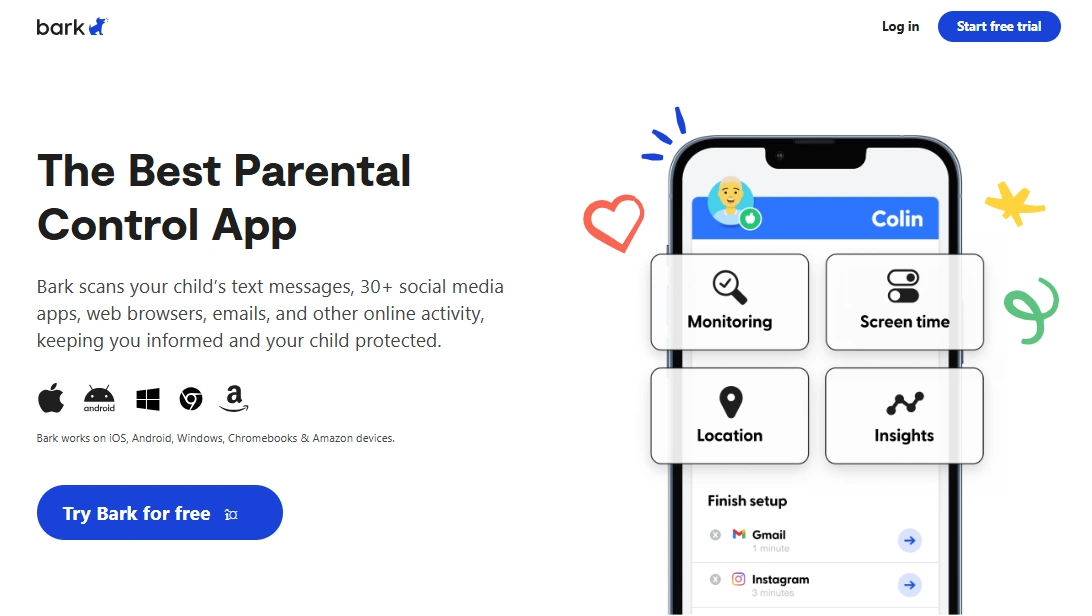
Description: Bark is ideal if you want a “safety signals” approach instead of trying to read every message. For many families, this is the only approach that scales without destroying trust.
Best for: parents who want fewer fights, healthier habits, and meaningful alerts.
- Safety-first philosophy (less invasive by default)
- Great companion to Screen Time / Family Link schedules
- Works well for “I want to know if something is wrong”
mSpy Snapchat Tracking (best Snapchat-focused toolkit)
Description: mSpy can be a fit for higher-concern situations where you need more visibility than basic controls provide. This is the kind of tool you use with clear rules, transparency, and only on devices you manage.
Best for: families dealing with repeated rule-breaking, suspicious contacts, or genuine safety risk.
- Snapchat-focused offer page
- Broad toolkit (setup-dependent)
- Best when combined with schedules + Snapchat Family Center
Need help choosing the “right level” of monitoring? Read: How to Choose the Right Monitoring App for Your Family.
Eyezy for Snapchat (best parent dashboard experience)
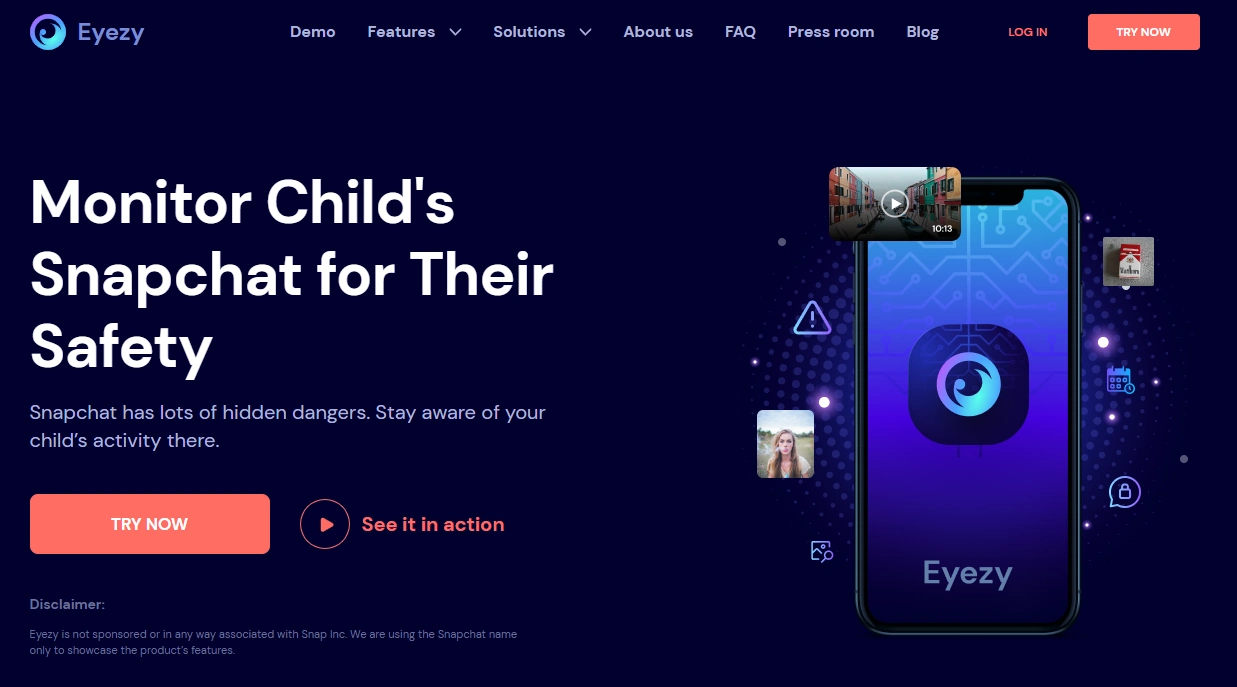
Description: Eyezy is a strong option if you want a more “parent-friendly dashboard” approach while still keeping your setup anchored in schedules and privacy boundaries.
Best for: busy parents who want a usable overview without constant manual checking.
- Snapchat-specific offer page
- Good companion to screen time routines
- Works well when you prefer a dashboard-style view
Related: Eyezy for Android: Complete Review, Setup and Guide
uMobix Snapchat Monitoring (best Snapchat-specific starter offer)
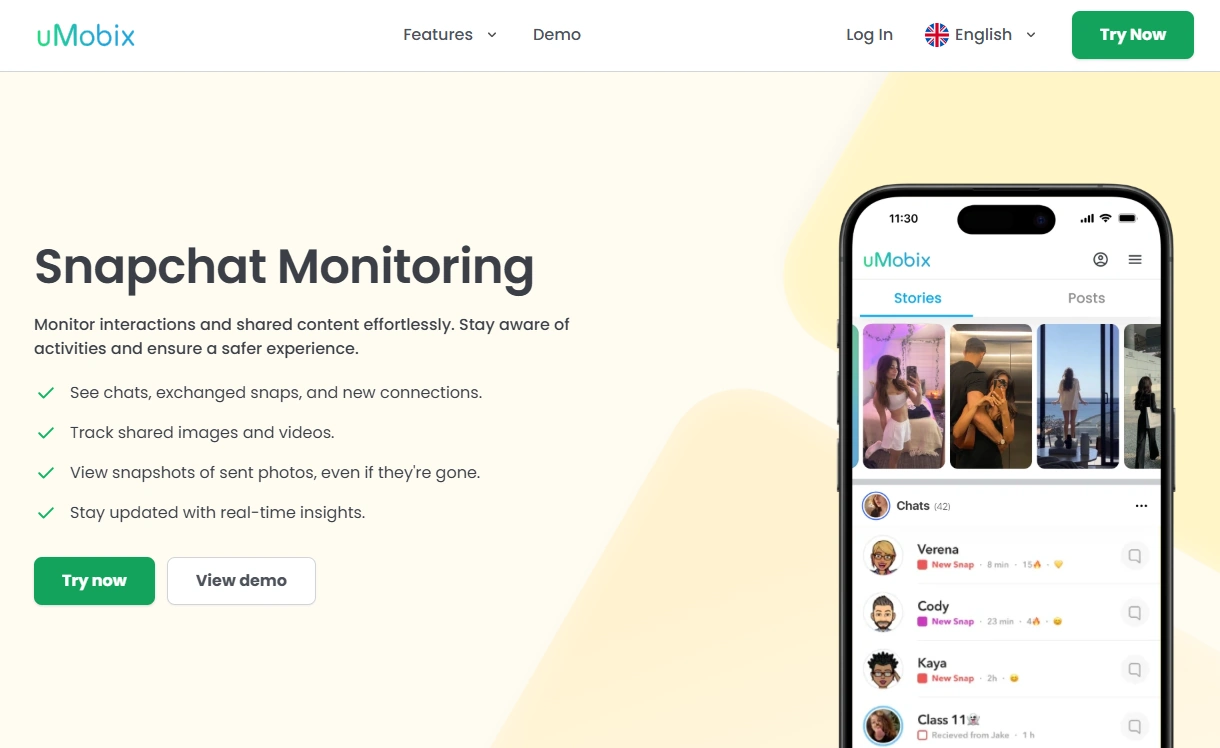
Description: uMobix is useful when you want a Snapchat-specific option and your goal is to understand usage patterns and risk areas — not to “read every conversation.”
Best for: parents who want clarity and structure without overcomplicating the setup.
- Snapchat-focused offer page
- Useful for evidence-based rule tightening
- Works best with strict bedtime + homework schedules
Parentaler Web Filtering (best “support layer” for family rules)
Description: Parentaler isn’t “Snapchat-only.” It’s most valuable as a guardrail layer in a broader plan: schedules, filtering, and fewer loopholes — especially on iPhone/iPad setups.
Best for: families who want simple rules that are easy to maintain.
- Good pairing with Screen Time routines
- Helpful when filtering is part of your plan
- Better for prevention than deep Snapchat oversight
Setup playbook: the safest way to manage Snapchat
Step 1: Set family rules first (this prevents the “arms race”)
- Define what’s allowed: friends, DMs, public posting, and location sharing.
- Agree on consequences (and a “repair” path) if rules are broken.
- Explain the why: safety, sleep, school focus, mood.
Step 2: Automate screen time (bedtime + homework)
Most Snapchat problems improve dramatically when access windows are consistent: Limit Screen Time Automatically.
Step 3: Tighten Snapchat settings (Family Center + privacy)
Do this even if you plan to use an app. Built-in controls reduce risk and reduce how much monitoring you need.
Step 4: Add monitoring only if there’s a real reason
If you choose a monitoring tool, keep it minimal and transparent. Start with: Monitor Without Invading Privacy.
If you need help choosing the right tool level (light vs advanced), use: How to Choose the Right Monitoring App for Your Family.
If your child is under 13, use the strictest safety-first approach: The Safest Parental Control Apps for Kids Under 13.
FAQ
Can parents see Snapchat messages?
Usually not in a complete, reliable way because Snapchat is built around disappearing content. The most reliable strategy is controlling access (screen time), tightening privacy settings, and using monitoring only when there’s a real safety concern.
What is Snapchat Family Center?
Family Center is Snapchat’s built-in supervision area designed to help parents/guardians manage safety settings and oversight within Snapchat. Start there before installing any third-party tools.
What’s the best way to limit Snapchat use?
Use automatic schedules (bedtime + homework) via OS-level controls. Follow: How to Limit Screen Time Automatically.
Is it legal to monitor Snapchat on my child’s phone?
It depends on your local laws and whether you own/manage the device and have legal authority. Start with: Is It Legal to Install a Monitoring App on Someone’s Phone?.
How can I monitor without invading my child’s privacy?
Use the “minimum necessary” approach: rules, schedules, privacy settings, and monitoring only for genuine risks—ideally with transparency. See: How to Monitor Without Invading Privacy.
What should I do if I suspect grooming, sextortion, or bullying?
Prioritize safety over surveillance: document concerns, block/report suspicious accounts, tighten privacy settings, and seek professional help if needed. If risk is immediate, contact local authorities or child protection resources.