

“Limit screen time” sounds simple—until you try to enforce it every day. The goal isn’t to argue at 9:30pm. The goal is to make your rules automatic so they happen the same way every day.
mSpy can help you do that in two practical ways: (1) visibility (app usage + patterns so rules are fair), and (2) controls where supported (blocking / restrictions depending on device + setup). In many families, the best system is a hybrid: mSpy for monitoring + evidence, and native OS controls for hard limits (especially on iPhone).
If you’re choosing between apps, start here: best screen time control apps for kids’ phones. If you want to understand mSpy’s screen time features first, see: mSpy screen time & app usage review.
Short on time? Quick verdict
- Best approach: Use mSpy for usage visibility + routines; enforce “hard limits” via OS controls if needed (especially iPhone).
- Android: typically more flexible for control-style setups.
- iPhone: results can be more method/iOS dependent—plan for a hybrid system.
- If you want an all-in-one family rules system: Bark is often easier to maintain long-term.
Quick jump: 60-sec checklist · Verdict · Comparison table · Automatic limit recipes · Android vs iPhone · Setup steps · Common issues · Reviews · Legal notes · FAQ
60-second decision checklist
- Pick 2 non-negotiable rules: night downtime + homework window.
- Decide “always allowed” apps: calls, navigation, school apps, family messaging.
- Choose your enforcement style: strict blocking (stronger on Android) vs coaching with weekly reviews.
- Plan your hybrid: mSpy for visibility + OS controls for hard limits (especially iPhone).
- Test like a kid would: restart phone, enable battery saver, switch Wi-Fi/data, install a new distraction app.
Verdict: should you use mSpy for automatic screen time limits?
Use mSpy if you want a system that’s driven by real app usage (not guesses). It’s especially good when the goal is to stop “infinite scrolling” and create routine-based limits that feel fair.
Don’t rely on mSpy alone if you need strict, guaranteed “hard lock” enforcement on every iPhone. In that case, use the hybrid approach: mSpy for visibility + native iOS Screen Time rules for hard limits. If you want a more family-first system that’s easier to maintain, Bark is often the best choice.
Comparison table: mSpy vs screen time control alternatives
mSpy shines when you want visibility + accountability. These alternatives win when you want stronger “family rules” workflows or stricter enforcement.
| App | Best on | Automation style | Strictness | Best for |
|---|---|---|---|---|
| mSpy | Android + iPhone (varies) | Usage-driven rules (visibility + routines) | Mid (stronger on Android) | Coaching + accountability, fair limits |
| Bark | Android + iPhone | Family rules system (routines + safety) | Mid | Best overall for most families |
| Eyezy | Android (most complete), iPhone (varies) | Strict schedules + tighter controls | High | High-conflict screen time situations |
| Parentaler | Android + iPhone (varies) | Simple limits | Low-to-mid | Non-techy parents, basic routines |
| uMobix | Android (practical), iPhone (varies) | Guided workflow | Mid | Busy parents who want quick checks |
Automatic screen time “recipes” (copy these)
These are the most effective rules in real life because they reduce negotiation. Use mSpy to track usage and keep rules fair; enforce blocks where supported, or use OS controls as the “hard lock.”
Recipe A: School nights (the classic)
- Downtime: entertainment apps off from 21:00–07:00
- Homework window: games/social restricted from 16:00–18:30
- Always allowed: calls, navigation, school apps, family messaging
- Weekly review: Sunday evening adjust based on behavior
Recipe B: “One hour of games” without daily arguments
- Track daily game app usage in mSpy
- Set a clear rule: “1 hour/day total” (or “after homework only”)
- If hard enforcement is needed: use OS limits to lock games after the cap; use mSpy to verify patterns
Recipe C: Late-night scrolling stopper
- Downtime schedule every night (same time, no exceptions)
- Charge the phone outside the bedroom
- Use mSpy usage reports to spot “new loophole apps” (kids often switch platforms)
Android vs iPhone: what to expect with mSpy screen time
Android typically offers a more flexible control experience. If you want stronger enforcement, Android is usually where you can get closer to “automatic rules that stick.”
iPhone can be more limited or method-dependent. A realistic strategy is: use mSpy for visibility and accountability, and set the strict “hard limits” via iOS Screen Time. If you need iPhone setup guidance, use: how to set up an iPhone monitoring app safely and legally.
Platform options: best screen time apps for Android · best screen time apps for iPhone
Step-by-step: how to use mSpy to limit screen time automatically
Step 1: Define your rules (keep it boring)
Write down 2–3 rules you can enforce for months:
- Night downtime time
- Homework window time
- Weekend rule (earned time)
Step 2: Install mSpy on a device you manage
Use mSpy only on a child’s device you own/manage or with clear consent. Start here:
mSpy Parental Control · mSpy for families (what to expect)
Step 3: Turn on app usage monitoring and establish a baseline
Before you block anything, measure 2–3 days of normal use. This prevents “unfair rules” and gives you a real starting point.
Reference: mSpy screen time & app usage review.
Step 4: Apply schedules first (downtime + homework window)
Schedules reduce negotiation because the rule is the same every day. If your setup supports app restrictions/blocks, configure:
- Downtime schedule for entertainment apps
- Homework window with a short “allowed list”
- Always allowed essentials (calls, navigation, school)
If your device/setup doesn’t support strict blocking the way you need (common on iPhone), use OS Screen Time for the hard lock and use mSpy to verify compliance.
Step 5: Use weekly reviews to adjust (instead of daily battles)
Pick one day per week (Sunday works). Review:
- Top apps by time
- Time-of-day patterns (late night? before school?)
- Any new “replacement apps” kids are using
Then adjust one rule. Keep the system predictable.
Common issues (and how to fix them fast)
Issue 1: “Rules stopped working after a day”
- Check battery saver / power saving mode
- Check background restrictions for the monitoring app
- Restart the phone and confirm reporting still updates
Issue 2: “My kid found a loophole app”
This is normal. Kids often replace TikTok with “the next thing.” Use mSpy reports to spot the new app early and decide: allow, restrict, or set a time window.
Issue 3: “Screen time rules create fights”
- Reduce rules to 2
- Add always-allowed essentials
- Switch from daily minutes to schedules
- Use weekly reviews, not nightly arguments
Reviews
mSpy (usage-driven screen time routines)
Description
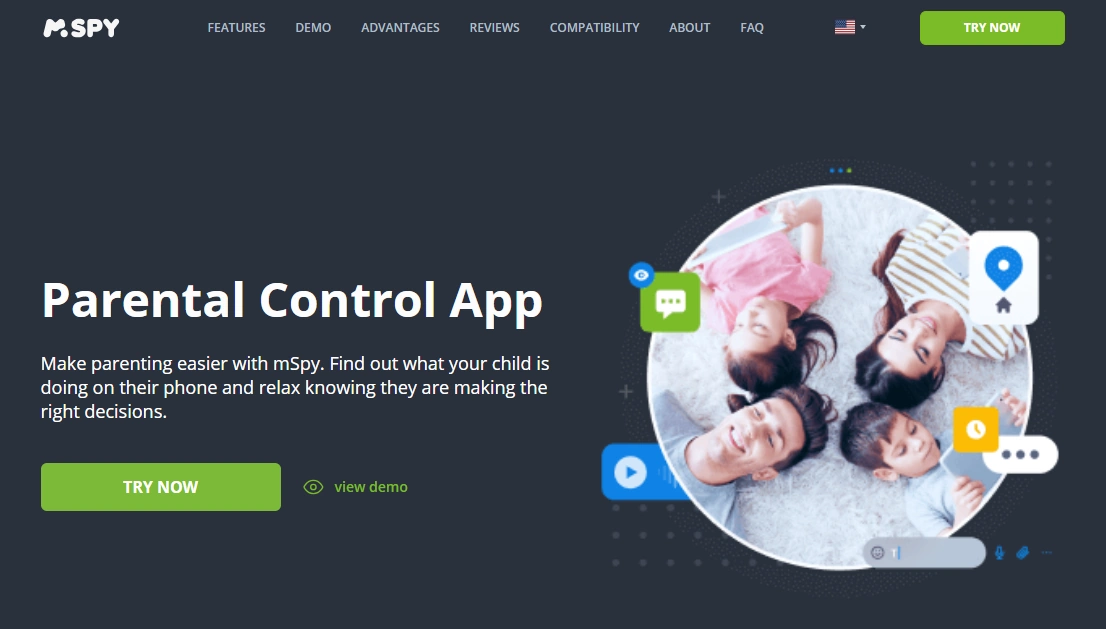
mSpy is strongest when you want screen time limits based on real usage. It helps you see patterns, create fair rules, and reduce “I didn’t do that” arguments. Many families use it as a hybrid: mSpy for visibility + OS controls for hard enforcement when needed.
Product highlights
- App usage visibility for fair limits
- Useful for routines (downtime, homework windows) depending on device/setup
- Strong accountability workflow for older kids/teens
What’s to like
- Great for coaching with data (“here’s your week”)
- Helps spot new “replacement apps” quickly
- Works well as part of an automatic routine system
What’s not to like
- Strict enforcement can be more platform/setup dependent (especially iPhone)
- Not as “family rules turnkey” as Bark
PROS
- Best for usage-driven accountability
- Excellent for weekly review parenting
CONS
- May require OS controls for hard limits on iPhone
Try mSpy: Parental Control App
Bark (best overall “family rules + safety” alternative)
Description
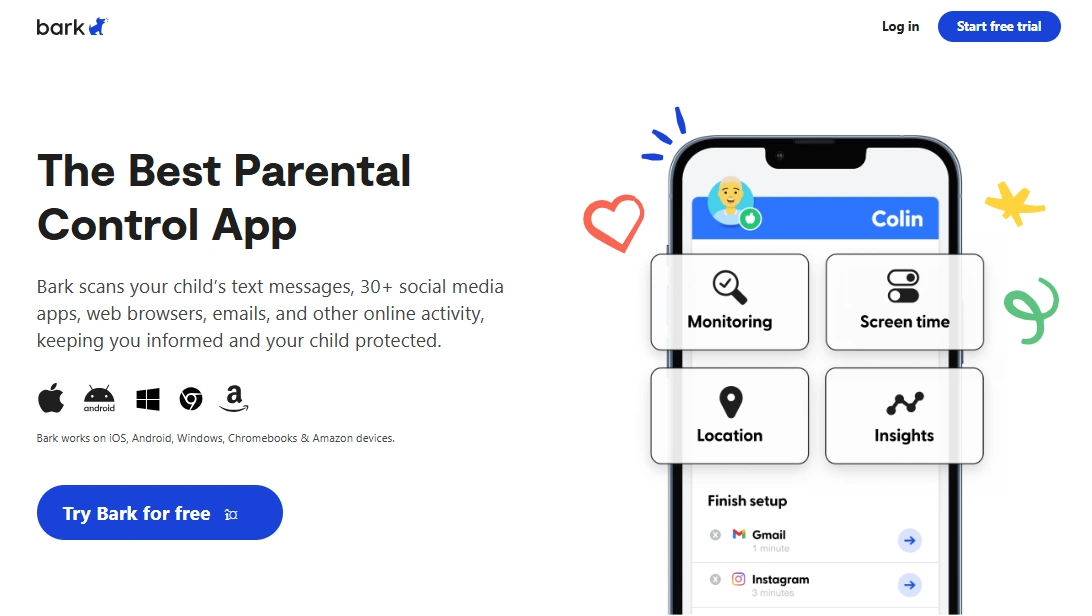
Bark is often the easiest long-term option for families: routines, safer browsing, and parent alerts that reduce stress. If you want a smoother “system,” Bark is usually the best overall pick.
Product highlights
- Family rules approach that’s easier to maintain
- Strong screen time routines and safety mindset
- Good baseline across Android and iPhone
What’s to like
- Great long-term family fit
- Less “settings fatigue” than stricter suites
What’s not to like
- If you want strict enforcement above all, Eyezy can feel stronger
PROS
- Best overall alternative
- Family-friendly system
CONS
- Not the strictest lock-down tool
Try Bark: Official page
Eyezy (stricter schedules when you need enforcement)
Description
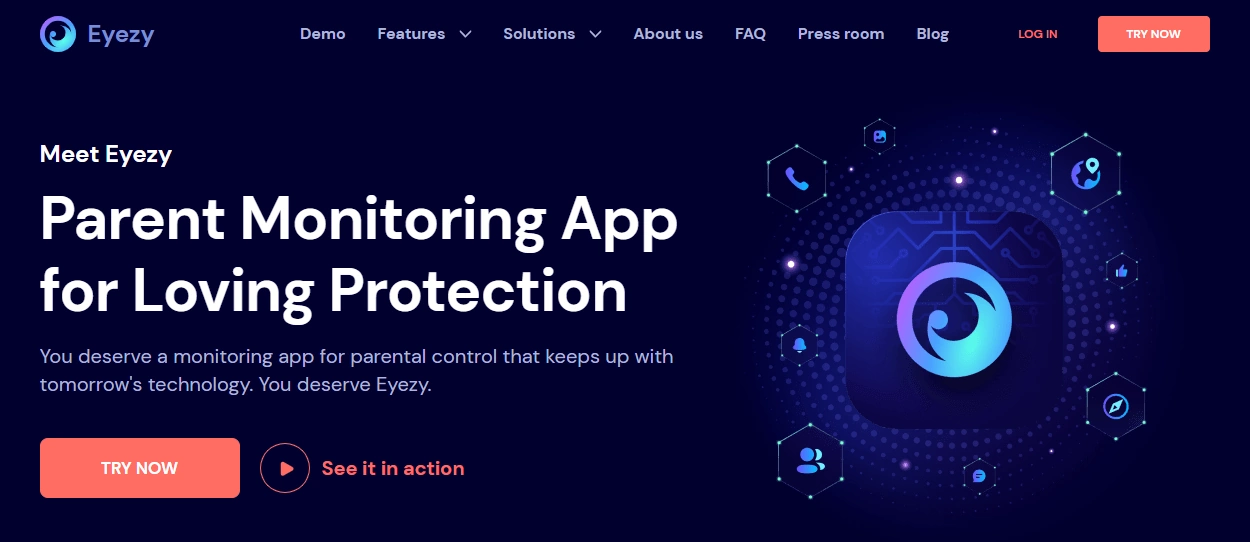
Eyezy is a better fit when your child constantly tests boundaries and you need tighter controls and schedules. It’s the “stricter enforcement” alternative to a visibility-first mSpy approach.
Product highlights
- Very strong schedules/rules approach
- Suite-style control toolkit
- Good for high-conflict screen time situations
What’s to like
- Stronger enforcement feel
- Excellent for strict school-night structure
What’s not to like
- More settings and complexity
- Android is typically most complete; iPhone outcomes can vary
PROS
- Best strict alternative
- Strong routine enforcement
CONS
- Heavier tool to manage
Try Eyezy: Parental Control
Legal notes
Use mSpy and parental control tools only on devices you own, devices you manage (for example, a minor child’s phone under your care), or where you have clear consent. Monitoring or controlling someone else’s device without permission can be illegal.
Read this before you set anything up: legal phone tracking: what’s allowed and what’s not.
FAQ
Can mSpy limit screen time automatically?
mSpy can support automatic routines by giving you usage visibility and, depending on the device/setup, enabling restrictions. Many families use a hybrid: mSpy for monitoring + OS controls for strict “hard limits,” especially on iPhone.
Is mSpy better for Android or iPhone screen time control?
Android is typically more flexible for control-style setups. On iPhone, capabilities can be more method/iOS dependent, so a hybrid approach is often the most reliable.
What’s the best “automatic rule” to start with?
Night downtime (same time every night) plus a homework window. Schedules reduce negotiation more than daily minutes.
How do I stop kids from bypassing screen time rules?
Keep rules simple, use schedules, allow essentials, and test restarts/battery saver in the first 48 hours. Consistency (rules not changing daily) is the biggest bypass prevention.
Should I use strict blocking or monitoring for teens?
Many families get better results with monitoring + weekly reviews for teens. Strict blocking can backfire. Use data from app usage to set fair boundaries and tighten only if needed.
What’s the best alternative to mSpy for screen time control?
If you want the best overall family system, Bark is often the easiest long-term choice. If you need stricter enforcement, Eyezy can be a stronger fit.