

Setting up an iPhone monitoring app the “right way” isn’t about being sneaky — it’s about being safe, legal, and consistent.
This guide is written for parents and guardians who want to protect their family without crossing legal lines or creating a monitoring setup that breaks after the next iOS update.
If you’re still choosing an app, start here: Top iPhone Monitoring Apps.
Legal disclaimer (read first)
General rule: only monitor a device you own or manage (like your child’s iPhone under your care). Monitoring another adult without consent is usually illegal.
For a deeper breakdown, read: Legal Phone Tracking: What’s Allowed and What’s Not.
Short on time? The safest setup plan
- Start with Apple Screen Time (free foundation)
- Decide your monitoring style: alerts-first vs dashboard-first
- Pick one tool and keep it stable (avoid constant switching)
- Set expectations: iPhone monitoring is setup-dependent
- Create a routine: daily quick check + weekly review
Screen Time guide reminder: How to Set Up Parental Controls on iPhone.
Step 1: confirm you’re allowed to monitor (quick checklist)
- You’re the parent/guardian (or device owner/admin)
- The phone is your child’s device or a device you manage
- You’re using monitoring to protect, not to harass or control
- You’re not monitoring another adult secretly
If you’re unsure, read: What’s allowed vs not allowed.
Step 2: start with the iPhone baseline (Screen Time first)
Before you install anything, configure Apple Screen Time. It often solves 80% of common parenting needs:
- Downtime (bedtime/school hours)
- App limits (TikTok/YouTube/games)
- Content restrictions (web + explicit content)
- Purchase blocks (no surprise spending)
Do this step-by-step: How to Set Up Parental Controls on iPhone.
Step 3: choose your monitoring style (alerts vs dashboard)
Option A: Alerts-first (best for high conflict)
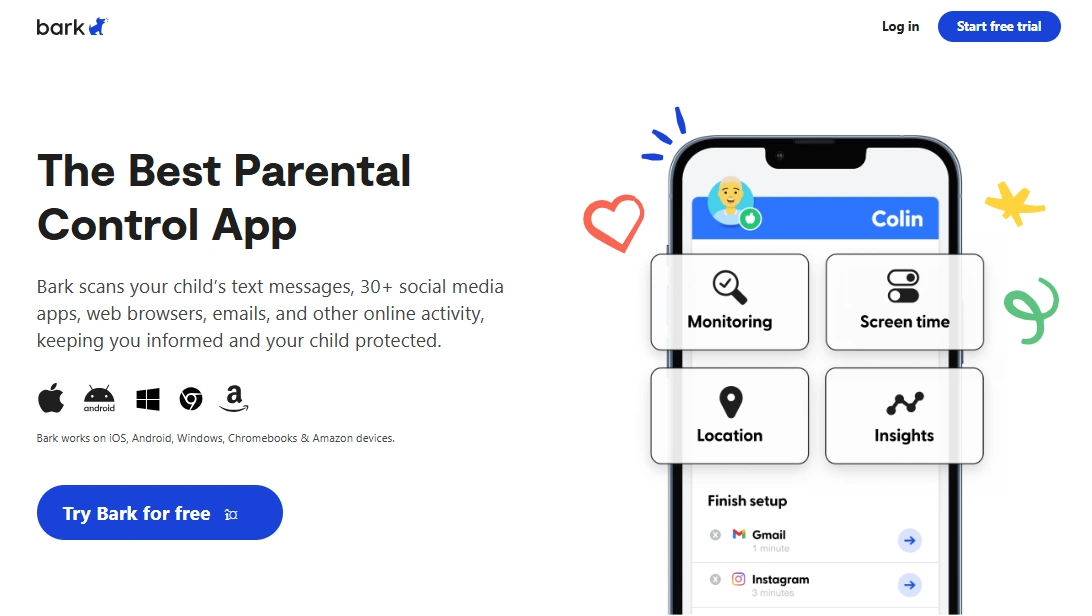
If your child pushes back hard or you want fewer daily arguments, choose an alerts-first tool. You don’t check constantly — you intervene when it matters.
Best alerts-first pick: Bark
Option B: Dashboard-first (best for routine check-ins)
If your style is “review patterns daily/weekly, then talk,” a dashboard tool can work well — as long as expectations stay realistic on iOS.
Option C: Keep it simple (best for low overwhelm parents)
If you mainly want a parent-friendly routine with fewer settings and less complexity, pick a simple workflow tool.
Best low-overwhelm pick: Parentaler
Step 4: prepare your iPhone for a stable setup
Most “it stopped working” problems happen because the setup was unstable from the start. Do this before or immediately after setup:
- Update iOS to the latest stable version (and avoid beta)
- Use a strong Screen Time passcode (not your birthday)
- Turn on Find My for family safety
- Keep a written checklist of what you configured
- Don’t change settings daily — use weekly adjustments
Step 5: install and configure your chosen monitoring app
Follow your tool’s official setup flow and focus on one goal: stability.
Recommended tools (safe parent scenarios)
- Bark: set up Bark
- Parentaler: set up Parentaler
- Eyezy: set up Eyezy
- mSpy: set up mSpy
Step 6: create a monitoring routine (this is what makes it work)
The best iPhone monitoring setups fail when parents try to “watch everything all day.” A better routine:
- Daily (2–5 minutes): quick check-in for obvious risk signals
- Weekly (15–30 minutes): patterns, new contacts, new apps, boundary adjustments
- Monthly: update your rules based on school schedule and maturity
If you want a parent-friendly decision framework, use: How to Choose the Right Monitoring App for Your Family.
Step 7: make it transparent (recommended for most families)
Even when monitoring is legal, transparency often reduces conflict long-term:
- Explain what you monitor and why (safety)
- Agree on rules (bedtime, school hours, apps)
- Focus on patterns not “gotcha moments”
For iPhone parental control best practices, see: Best Parental Control Apps for iPhone.
Troubleshooting: most common setup mistakes
- Skipping Screen Time and trying to “monitor everything” instead of building boundaries
- Changing settings daily (causes instability and frustration)
- Weak passcodes (kids guess them and bypass rules)
- Unrealistic expectations about iOS “hidden monitoring”
If you want the no-jailbreak angle, read: Best iPhone Monitoring Apps Without Jailbreak.
Related guides
- Top iPhone Monitoring Apps
- Best iPhone Monitoring Apps for Parents
- How to Set Up Parental Controls on iPhone
- Legal Phone Tracking
- Monitoring App Features Explained
FAQ
Is it legal to set up an iPhone monitoring app for my child?
In many cases, yes — if you’re monitoring a device you own or manage for your child’s safety. Monitoring another adult without consent is usually illegal. Read: Legal Phone Tracking.
Do I need jailbreaking to monitor an iPhone?
Most parents prefer no-jailbreak setups. Many modern tools are designed around no-jailbreak parent scenarios, but monitoring depth is still setup-dependent on iOS.
What’s the safest first step before installing any monitoring app?
Set up Apple Screen Time + Family Sharing first. It creates boundaries and reduces the need for constant monitoring. Guide: iPhone parental controls.
What monitoring app is best if my child pushes back?
An alerts-first tool like Bark is often best because it reduces constant checking and focuses on safety signals and interventions.
How often should parents check monitoring dashboards?
Most parents get the best results with a daily 2–5 minute quick scan and a weekly 15–30 minute review. Constant checking usually increases conflict and burnout.