

Installing an Android monitoring app is easy. Installing it safely and legally—without creating privacy problems, security risks, or family trust issues—takes a bit more structure.
This parent-focused guide walks you through the practical setup steps (permissions, battery, security), plus the legal/ethical checklist you should follow before you monitor anything.
For the full Android hub, start here: Top Android Monitoring Apps.
Short on time? Do this in 10 minutes
- Decide your goal: safety alerts, screen-time limits, or broader monitoring.
- Set clear family rules (what you monitor, when, and why).
- Pick your tool (quick picks below) and install only from the official site.
- Grant the minimum permissions needed + protect your parent account with a strong password.
- Test it for 24 hours, then adjust settings (notifications, reports, app limits).
- Best all-round monitoring option: mSpy
- Best safety alerts for kids/teens: Bark
- Best simple parent-friendly dashboard: Eyezy
- Best “web filtering + simple boundaries” approach: Parentaler
Step 0: Know what’s legal (and avoid the risky stuff)
Monitoring rules vary by country, device ownership, and consent. As a parent, the safest setup is typically:
- You monitor a device you own or manage (your child’s phone under your care).
- You have clear, age-appropriate rules and you’re not using monitoring to punish or “gotcha.”
- You only collect what you actually need (data minimization).
Before you install anything, read: Legal Phone Tracking: What’s Allowed and What’s Not.
Step 1: Choose the right monitoring style for your family
Most problems happen because parents choose an app that doesn’t match the real goal.
- Safety + alerts: best when you want warnings and guidance, not endless logs.
- Boundaries + limits: best when your goal is screen time, app rules, and web filtering.
- Broader monitoring: best when you need a parent dashboard for calls, location, and activity patterns.
If you want a decision framework, use: How to Choose the Right Monitoring App for Your Family.
Step 2: Make a simple “Family Monitoring Agreement”
This sounds formal, but it prevents 90% of future conflict. Write it in 5 bullet points:
- Why: safety, bullying prevention, risky content, location safety, etc.
- What: the categories you’ll check (and what you won’t).
- When: daily check-ins vs only when there’s a concern.
- How you’ll respond: talk first, consequences later (if needed).
- Review date: revisit rules in 2–4 weeks.
If you’re unsure what “features” even mean, read: Monitoring App Features Explained: What You Can (and Can’t) Monitor.
Step 3: Prepare the Android phone (the “safe setup” checklist)
- Update Android and apps (security patches matter).
- Enable a strong screen lock (PIN/biometric) and don’t share it widely.
- Check storage (low storage causes sync issues).
- Turn on 2-step verification for the parent dashboard account (if available).
- Decide who holds admin control (ideally the parent/guardian).
Step 4: Install only from the official source (avoid fake clones)
For safety and reliability, install from the app’s official site/dashboard—never from random download sites.
Typical install flow for Android monitoring apps:
- Buy a plan on the official website.
- Create a parent dashboard account.
- Follow the official Android setup instructions.
- Install on the child’s device (only if you’re authorized to manage it).
If you want a tested walkthrough, see: mSpy for Android: Full Review & Setup Guide.
Step 5: Permissions — give the minimum needed (and nothing extra)
Android monitoring apps often require permissions to function. The safe approach is:
- Grant only what you need for your goal (location, call logs, app activity, etc.).
- Avoid “collect everything” setups unless there’s a real safety reason.
- Re-check permissions after Android updates (updates can reset behavior).
Step 6: Battery & reliability tuning (the parent-friendly way)
Most “it stopped working” complaints come from battery restrictions and background limits. Do these responsibly:
- Follow the app’s official steps for background operation (don’t improvise hacks).
- Test sync consistency for 24 hours before trusting it.
- Set a predictable “check-in” schedule (example: once daily, not hourly).
For real-world performance notes, read: Eyezy for Android Review – Performance, Battery Impact & Reliability.
Which app is best for your situation?
If you want an all-round parent dashboard (calls, chats, GPS)
Start with Best Android Monitoring Apps for Parents, then compare an all-round option like mSpy with your top 1–2 alternatives.
If your goal is safety alerts (less micromanaging)
For many families, alerts-first monitoring is the healthiest long-term path. Consider Bark and pair it with clear rules and weekly conversations.
Related: Bark Screen Time & Content Filter Review.
If you want simple rules (screen time, web filters, fewer features)
If you prefer simplicity over complexity, consider Parentaler and focus on boundaries first.
Related: Parentaler Screen Time Control Review.
If you’re monitoring an older teen and social apps are the main risk area
In social-heavy scenarios, compare a specialist option like uMobix against an all-round dashboard.
Related: uMobix for Android Review (Real Testing).
If you mainly need GPS + calls + a straightforward setup
Compare a simpler GPS/calls-focused route like Moniterro as an alternative shortlist pick.
Related: Moniterro for Android Review (Tested).
Comparison table (top options for safe & legal Android monitoring)
| App | Best for | Platforms | Key highlights | Refund or Trial |
|---|---|---|---|---|
| mSpy | All-round parent dashboard | Android | Broad monitoring coverage when set up correctly | See official site |
| Bark | Safety alerts + healthier habits | Android + iPhone | Alerts-first approach (less micromanaging) | See official site |
| Eyezy | Clean dashboard + reliability focus | Android | Parent-friendly workflow; performance matters | See official site |
| Parentaler | Simple boundaries + routines | Android + iPhone | Great for non-technical parents | See official site |
| uMobix | Social-heavy scenarios (situational) | Android | Shortlist option when social apps are the priority | See official site |
| Moniterro | GPS + calls + basic activity | Android | Simple alternative shortlist pick | See official site |
Want to compare more tools side-by-side? Use: Parental Control & Monitoring Apps Comparison Table.
Recommended picks (with safe setup notes)
mSpy – best all-round Android monitoring for parents (when set up properly)
mSpy is a strong choice when you want an all-round parent dashboard. To keep the setup safe, focus on minimum permissions, a strong parent account, and a predictable check-in routine (instead of constant monitoring).
Key features
- All-round monitoring dashboard
- Good fit for calls + location + activity patterns
- Works best with stable permissions and a clean install
What’s to like
- Strong “one dashboard” approach
- Good for routine monitoring without daily phone access
- Solid starting point for most parents
What’s not to like
- Reliability depends on correct setup (permissions + background behavior)
- Over-monitoring can create trust issues if rules aren’t clear
PROS
- Best all-round pick for many families
- Good balance of features and usability
CONS
- Needs careful setup to stay consistent after updates
Ready to try mSpy? Check the latest plans on the official website.
Bark – safety alerts-first monitoring (best for healthier habits)
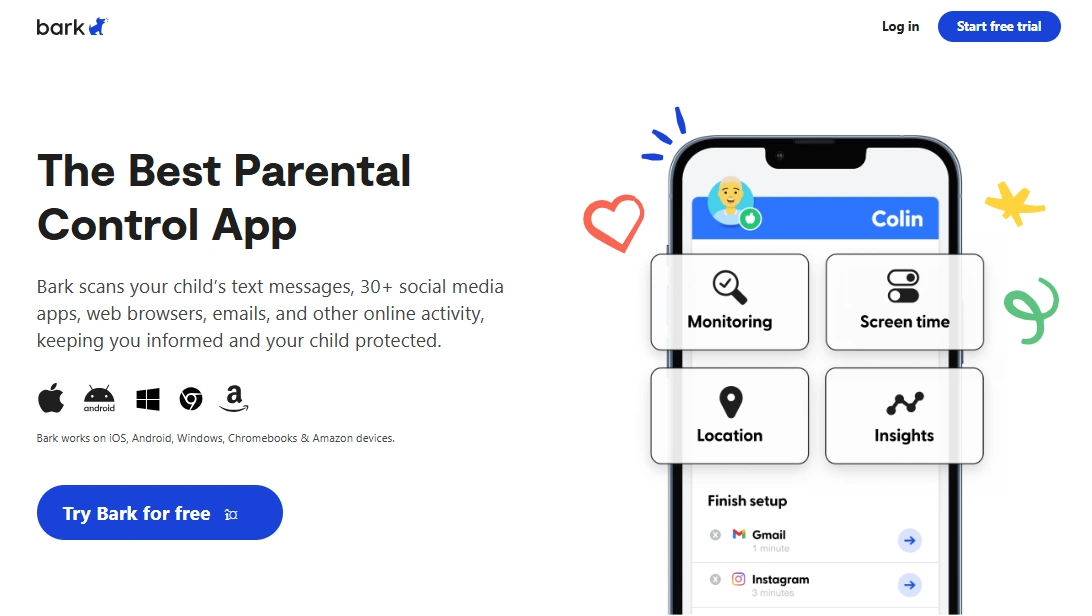
Bark is ideal when your goal is safety and guidance rather than “log everything.” For safe setup, define what triggers a parent conversation (and what doesn’t), so alerts don’t become daily conflict.
Key features
- Safety-focused monitoring approach
- Designed for parenting workflows
- Works well when paired with clear family rules
What’s to like
- Less micromanaging, more meaningful intervention
- Often easier to sustain long-term
What’s not to like
- Not meant for extreme “spy-style” detail
PROS
- Great for younger kids and many teens
- Healthier monitoring style for many families
CONS
- May feel “too light” if you want a full dashboard view
Ready to try Bark? Check the latest plans on the official website.
Eyezy – clean parent dashboard with a reliability mindset
Eyezy is a good fit when you want a clean dashboard and a stable daily routine. For safe setup, keep permissions tidy and avoid piling on features you won’t actually use.
Key features
- Parent-friendly dashboard experience
- Strong option for daily check-ins
- Good shortlist alternative to all-round tools
What’s to like
- Simple workflow
- Good for non-technical parents
What’s not to like
- Like all Android monitoring, it depends on correct background settings
PROS
- Clear UI and routine-friendly approach
CONS
- Needs a proper setup to stay consistent over time
Ready to try Eyezy? Check the latest plans on the official website.
Parentaler – best for simple limits and parenting routines
Parentaler is a strong choice when your priority is boundaries: screen-time structure, basic rules, and a calmer parent workflow. The safest setup is to start simple and add features only if they solve a real problem.
Key features
- Simple parent workflow
- Strong fit for rules and routines
- Good for non-technical parents
What’s to like
- Low overwhelm
- Great “first step” tool for many households
What’s not to like
- May feel limited if you want a full monitoring dashboard
PROS
- Easy to maintain long-term
CONS
- Not designed for advanced monitoring needs
Ready to try Parentaler? Check the latest plans on the official website.
uMobix – situational pick for social-heavy teen scenarios
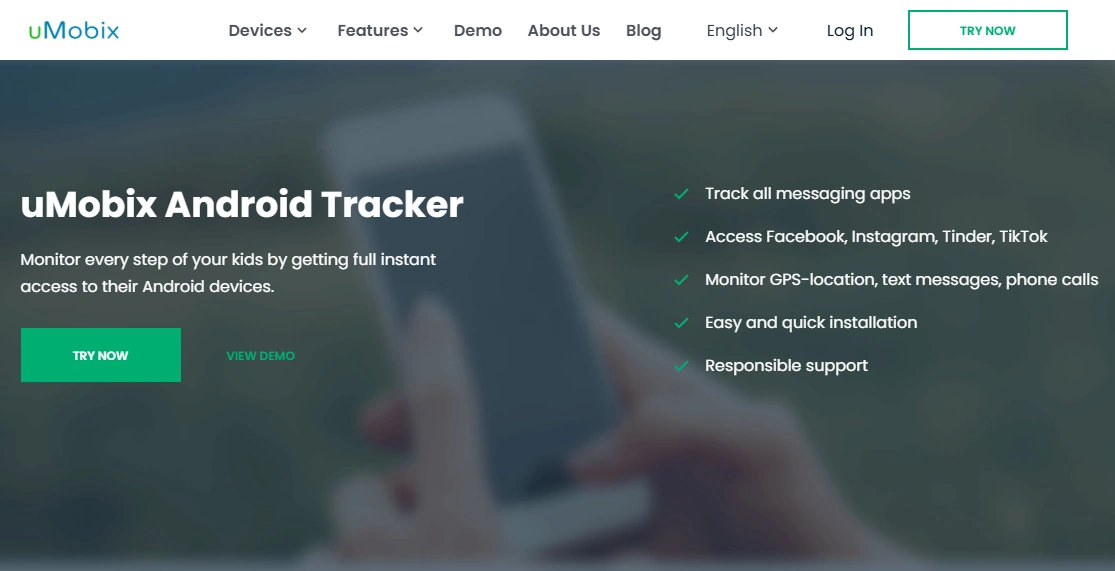
uMobix is worth considering when social apps are the main concern. For safe setup, avoid “everything at once” monitoring—focus on the categories that match your real worry and keep your response plan calm and consistent.
Key features
- Designed for Android monitoring scenarios
- Situational fit for social-first concerns
- Useful comparison option against all-round dashboards
PROS
- Good shortlist option for social-heavy use cases
CONS
- Not the best fit if your goal is just limits and routines
Ready to try uMobix? Check the latest plans on the official website.
Moniterro – alternative shortlist pick for GPS + calls + basics
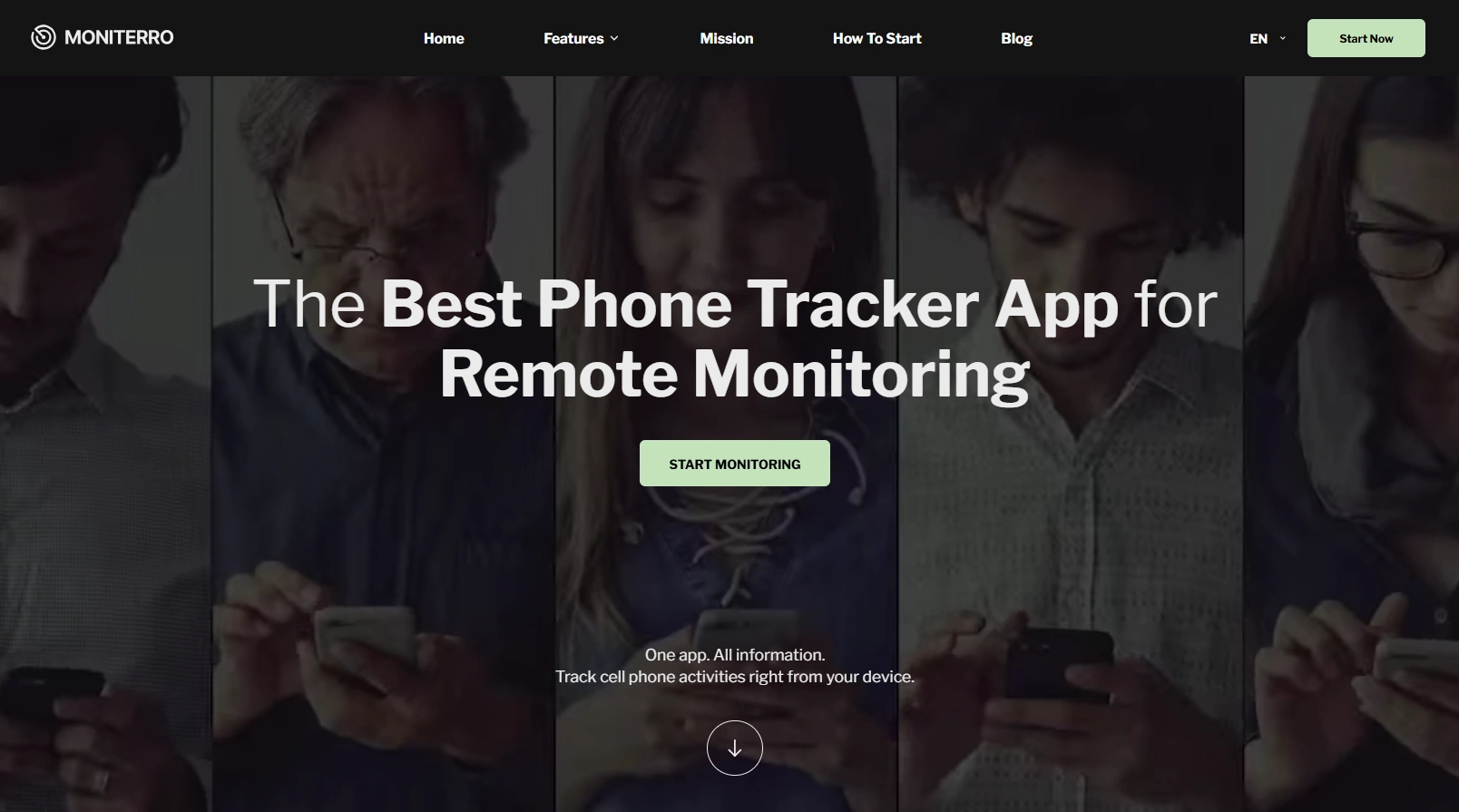
Moniterro can be useful if you want a simpler monitoring route. For safe setup, treat it as a “need-to-know” tool: use only what supports safety, not constant surveillance.
PROS
- Simple alternative pick to compare
CONS
- Still needs correct permissions and background behavior to stay reliable
Ready to try Moniterro? Check the latest plans on the official website.
Legal & ethical note (must read)
Use monitoring only on devices you own/manage and in compliance with local laws. The safest approach for families is transparency: explain the rules, the purpose (safety), and how you’ll use the information.
Read this before installing anything: Legal Phone Tracking: What’s Allowed and What’s Not.
FAQ
Is it legal to install an Android monitoring app on my child’s phone?
It depends on your location and the circumstances, but the safest case is when you own/manage the device (your child under your care) and have clear family rules. Always read your local requirements first.
Do I need root to set up Android monitoring apps?
Many parents avoid rooting because it adds risk and complexity. Most modern solutions focus on non-root setups, but feature depth can vary by app and Android version.
What permissions should I enable for safe monitoring?
Enable only the permissions needed for your goal (for example: location if you need GPS safety). Avoid “collect everything” unless there’s a real safety reason.
How do I keep the monitoring app reliable after Android updates?
Android updates can change background behavior and permissions. After updates, re-check app permissions and follow the app’s official background/sync guidance, then test for 24 hours.
Which app is best for parents who want the least drama?
Many families prefer an alerts-first approach (Bark) or a boundaries-first approach (Parentaler). If you want a broader dashboard, compare mSpy and Eyezy and keep check-ins predictable.
Where can I compare all tools in one place?
Use our master table: Parental Control & Monitoring Apps Comparison Table.