

Most parents don’t actually want to “monitor.” They want to keep their child safe without turning the home into a surveillance zone.
This guide shows a privacy-first approach that works for real families: set clear boundaries, automate healthy routines (bedtime + homework), and use the minimum level of monitoring needed for safety.
Note: Some links on this page are partner links to tools we’ve reviewed.
The “privacy-first” monitoring ladder (use the lowest level that works)
- Rules + agreements (the foundation)
- Time boundaries (bedtime + homework schedules)
- Safety guardrails (filtering + install approvals)
- Safety signals (alerts for risky patterns)
- Deeper monitoring (only for a real, ongoing risk)
Jump to: Privacy-first principles · Family agreement templates · Boundaries that prevent most problems · What to monitor (and what not to) · Tools that support privacy-first monitoring · By age: under 13 vs teens · FAQ
If you’re choosing an app and want a simple decision flow, start here: How to Choose the Right Monitoring App for Your Family.
Privacy-first principles (what “good” monitoring looks like)
1) Start with trust, not suspicion
Monitoring works best when your child understands the goal: safety, sleep, school focus—not control.
2) Minimum necessary
Try to monitor patterns first (time spent, risky contacts, unknown accounts) before monitoring content (private messages).
3) Be predictable
Random checks create anxiety. Predictable rules and schedules reduce conflict.
4) Use a “step-down” plan
Monitoring should reduce over time as trust improves. If it never reduces, it becomes a relationship problem—especially with teens.
5) Stay on the right side of the line
Use monitoring only on devices you own/manage and within applicable laws. If you want a practical overview, read: Legal Phone Tracking: What’s Allowed and What’s Not.
Privacy-first “monitoring” checklist (5 minutes)
- Write the rule: what you monitor (patterns), what you don’t (private content), and when it changes.
- Automate bedtime: no screens during sleep hours.
- Automate homework focus: limit entertainment apps during key hours.
- Require install approvals: stop new-app loopholes.
- Step-down plan: monitoring reduces as trust improves.
Family “Digital Safety Agreement” templates (copy + customize)
Template A: Light monitoring (recommended default)
We agree that parents will monitor screen time, installs, and safety settings. We will not read private messages unless there’s a clear safety reason. We will review this agreement again in 30 days.
Template B: Time-limited “high concern” period
For the next 14–30 days, parents may use stronger monitoring because of a specific risk (bullying, grooming attempts, sextortion threats, repeated rule-breaking). We will set clear boundaries: what’s monitored, why, and what needs to improve to step down.
Template C: Teen-friendly transparency
We agree on rules + schedules. If parents are worried, we do a short check-in together (10 minutes, once per week). No ambushes. The goal is safety and trust.
Boundaries that prevent most problems (before any app)
Bedtime is non-negotiable
Late-night phone use correlates with worse mood, focus, and conflict. Automate bedtime. Guide: How to Limit Screen Time on Kids’ Phones Automatically.
Homework window (reduce friction)
- Set a daily “focus block” where entertainment apps are limited.
- Give a predictable “reward window” afterward.
Install approvals (the #1 loophole killer)
Many problems come from new apps, new accounts, and “hidden” platforms. Require approval for installs and tighten settings so kids can’t bypass limits.
One rule for risky platforms
If YouTube/TikTok is the main issue, treat it as its own category: The Best Parental Control Apps for YouTube & TikTok.
What to monitor (and what not to)
Start with patterns (low invasion, high value)
- Total screen time and time by category (video, games, social)
- Bedtime compliance (late-night sessions are a red flag)
- New installs and “new account” creation
- Unknown contacts (especially sudden new contacts)
- Location sharing settings (turn off oversharing)
Be cautious with message-level monitoring
Reading private messages can be necessary in a real risk situation—but it can also damage trust if used casually. A safer middle ground is using tools that surface risk signals (concerning patterns) rather than copying everything.
If your concern is platform-specific, these deep dives help:
Tools that support privacy-first monitoring (without overreach)
Use built-in controls first
- iPhone/iPad: Screen Time (Downtime, App Limits, Content Restrictions)
- Android: Google Family Link (Daily limits, Bedtime, App controls)
If you need more (multi-device routines, better reporting, safer alerts), these options are commonly used by families:
| Tool | Best for | Invasiveness | Platforms | Link |
|---|---|---|---|---|
| Bark | Safety signals + healthier habits | Low–Medium | Android, iPhone | View |
| Parentaler | Guardrails: filtering + rule reinforcement | Low | iPhone (and Android options) | View |
| Eyezy | Parent dashboard + reporting | Medium | Android, iPhone | View |
| mSpy | Higher-concern situations (use carefully) | Medium–High | Android, iPhone | View |
| uMobix | Quick “what fits our family?” direction | Medium | Android, iPhone | View |
For a broader list, see: Top Phone Monitoring Apps and Parental Control & Monitoring Apps Comparison Table.
Privacy-first app picks (with pros & cons)
Bark (best safety-first approach)
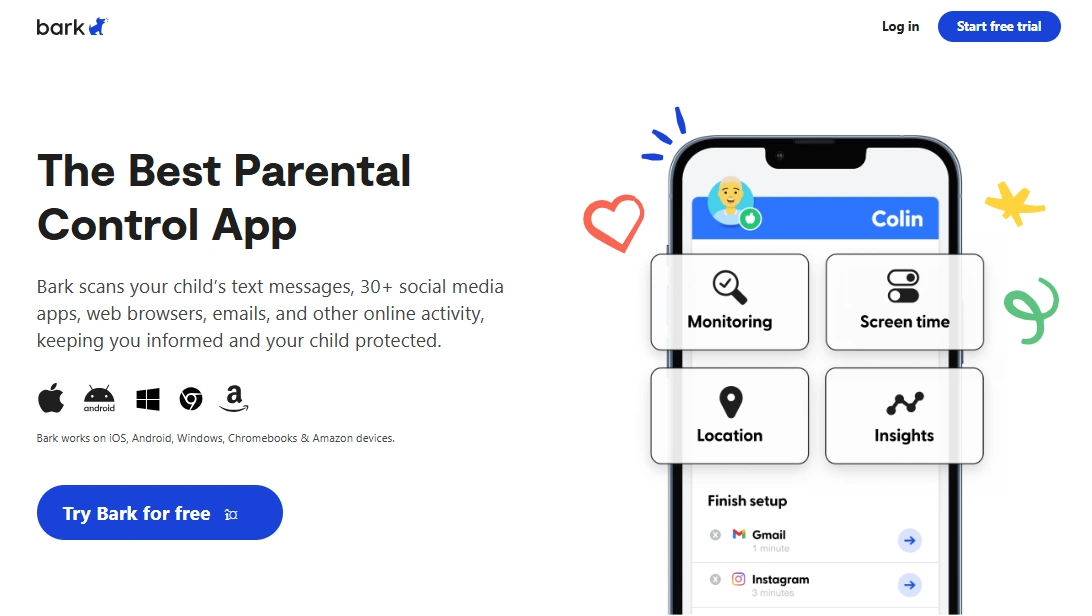
Description: Great for parents who want “safety signals” and healthier routines without obsessively reading private conversations.
What’s to like
- Supports a safety-first mindset (less invasive by default)
- Pairs well with Screen Time / Family Link schedules
- Good fit for families who want fewer arguments
What’s not to like
- Not designed for “read everything” control
- Still needs clear family rules to work well
PROS
- Trust-preserving approach
- Useful for “I want to know if something is wrong”
CONS
- May feel too light for severe, ongoing risk
Parentaler (best guardrails: filtering + rule reinforcement)
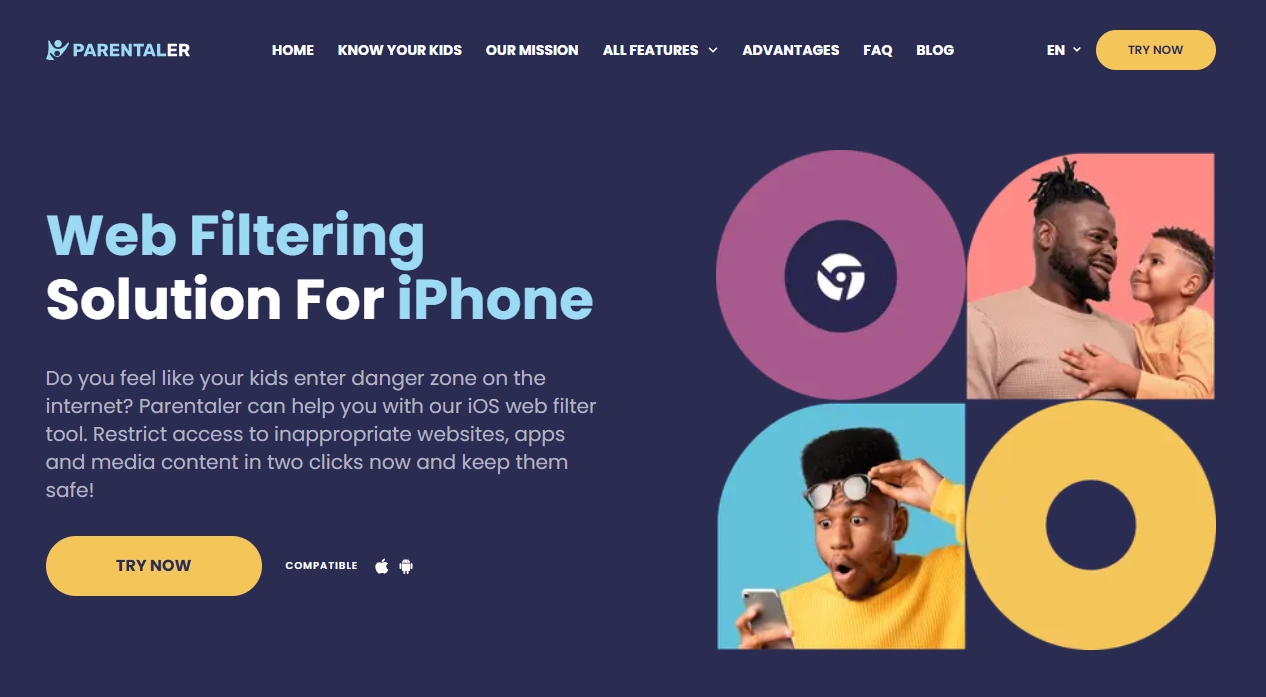
Description: Best used as a guardrail layer: reinforce rules, reduce risky browsing, and support a calmer household routine.
What’s to like
- Great “prevention” layer (less drama)
- Works well with iPhone Screen Time routines
- Helpful for younger kids who need clearer boundaries
What’s not to like
- Not a deep “content monitoring” tool
- You still want OS-level schedules for bedtime/homework
PROS
- Low invasiveness
- Simple rules that are easy to maintain
CONS
- Not meant for high-concern investigations
Eyezy (best dashboard for busy parents)
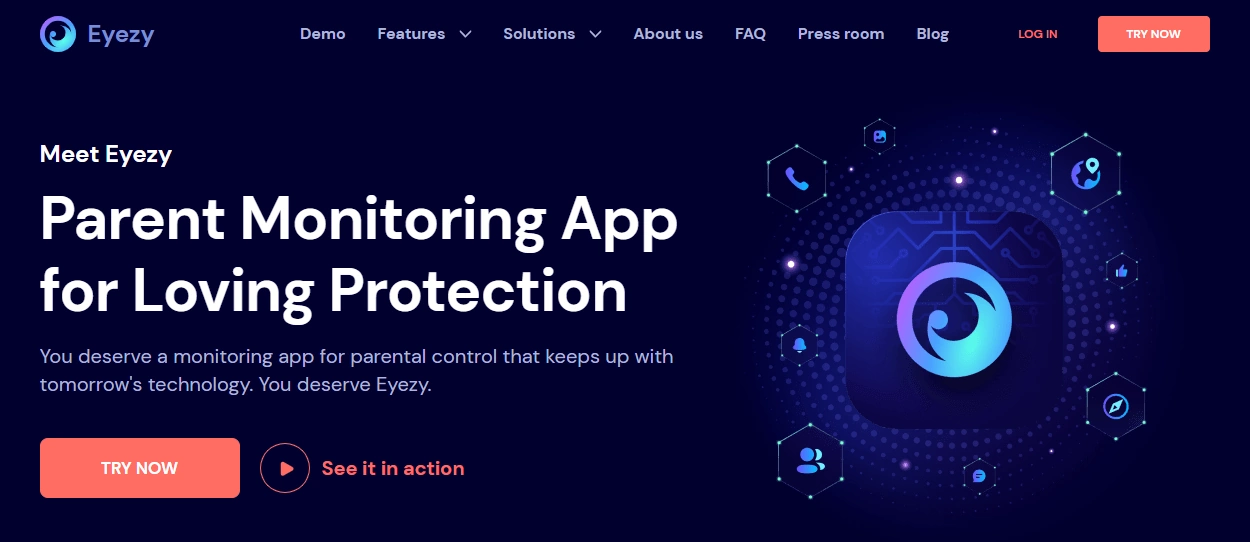
Description: A practical option when you need clearer reporting and a parent-friendly dashboard—without constantly handling the child’s phone.
What’s to like
- Good overview for parents (reduces micromanaging)
- Pairs well with automated schedules
- Useful when multiple apps are the issue
What’s not to like
- Still requires a “minimum necessary” mindset to avoid overreach
- Not a substitute for rules + communication
PROS
- Usable dashboard
- Good for patterns and reporting
CONS
- Can be too much if your family only needs schedules + guardrails
mSpy (for real, ongoing safety concerns)
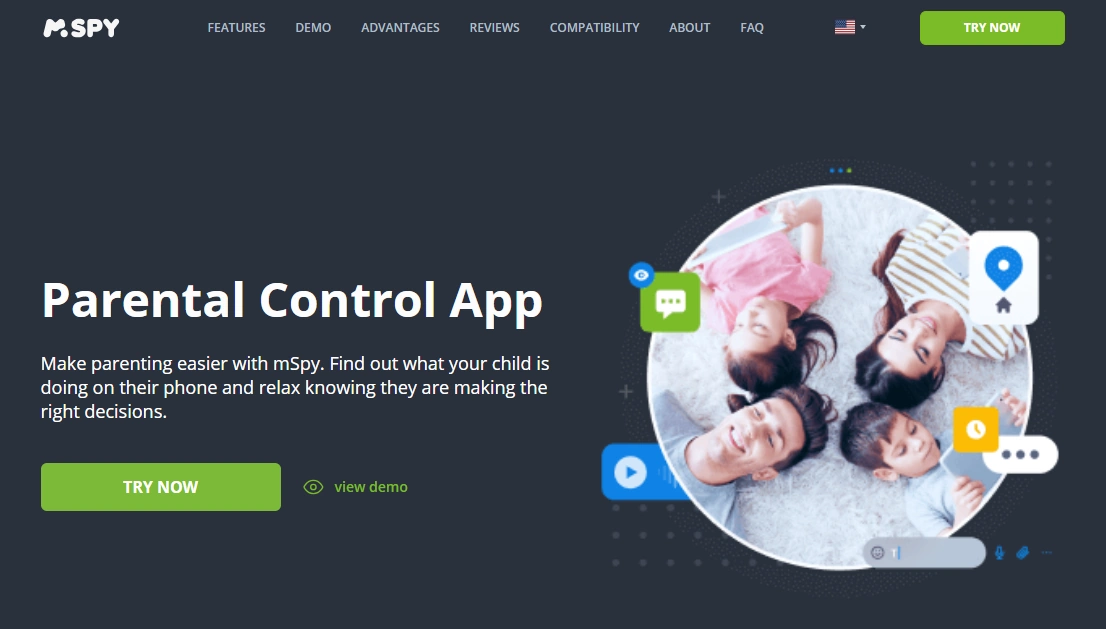
Description: This is best reserved for situations where there’s a clear, repeating risk and lighter approaches haven’t been enough. Use with clear boundaries, time limits, and a step-down plan.
What’s to like
- Stronger toolkit for higher-concern periods
- Works across Android and iPhone households
- Useful when risk is ongoing and specific
What’s not to like
- Easy to overuse if you don’t set boundaries
- Can damage trust if used casually
PROS
- Stronger option for serious cases
- Can help when you need more than schedules
CONS
- Higher risk of “privacy overreach” if misused
uMobix (quick direction if you don’t want to overthink)

Description: A quick way to get pointed toward a setup that fits your family, especially if you’re stuck between “too light” and “too invasive.”
What’s to like
- Quick path to a practical setup
- Useful for multi-platform families
What’s not to like
- You still need rules + schedules first
PROS
- Fast decision support
CONS
- Not a substitute for a privacy-first agreement
By age: what to do for under 13 vs teens
Kids under 13 (structure wins)
- Focus on schedules (bedtime + homework) and install approvals.
- Keep platforms simpler and restrict risky social apps.
- Use guardrails and safety-first tools before content monitoring.
Start here: The Safest Parental Control Apps for Kids Under 13.
Teens (trust + targeted monitoring)
- Use a clear agreement and predictable check-ins.
- Monitor patterns and safety signals first.
- Escalate only for real, ongoing risks—then step down.
When to escalate monitoring
- Threats, coercion, sextortion attempts
- Repeated risky contact patterns
- Major mood/sleep changes with secrecy + fear
If you need safe setup steps, use these:
FAQ
What’s the best way to monitor my child without invading privacy?
Use the privacy-first ladder: start with rules and agreements, automate screen time (bedtime + homework), add guardrails (filtering + install approvals), and use deeper monitoring only for real, ongoing risks.
Should I read my child’s messages?
Only if there’s a clear safety reason (and ideally with a time limit and step-down plan). For most families, monitoring patterns and enforcing schedules prevents more problems than reading private conversations.
What’s the #1 setting that prevents loopholes?
Install approvals. Many “workarounds” are simply new apps, new accounts, or alternative platforms.
How do I prevent late-night phone use?
Automate bedtime locks with iPhone Screen Time or Google Family Link. Guide: How to Limit Screen Time on Kids’ Phones Automatically.
Is it legal to monitor my child’s phone?
It depends on device ownership/management and local laws. Start with: Legal Phone Tracking: What’s Allowed and What’s Not.
1 Comment