

If you’re searching how to monitor calls and text messages with uMobix, the first thing to get right is the legal + ethical baseline.
Consent-first: Use monitoring tools only on a phone you own/manage (for example, your child’s device) and only within applicable laws. Start here: Legal Phone Tracking: What’s Allowed and What’s Not.
This guide focuses on parents and guardians who want safety visibility without turning home into a surveillance zone. If you want a privacy-friendly framework, read: How to Monitor Kids’ Phones Without Invading Their Privacy.
Jump to: What uMobix can (and can’t) show for calls & texts · Before you start · Step-by-step setup · How to view calls & texts in the dashboard · Troubleshooting · Alternatives · FAQ
What uMobix can (and can’t) show for calls & texts
Calls and SMS are “native” phone functions, so they’re often easier to monitor than end-to-end encrypted chat apps. Still, what you see can vary by device and setup method—especially on iPhone.
| Data type | Usually visible | May depend on setup | What it typically includes |
|---|---|---|---|
| Call logs | Yes | Sometimes | Numbers, contact names (if saved), timestamps, call duration, incoming/outgoing/missed. |
| SMS / text messages | Often | Yes | Message content, sender/recipient, timestamps, sometimes threads/conversations. |
| Call recordings | No (not reliably) | Yes | Be cautious: recording laws vary widely, and many setups don’t support consistent recording. |
If you want the bigger picture on what monitoring tools can and can’t do, read: Monitoring App Features Explained: What You Can (and Can’t) Monitor.
If you specifically care about iPhone messaging visibility, also see: iMessage Monitoring Apps for Concerned Parents.
Before you start (pre-flight checklist)
1) Define the goal (and your boundaries)
- Goal A: Identify unknown numbers + risky patterns (best starting point).
- Goal B: Confirm who’s messaging and when (timestamps + threads).
- Goal C: Read message content (only when there’s a clear safety reason).
2) Use OS-level rules first (often enough for most families)
Before you go deep, set screen-time routines and install approvals. It prevents most problems without reading private content: How to Limit Screen Time on Kids’ Phones Automatically.
3) Expect Android to be easier than iPhone
Android setups are typically more straightforward for call/SMS visibility. iPhone monitoring can be more method-dependent—so always verify what you actually see in your dashboard after setup.
Calls & texts safety checklist (parent-friendly)
- Set the rules first: bedtime + homework “no phone” windows reduce most risk without reading messages.
- Watch patterns: unknown numbers, late-night spikes, and sudden changes matter more than single messages.
- Escalate only with a reason: bullying, coercion, sextortion threats, repeated rule-breaking.
- Time limit: if you go deeper, set a 14–30 day window and step down afterward.
- Talk it through: predictable weekly check-ins beat random “gotcha” checks.
uMobix call & text monitoring (official offers)
uMobix Calls
Open official calls offer
uMobix SMS
Open official SMS offer
Want a deeper breakdown of real-world syncing and history? Read: uMobix Call & SMS Tracking Review (Live Sync & History).
Step-by-step: how to set up uMobix for call logs and text messages
Below is the practical, parent-friendly setup flow. The exact prompts can differ by device and OS version, so always follow the instructions shown in your uMobix dashboard.
Step 1: Start from the official uMobix page
Use the official uMobix offer page for calls or texts:
Step 2: Get one-time access to the device you manage
- Make sure the phone is charged and connected to the internet.
- Know the device unlock method (PIN/biometric) since you’ll need it during setup.
Step 3: Complete installation using the dashboard instructions
Follow the exact steps provided inside the setup flow. This is where the tool guides you through the required permissions and method for your device.
Step 4: Confirm permissions (common blockers)
- Call/SMS access: needed to show call logs and message content.
- Background activity: needed for consistent syncing.
- Contacts access (optional): helps map numbers to names.
Step 5: Verify data flow
After setup, do a simple test:
- Make a short test call on the device.
- Send/receive one test SMS (harmless content).
- Wait for sync, refresh the dashboard, and confirm you see the new entries.
Platform-specific safety guides:
How to view calls & text messages inside the uMobix dashboard
Call logs: what to look at first
- Unknown numbers showing up repeatedly
- Late-night calls and sudden spikes in activity
- Very long calls with an unfamiliar contact
Text messages: use “patterns” before reading content
- Start with who, how often, and when.
- Only read content if there’s a clear safety reason (bullying, coercion, sextortion threats).
Privacy-friendly monitoring rule (recommended)
Set a predictable check-in (for example, once per week) instead of random “gotcha” checks. It reduces secrecy and keeps the goal on safety.
Troubleshooting: common uMobix call/SMS issues
“I don’t see any call logs”
- Confirm the device has internet and isn’t in extreme battery saver mode.
- Re-check call/phone permissions on the device.
- Make another quick test call and refresh after sync.
“Texts show up but message content is missing”
- Ensure SMS permissions are granted.
- Verify you’re checking the correct module (SMS vs app chats).
- On iPhone, visibility can be more method-dependent—verify what your setup supports.
“Data is delayed”
- Give it time after the first install (initial dashboards sometimes populate gradually).
- Keep the phone online regularly (Wi-Fi/mobile data).
- Avoid constantly toggling permissions—set them once and re-test.
Dual SIM confusion
On some phones, call/SMS logs may display with limited labeling per SIM. If you see inconsistent entries, test a call/SMS on each SIM and compare the dashboard results.
Alternatives to compare (calls + texts)
If uMobix isn’t the right fit, here are other options from our comparison set.
| App | Best for | Platforms | Calls | Texts |
|---|---|---|---|---|
| uMobix | Call logs + SMS visibility (verify on your device) | Android, iPhone | Strong | Strong |
| mSpy | Android-focused call monitoring + broader toolkit | Android (call offer) | Strong | SMS offer |
| Eyezy | Dashboard-first monitoring for parents | Android, iPhone | Good | SMS offer |
| Bark | Family-friendly approach (alerts over “reading everything”) | Varies | Limited | Good (parental safety angle) |
| Parentaler | Simpler parental-control style option | Android, iPhone | Calls offer | Texts offer |
mSpy – call monitoring (Android)
What’s to like
- Strong Android-focused offer for call monitoring
- Works as part of a broader monitoring toolkit
What’s not to like
- Platform-specific: this offer is Android-focused
- Recording/advanced features can be legally sensitive and setup-dependent
Eyezy – call recorder + SMS tracking
What’s to like
- Parent-friendly dashboard approach
- Good “compare option” if you want a different UI and workflow
What’s not to like
- Results vary by device and setup method
- iPhone expectations may differ from Android
Check Eyezy Calls · Check Eyezy SMS
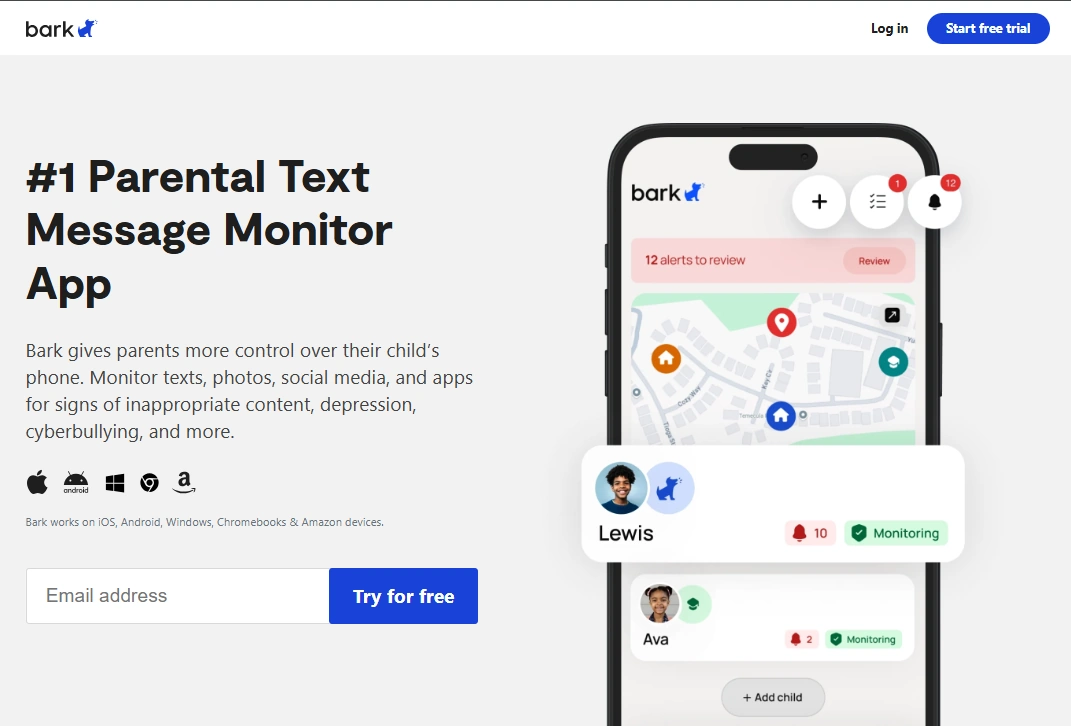
Bark – safer “alerts-first” text monitoring for families
What’s to like
- Family-friendly positioning (often alerts over full message-by-message reading)
- Good if your goal is safety signals with less invasiveness
What’s not to like
- Not meant for “deep monitoring” use cases
- Coverage varies by platform and messaging type
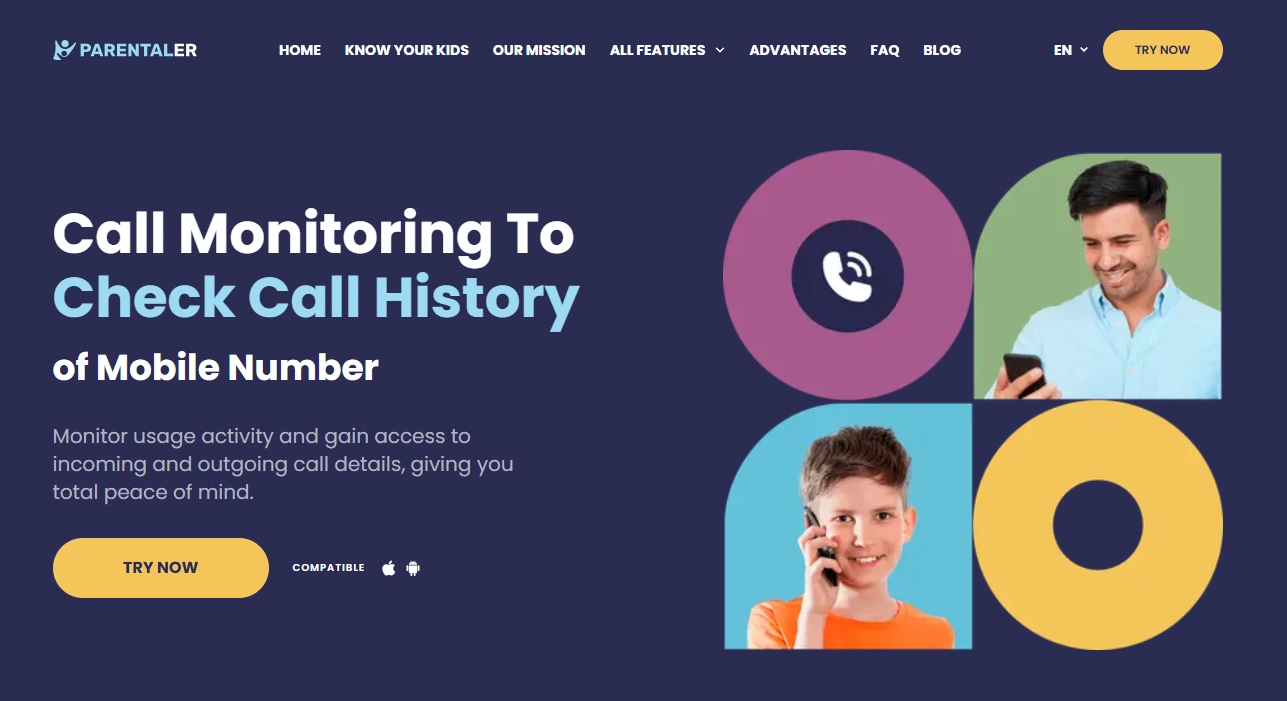
Parentaler – simple calls + texts option
What’s to like
- Simple parental-control style approach
- Clear “calls” and “texts” entry points
What’s not to like
- May be less advanced than heavier monitoring suites
- Still requires responsible use and clear rules at home
FAQ
Can uMobix see call logs?
On many setups, yes—call logs often include timestamps, duration, and incoming/outgoing/missed indicators. Results can still vary by device and setup method, so always verify after setup.
Can uMobix read text messages (SMS)?
It’s often possible on parent-managed devices, especially on Android. On iPhone, visibility can be more setup-dependent, so confirm what you see in your dashboard.
Does uMobix work for iPhone calls and texts the same way as Android?
Usually not. Android tends to be more straightforward; iPhone monitoring often depends on the method used and iOS restrictions.
Is it legal for parents to monitor calls and texts?
Laws vary by location and context. As a baseline, only monitor devices you own/manage (like your child’s phone) and follow local laws: Legal Phone Tracking: What’s Allowed and What’s Not.
What’s the least invasive way to keep my child safe?
Start with screen-time schedules, install approvals, and predictable check-ins. Monitor patterns (who/when/how often) before reading content: How to Limit Screen Time on Kids’ Phones Automatically.
Why is my dashboard missing recent call or SMS entries?
The most common causes are missing permissions, restricted background activity, or delayed syncing. Re-check permissions, keep the device online, and re-test with a short call and a test SMS.