

Most “screen time apps” fail for families in two ways: they’re either too weak (kids bypass them), or they’re too strict (parents disable them after a week because life gets messy).
Eyezy is built more like a rules-and-routines toolkit: schedules, restrictions, and a dashboard that helps you enforce the same boundaries every day—without renegotiating everything at 9:30pm.
If you’re still choosing a category, start with the overview: best screen time control apps for kids’ phones. This review focuses on Eyezy specifically: what works, what’s annoying, and how it feels in real-life parenting.
Short on time? Quick verdict
- Best for: families who want strict schedules (downtime + homework windows) and tighter controls, not just “reports.”
- Reality check: Eyezy feels most complete on Android. On iPhone, results can be more method/iOS dependent—validate early.
- What it’s really good at: turning “family rules” into repeatable routines (less arguing, more consistency).
- If you want a softer, family-first approach: Bark can be a better long-term fit for some households.
Quick jump: 60-sec checklist · Verdict · Comparison table · What really matters · Best for your situation · Setup tips · Reviews · Legal notes · FAQ
60-second decision checklist
- Android or iPhone? If you want the most “complete” control experience, Android usually wins. For iPhone, validate early and keep expectations realistic.
- Pick your 2–3 non-negotiable rules: night downtime, homework window, and “always allowed” essentials (calls, navigation, school apps).
- Schedules beat daily minutes: downtime + time windows reduce negotiating and loopholes.
- Expect pushback in week 1: the point is consistency. If rules change daily, kids keep trying.
- Plan a review rhythm: weekly adjust limits based on behavior (earn more freedom with consistency).
Verdict: is Eyezy good for screen time control?
Yes—Eyezy is a strong pick if you want screen time controls that feel like repeatable family routines: downtime schedules, tighter restrictions when needed, and enough visibility to keep rules fair (“you used 3 hours of games today”).
No (or not ideal) if you want the lightest, most “family-friendly” approach with fewer levers to manage—some parents prefer Bark’s style for that. If you mainly want usage visibility (not strict enforcement), mSpy may fit better.
Comparison table: Eyezy vs the best screen time alternatives
This table focuses on what matters in real family life: scheduling, enforcement, “bypass resistance” (mostly setup + consistency), and how exhausting the tool feels to manage.
| App | Best on | Schedules | App blocking | Reports | Best for |
|---|---|---|---|---|---|
| Eyezy | Android (most complete), iPhone (varies) | Very strong (strict routines) | Strong (suite-style controls) | Strong visibility | Families needing firm boundaries |
| Bark | Android + iPhone | Strong (family rules mindset) | Strong (balanced) | Good parent dashboard | Best overall for most families |
| uMobix | Android (practical), iPhone (varies) | Good (simple workflow) | Good (validate per device) | Good quick checks | Busy parents who want “simple but real” |
| mSpy | Android + iPhone (varies) | More monitoring-first | Limited vs control-first tools | Very strong (usage visibility) | Coaching via reports (less strict blocking) |
| Parentaler | Android + iPhone | Simple and practical | Basic-to-mid controls | Practical visibility | Non-techy parents |
What really matters (family rules in real life)
1) Schedules beat “daily minutes”
Daily minutes become a negotiation. A schedule becomes a routine. The simplest system that works for most families:
- Night downtime: entertainment apps off
- Homework window: school apps on, distractions off
- Weekend flexibility: more time earned through consistency
If you want a full blueprint you can copy, use: how to limit screen time on kids’ phones automatically.
2) “Always allowed” apps prevent fights (and loopholes)
In real life, kids need a phone to function. The best setups always allow:
- Calls (and emergency contacts)
- Navigation
- School apps
- Family messaging
When parents block everything, kids either panic—or they get creative.
3) Android vs iPhone changes expectations
- Android: often more flexible/complete, but power saving settings can disrupt enforcement unless configured properly.
- iPhone: can be more restricted or method-dependent—use a careful setup flow and validate your exact routine early.
Platform shortlists: best screen time apps for Android · best screen time apps for iPhone · Setup help: how to set up iPhone monitoring safely and legally.
4) “Bypass resistance” is mostly consistency + basics
Most bypasses aren’t hacking—they’re the basics:
- Phone restarts (do rules still apply?)
- Battery saver / background restrictions
- New apps installed (do you notice quickly?)
- Rules changed “because today is special” (kids learn to keep pushing)
Best for your situation
- We need strict school-night boundaries: Eyezy
- We want the best overall family-friendly system: Bark
- I’m busy and want a simpler dashboard: uMobix
- I mostly want usage reports to coach behavior: mSpy
- I’m not techy and want simple limits: Parentaler
Age-based picks: safest parental control apps for kids under 13 · best parental control apps for teens.
Setup tips (so Eyezy feels like rules, not drama)
Tip 1: Start with “one schedule + one limit”
Don’t build a complicated system on day one. Start simple:
- Night downtime for entertainment apps
- Homework window with a short approved app list
Tip 2: Use a weekly review instead of daily arguments
Tell your child: “We review on Sunday.” This reduces daily negotiating and makes boundaries feel predictable.
Tip 3: Reward consistency with earned freedom
Screen time control works best as a “trust ladder.” If rules are followed for a week, loosen one limit. If not, tighten one limit. Calm, predictable, boring.
Tip 4: Validate enforcement with real tests
- Restart the phone
- Turn on battery saver
- Switch Wi-Fi to mobile data
- Try installing a new distracting app
Reviews
Eyezy (strict screen time rules + suite-style control)
Description
Eyezy is best when your family needs a firmer structure: downtime schedules, stricter boundaries, and a suite-style dashboard that supports consistent enforcement. It’s the kind of tool you pick when “soft limits” aren’t working anymore.
Product highlights
- Strong schedule/rules approach for routines (downtime + homework windows)
- Suite-style controls that can support tighter enforcement
- Website blocking option for reducing “rabbit holes” and distractions
What’s to like
- Great for strict school-night structure
- Helps turn rules into repeatable routines
- Works well when you keep exceptions clear (calls, school apps, navigation)
What’s not to like
- Can feel “heavy” if you only want basic downtime
- Android is typically most complete; iPhone outcomes can be more method/iOS dependent
PROS
- Best for stricter enforcement and clear routines
- Strong control-oriented toolkit
CONS
- More knobs than minimal parental apps
- Validate early on iPhone
Try Eyezy: Parental Control · Website Blocker
Bark (best overall family-friendly alternative)
Description
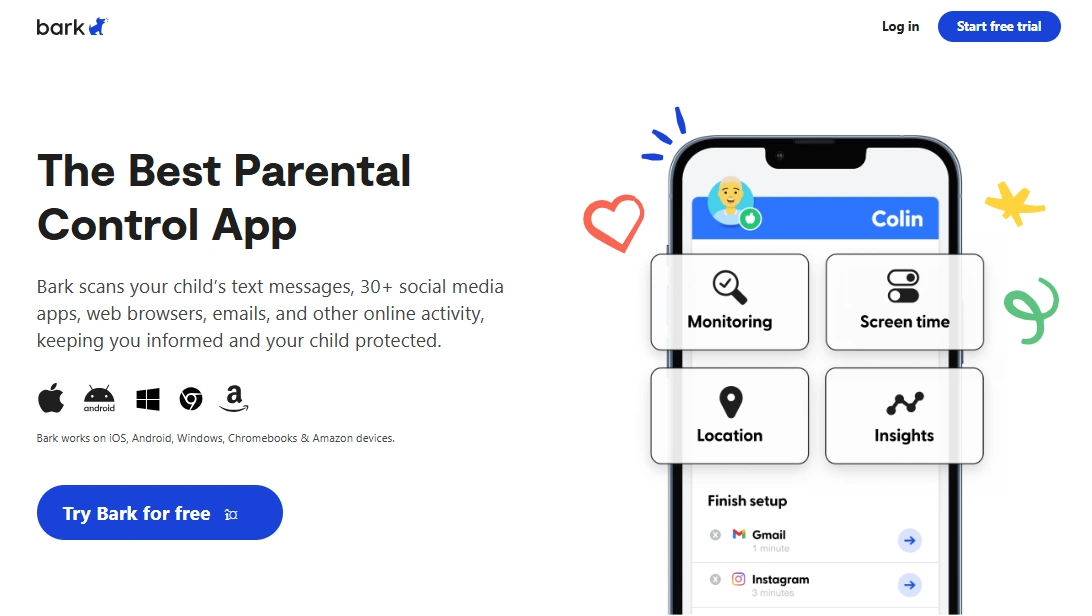
Bark is a strong alternative when you want screen time rules that feel more “family-first” and less like constant enforcement. Many parents stick with it long-term because it supports boundaries without turning every day into a control battle.
Product highlights
- Balanced parental control approach for everyday families
- Good rule structure that parents keep using
- Strong baseline across Android and iPhone
What’s to like
- Great for most families as an overall system
- Less “settings fatigue” than heavy suite tools
What’s not to like
- Some families want stricter, more granular controls than Bark’s default style
PROS
- Best overall family-friendly alternative
- Strong cross-platform baseline
CONS
- May feel less strict than Eyezy for high-conflict situations
Try Bark: Official page
uMobix (simpler workflow for busy parents)

Description
uMobix fits parents who want a faster “dashboard” feel and guided onboarding. If Eyezy feels like too many levers, uMobix can be easier to maintain day-to-day—especially if your child isn’t trying to bypass every rule.
Product highlights
- Guided parental control onboarding (less guessing)
- Practical rules + quick parent checks
- Good fit for simpler screen time routines
What’s to like
- Lower friction for busy parents
- Good “starter system” you can tighten later
What’s not to like
- If you need strict, granular enforcement, Eyezy may be the stronger choice
- As always, validate iPhone expectations early
PROS
- Simple workflow
- Guided setup mindset
CONS
- May feel less “strict” than Eyezy in high-conflict cases
Try uMobix: Mobile Parental Control
mSpy (best if you mainly want screen time visibility)
Description
mSpy is strongest when you want visibility—usage patterns, app time, and behavior trends—so you can coach your child and tighten rules only if needed. If your goal is strict app blocking, Eyezy/Bark usually fit better.
Product highlights
- Strong usage visibility and pattern detection
- Good for accountability-based parenting (“let’s review your week”)
- Works well if you prefer coaching over strict blocking
What’s to like
- Great reporting for calm conversations
- Useful for teens where strict locking may backfire
What’s not to like
- More monitoring-first than control-first
- Not the top pick for strict enforcement families
PROS
- Best visibility-focused option
- Good for coaching + accountability
CONS
- Not ideal if you need strict blocking
Try mSpy: Parental Control App
Parentaler (simple limits for non-techy parents)
Description
Parentaler is a practical choice when you want simple rules without a lot of setup complexity. It’s best for parents who want to set a few boundaries and move on.
Product highlights
- Simple parental control approach
- Good starter tool for basic routines
- Lower complexity than suite-style apps
What’s to like
- Less settings fatigue
- Good for younger kids with simple routines
What’s not to like
- Not as strict/granular as Eyezy for advanced schedules
- May feel limited for older kids with complex app habits
PROS
- Best simple option
- Low-friction parent workflow
CONS
- Not a “strict control suite”
Try Parentaler: Official page
Legal notes
Use parental control and screen time tools only on devices you own, devices you manage (for example, your child’s phone under your care), or where you have clear consent. Monitoring or controlling someone else’s device without permission can be illegal.
Practical overview: legal phone tracking: what’s allowed and what’s not.
FAQ
Is Eyezy good for screen time control?
Eyezy is a strong choice if you want stricter routines: downtime schedules, tighter restrictions, and a suite-style control approach. It’s best for families who need firm boundaries rather than “soft” limits.
Can Eyezy block apps and set schedules?
Eyezy supports a rules-and-schedules approach, which is typically more effective than daily minutes alone. Real results depend on correct setup and consistent enforcement.
Is Eyezy better on Android or iPhone?
In many cases, Android offers a more complete control experience. On iPhone, capabilities can be more method/iOS dependent, so it’s smart to validate your exact use case early.
How do I reduce bypassing of screen time rules?
Use schedules (night downtime + homework window), keep “always allowed” essentials, test restarts/battery saver, and avoid changing rules daily. Consistency is the biggest bypass prevention.
What’s the best alternative to Eyezy for families?
Bark is often the best overall family-friendly alternative. If you want a simpler workflow, uMobix can be easier to maintain day-to-day.
Should I use strict blocking or monitoring for teens?
Many families find that teens respond better to monitoring + accountability (weekly reviews) than heavy blocking. If strict blocking causes conflict, consider a visibility-first approach and tighten only if needed.