

YouTube can be amazing for kids—until the algorithm pulls them into stuff you never approved: scary “creepy” videos, endless Shorts, questionable influencers, or just 3 hours of autoplay.
When parents search for YouTube monitoring apps for kids, they usually mean one (or more) of these goals:
- Limit time (daily caps, bedtime, school hours)
- Make content safer (filters, Restricted Mode, blocking)
- See activity (watch history patterns, searches, app usage)
This guide gives you practical options that fit real family setups (Android + iPhone), plus quick setup tips to get reliable results without turning your home into a constant fight.
Short on time? Quick verdict
- Best “family safety” approach (alerts + broader oversight): Bark
- Best all-around parental monitoring toolkit: mSpy — Parental Control App
- Best alternative parental control suite to compare: Eyezy — Parental Control
- Best “guided” parental control entry point: uMobix — Quiz Mobile Parental Control
- Android-only YouTube-specific angle: uMobix — YouTube Monitoring
Quick jump: 60-second checklist · Verdict · Comparison table · What really matters for YouTube · Best for your situation · Setup tips · Reviews · Legal notes · FAQ
60-second decision checklist
Answer these fast—then your best option becomes obvious:
- What do you want most? (A) time limits, (B) safer content, (C) visibility into activity, or (D) all of the above.
- What device does your kid use? Android phone/tablet, iPhone/iPad, or a shared family device.
- How old is your child? Under 13 usually needs stricter controls + fewer loopholes.
- Do you need multi-device coverage? If you have 2+ kids/devices, prioritize family bundles and simple dashboards.
- Do you have legitimate authority over the device? You should—this is parenting/device management. If in doubt, read what’s allowed and what’s not.
Verdict: best YouTube monitoring apps for kids
If you want the most “parenting-first” approach (safety signals + broader oversight beyond just YouTube), start with Bark.
If you want a classic parental monitoring toolkit that can help you combine YouTube oversight with wider phone supervision, pick mSpy — Parental Control App and compare it with Eyezy — Parental Control.
If you want a guided “start here” path (good for parents who don’t want to research for hours), try uMobix — Quiz Mobile Parental Control.
If you specifically want YouTube-focused monitoring on Android, consider uMobix — YouTube Monitoring (Android-only).
Check Bark | Check mSpy Parental Control | Compare Eyezy
Comparison table
For kids and YouTube, the “best” app depends on whether you care most about time limits, safer content, or activity visibility. Here’s a practical breakdown.
| Option | Best for | Platforms | Why parents choose it |
|---|---|---|---|
| Bark | Safety-first oversight (beyond just YouTube) | Android & iPhone (family ecosystems) | Better for “keep my kid safe online,” not only screen time |
| mSpy — Parental Control App | All-around monitoring toolkit | Android & iPhone | Good when YouTube is part of a bigger concern (device use overall) |
| Eyezy — Parental Control | Alternative parental suite | Android & iPhone | Great comparison pick if you want options before committing |
| uMobix — Quiz Mobile Parental Control | Guided start for parents | Android & iPhone | Helpful if you’re not sure what you need (filters vs limits vs visibility) |
| uMobix — YouTube Monitoring | YouTube-specific angle | Android only | When “YouTube activity” is the #1 concern on Android |
If you want a broader overview of the whole category (features, pricing, platforms), use our internal guide: Top 10 Parental Control & Phone Monitoring Apps Comparison Table.
What really matters for YouTube monitoring (parents miss this)
1) “Monitoring” is three different jobs
- Time control: daily limits, schedules, bedtime (see also: screen time apps for Android / screen time apps for iPhone)
- Content control: Restricted Mode, blocks, safer browsing (see also: website blockers for Android / website blockers for iPhone)
- Visibility: what they search/watch, patterns, problematic trends (best handled with clear rules + periodic reviews)
2) YouTube Shorts is the real “time vacuum”
Most kids don’t lose 2 hours to long videos—they lose it to Shorts. If you only set a general phone limit, they’ll just spend the whole allowance on Shorts. A better approach is:
- Limit YouTube time specifically (or block it during homework)
- Use a “school mode” schedule: no YouTube until homework time ends
- Use “earned time” rules (e.g., 30 minutes after chores)
3) Expect bypass attempts (and plan for them calmly)
Kids try obvious things: switching accounts, clearing history, using incognito mode, watching in a browser, or moving to another device. Your best defense is a simple family system:
- One approved child account / supervised setup
- Device-level limits + web filtering
- Clear consequences + a weekly review chat (not daily interrogation)
4) Under 13 needs a stricter baseline
If your child is under 13, prioritize safety-first controls and fewer loopholes. Start here: The safest parental control apps for kids under 13.
Best for your situation
Best for young kids (YouTube Kids + simple limits)
Use tight time limits, simple content controls, and a “shared room” device rule when possible. A safety-first option like Bark is usually the least stressful long-term.
Best for pre-teens (limits + safer viewing + visibility)
If you need a balanced toolkit, start with mSpy — Parental Control App or compare with Eyezy. This works well when YouTube isn’t the only concern.
Best for teens (less control, more transparency)
Teens respond better to “why” than “because I said so.” Use schedules and boundaries, not heavy-handed surveillance. Keep it time-boxed when you introduce stricter controls, then relax once trust improves.
Best if you’re unsure what you need
Start with a guided path like uMobix — Quiz Mobile Parental Control and choose the level of control based on your child’s age and maturity.
Best if YouTube is the only problem (Android)
If the device is Android and your main goal is YouTube visibility, uMobix — YouTube Monitoring is the most direct option in this list.
Setup tips & common issues
- Decide your rule first: time limit, schedule, or content filter (don’t enable everything at once).
- Use the kid’s real device account setup: avoid “multiple random accounts” chaos (it breaks reporting).
- Block YouTube during school/homework hours and allow it after (this reduces daily fights).
- Pair app controls with web controls: kids can switch to a browser if only the app is limited.
- Review weekly, not hourly: your goal is safety habits, not constant surveillance.
If you need platform-specific setup help, these guides are useful:
- How to set up an iPhone monitoring app safely and legally
- How to install a monitoring app on Android without detection
Reviews
Bark
Description
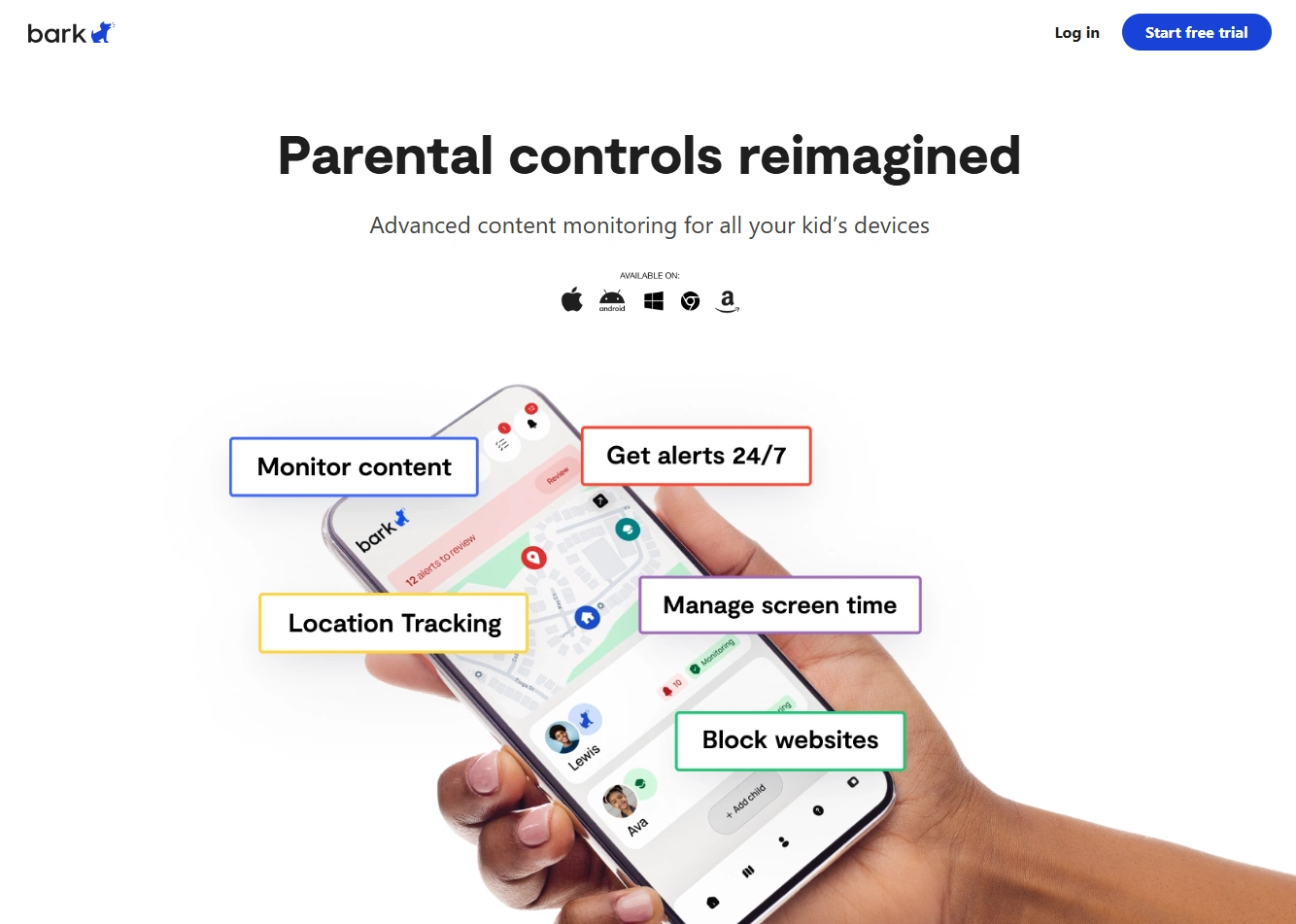
Bark is a strong “safety-first” choice for families who want to reduce risky online exposure while keeping parenting realistic. For YouTube monitoring, it’s best when your goal is overall safer digital behavior (not just counting minutes).
Product highlights
- Parenting-first approach (safety signals + broader oversight)
- Good fit for younger kids and “family rules” households
- Best when YouTube is part of a wider online safety plan
What’s to like
- More “reduce risk” than “monitoring”—better for family trust
- Works well as your long-term baseline tool
What’s not to like
- If you only want a single YouTube-specific feature, it may feel broad
- You still need clear household rules for best results
PROS
- Best safety-first option in this list
- Good for younger kids and calmer parenting
CONS
- Not “YouTube-only” focused
- Doesn’t replace parent-child communication
mSpy — Parental Control App
Description
mSpy’s Parental Control App is a practical pick when YouTube is only one part of what you need to supervise. It fits parents who want a broader monitoring toolkit and a single dashboard for overall device behavior.
Product highlights
- All-around parental monitoring toolkit
- Good for parents who need visibility + structure
- Works across Android and iPhone ecosystems
What’s to like
- Strong “one tool for the whole phone” approach
- Good choice when YouTube isn’t the only issue (games, social apps, browsing)
What’s not to like
- If your only goal is “limit YouTube time,” a simpler screen-time tool may be enough
- Requires responsible, parenting-first use (not secret surveillance)
PROS
- Best all-around monitoring toolkit pick
- Good for multi-problem situations (not just YouTube)
CONS
- Can be more than you need for “just YouTube”
- Needs clear boundaries and rules
Check mSpy Parental Control App | See mSpy Family Kit (multi-device)
Eyezy — Parental Control
Description
Eyezy is a strong alternative parental control suite to compare against mSpy—especially if you want to explore different dashboards and approaches before committing. It works best when your YouTube concerns are part of broader device supervision.
Product highlights
- Parental control suite approach (beyond just one app)
- Good comparison choice vs mSpy
- Works for Android and iPhone family setups
What’s to like
- Great “compare before you buy” option
- Useful when you want a broader picture of device use
What’s not to like
- May be overkill if your only need is time limits
- iPhone and Android behave differently—expect platform differences
PROS
- Best alternative suite to compare
- Good for families who want options, not a single brand
CONS
- Not “YouTube-only” focused
- Still requires clear family rules
uMobix — Quiz Mobile Parental Control
Description
uMobix’s Quiz Mobile Parental Control is a good fit if you’re overwhelmed by choices and want a guided “start here” flow. For YouTube monitoring, this is helpful when you need a balanced setup (limits + oversight) and don’t want to guess which features matter.
Product highlights
- Guided entry point for parents (less research, faster decision)
- Works across Android and iPhone families
- Best for “I need a plan, not just an app” parents
What’s to like
- Great for parents who want structure and clarity
- Useful when you’re not sure if the problem is time, content, or both
What’s not to like
- If you already know exactly what you want, you may prefer a more direct tool
- Not a replacement for house rules and communication
PROS
- Best guided “start here” option
- Good fit for first-time parental control buyers
CONS
- Not “YouTube-only” focused
- Needs consistent family rules
Check uMobix Quiz Mobile Parental Control
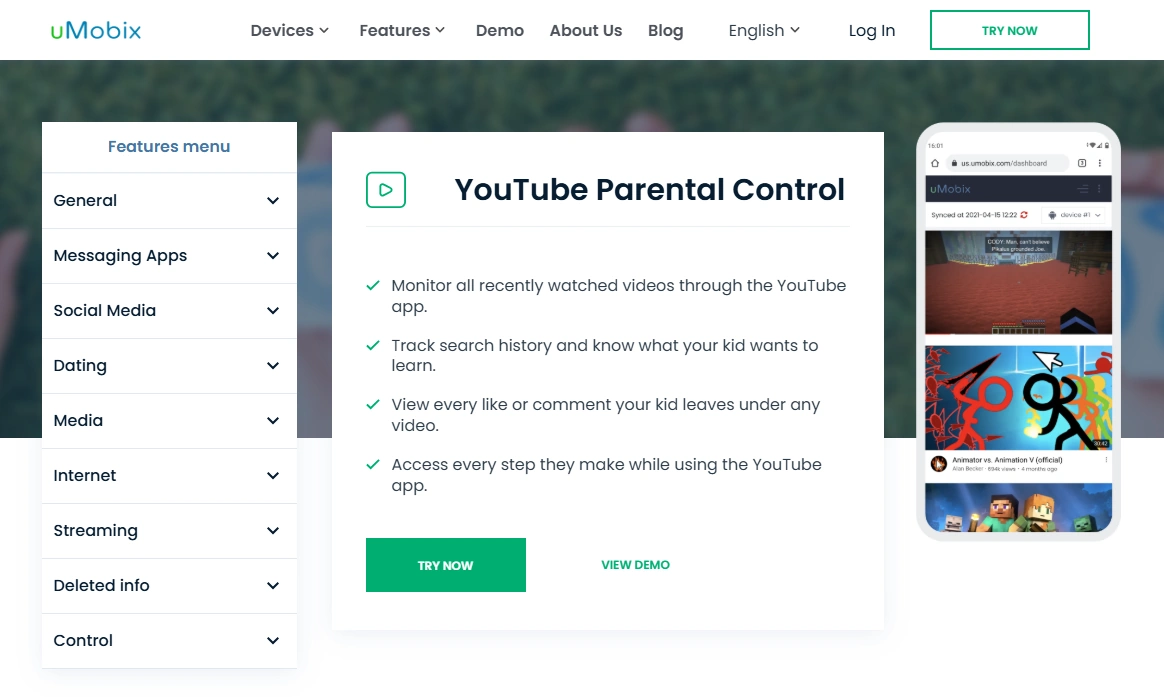
uMobix — YouTube Monitoring (Android only)
Description
If your child uses Android and your main concern is specifically YouTube activity, uMobix’s YouTube Monitoring offer is the most direct match in this list. It’s best used for legitimate parenting and device management—never as covert monitoring.
Product highlights
- YouTube-specific angle (Android only)
- Useful when YouTube is the #1 problem (not just general screen time)
- Best when paired with schedules + web filtering
What’s to like
- Most targeted option for Android YouTube concerns
- Good fit when you want more visibility than basic time limits
What’s not to like
- Android only (not for iPhone families)
- Doesn’t replace content conversations and boundaries
PROS
- Best YouTube-specific option (Android)
- Good for “YouTube is the main issue” households
CONS
- Not cross-platform
- Needs responsible use and a clear family plan
Check uMobix YouTube Monitoring
Legal & ethical notes (important)
This article is about monitoring your child’s device (or a device you legally manage). Do not use monitoring tools for secret tracking of other adults or devices you don’t own/manage—it can be illegal and can seriously backfire.
Start here if you’re unsure: Legal phone tracking: what’s allowed and what’s not.
FAQ
What is the best YouTube monitoring app for kids?
If you want a safety-first family approach, start with Bark. If you want a broader parental monitoring toolkit, consider mSpy Parental Control App and compare it with Eyezy. For Android-only YouTube-specific monitoring, see uMobix YouTube Monitoring.
Is it better to limit YouTube time or filter content?
For most families, time limits reduce the biggest problem (endless autoplay/Shorts), while content filtering reduces the riskiest exposure. The best setup usually combines a schedule + restricted viewing rules.
Why do kids bypass YouTube restrictions?
Common bypasses include switching accounts, using a browser instead of the app, using incognito mode, or moving to another device. Pair app controls with web controls and keep a weekly review routine.
Do I need a separate app if I already use screen time controls?
Not always. If your only goal is “YouTube max 30–60 minutes/day,” a strong screen time solution can be enough. If you also want broader visibility and safety signals, a parental control suite can help.
What’s the best approach for kids under 13?
Use stricter baselines and fewer loopholes. Start here: The safest parental control apps for kids under 13.
Is it legal to monitor my child’s YouTube activity?
In many places, parents can manage and monitor a child’s device, but laws vary. If you’re unsure, read: what’s allowed and what’s not.