

Screen time limits only work when they’re easy to enforce and hard to bypass. The best screen time control apps do three things well: they schedule “downtime,” block or limit specific apps, and give parents a simple dashboard that makes rules consistent.
This guide compares the best screen time control apps for kids’ phones based on real parent needs: reliability on Android vs iPhone, scheduling flexibility, app blocking strength, and whether the tool stays usable once your kid starts pushing boundaries.
If you want a deeper “how-to” (rules + automation + routines), start here: how to limit screen time on kids’ phones automatically.
Short on time? Quick verdict
- Best overall for families: Bark (strong parent control + content filtering + family-friendly “rules” mindset).
- Best if you want strict schedules + broader controls: Eyezy (more “suite-style” rules and blocking options).
- Best if you prefer a guided “parental control” onboarding: uMobix (quiz-based flow for mobile parental control).
- Best simple option for non-techy parents: Parentaler (focus on straightforward limits + practical setup).
- Best for monitoring screen time/app usage (less about blocking): mSpy (great visibility, but it’s more monitoring-first than control-first).
Quick jump: 60-sec checklist · Verdict · Comparison table · What really matters · Best for your situation · Setup tips · Reviews · Legal notes · FAQ
60-second decision checklist
- Android or iPhone? Your best options depend on platform. If you’re not sure, compare platform-specific picks: best screen time apps for Android and best screen time apps for iPhone.
- Do you need “hard blocking” or “soft limits”? Hard blocking stops access; soft limits nudge behavior (warnings, time budgets, reports).
- Scheduling is the real feature: The winner is the app that makes school nights/weekends easy (downtime + app categories + exceptions).
- Bypass resistance matters: If your child is techy, prioritize tools that stay stable when the phone restarts, updates, or goes into battery saving mode.
- Keep rules simple: 2–3 core rules beat 12 complicated ones. Start strict, then loosen with trust.
Verdict: which screen time control app should you pick?
Pick Bark if you want the most family-friendly “rules + protection” approach and a balanced setup that parents actually keep using long-term.
Pick Eyezy if your priority is strict scheduling and stronger blocking controls (more suite-style tools for rules and restrictions).
Pick uMobix if you want a guided parental control flow (helpful when you don’t want to research every setting).
Pick Parentaler if you want something simple and practical for non-techy parents who still want real limits.
Pick mSpy if you care more about monitoring screen time and app usage than strict blocking—great visibility, less “parental control first” feel.
Comparison table: best screen time control apps for kids’ phones
This table focuses on what parents actually feel day-to-day: scheduling, blocking strength, and how reliable the setup stays once real life happens (updates, restarts, battery saving, Wi-Fi drops).
| App | Best on | Scheduling | App blocking | Reports | Best for |
|---|---|---|---|---|---|
| Bark | Android + iPhone | Strong (rules mindset) | Strong (family-focused) | Good parent dashboard | Best overall for families |
| Eyezy | Android (most practical), iPhone (varies) | Very strong (strict schedules) | Strong (suite-style controls) | Strong suite visibility | Strict rules + broader controls |
| uMobix | Android + iPhone | Good (guided setup) | Good (parental control flow) | Good quick checks | Parents who want guided onboarding |
| Parentaler | Android + iPhone | Simple and practical | Basic-to-mid controls | Practical visibility | Non-techy parents |
| mSpy | Android + iPhone (varies) | More monitoring-first | Limited vs control-first tools | Very strong (usage visibility) | Monitoring screen time & app usage |
What really matters for screen time control (parents’ reality)
1) Scheduling beats “daily limits”
Daily limits sound good, but they turn into negotiations. A schedule is simpler: downtime at night, “school mode” on weekdays, and more flexibility on weekends.
2) Exceptions prevent fights
Make exceptions for calls, navigation, school apps, and family messaging. When an app blocks everything, kids find workarounds (or you turn it off out of frustration).
3) Bypass resistance is mostly about setup
Even the best tool looks “bad” when setup is incomplete. On Android, background restrictions and battery optimization can break syncing or enforcement. On iPhone, capabilities can vary depending on method and iOS restrictions.
4) Monitoring vs controlling: pick the right category
If you mainly want to see app usage patterns, a monitoring-first tool can be enough. If you need to stop access reliably, prioritize control-first apps.
Want deep dives per app? Use these internal reviews:
- Bark screen time & content filter review
- Eyezy screen time control review
- mSpy screen time & app usage monitoring review
Best for your situation
- My kid is younger and needs clear boundaries: Bark (balanced rules + parent-friendly controls).
- We need strict schedules (school nights + homework): Eyezy.
- I want the simplest “just make it work” approach: uMobix guided parental control flow.
- I’m not techy and want simple limits: Parentaler.
- I mainly want reports and visibility (not strict blocking): mSpy.
Setup tips that reduce bypassing (without turning your home into a battlefield)
Start with 2–3 rules (not 12)
- Rule #1: Downtime at night (charging outside bedroom if possible).
- Rule #2: Homework window (only school apps + calls).
- Rule #3: Weekend bonus time earned by consistency (not negotiations).
Use “allow list” exceptions
Always allow calls, emergency contacts, navigation, and essential school tools. This prevents “I couldn’t call you” arguments and reduces workarounds.
Check your first 48 hours
Most issues show up fast: missing restrictions, schedules not applying, or the kid finding a loophole. Validate on your real routine (school day + evening + weekend).
Combine controls with conversation
Controls enforce structure; conversation creates buy-in. If you want a complete automation + routine approach, use: this screen time automation guide.
Reviews
Bark (best overall for families)
Description
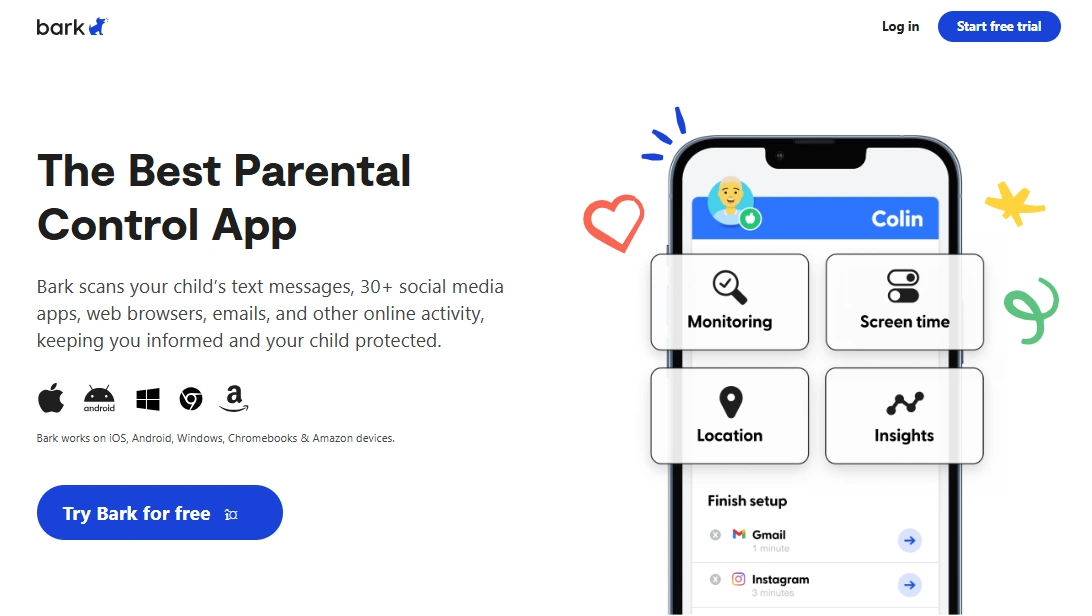
Bark is a great fit when you want screen time limits that feel like family rules, not constant punishment. It works best when you set a simple downtime schedule, then adjust exceptions (school apps, calls, navigation) so your kid can still function normally.
Product highlights
- Family-friendly parental control mindset
- Practical scheduling and boundaries
- Good balance of controls + visibility
What’s to like
- Great “set it and keep using it” parent experience
- Helps enforce consistent rules with fewer daily negotiations
- Good fit for younger kids and early teen boundaries
What’s not to like
- Strictness depends on how well you configure schedules and exceptions
- Some families want more “hard lock” controls for specific apps
PROS
- Best overall family balance
- Parent-friendly, practical rule enforcement
CONS
- Not always the “strictest possible” option for every use case
Try Bark: Official page
Eyezy (best for strict schedules and stronger controls)
Description
Eyezy is a strong choice if you want a more strict screen time plan: scheduled access windows, tighter app rules, and a suite-style dashboard that gives parents more levers to pull when needed.
Product highlights
- Strong scheduling/rules approach
- Suite-style controls (more than just screen time)
- Good for families that need stricter enforcement
What’s to like
- Excellent for school-night structure and homework routines
- Good for older kids when you need stronger boundaries
- More control options than “light” parental apps
What’s not to like
- Can feel like “too much” if you only want simple downtime
- Android tends to be the most practical platform; iPhone outcomes may vary by setup
PROS
- Best strict-schedule pick
- Strong suite-style rule controls
CONS
- More complexity than minimal tools
Try Eyezy: Official page
uMobix (best guided onboarding for parental control)

Description
uMobix works well for parents who want a more guided experience—less guessing, more “tell me what I should set up.” If you’re overwhelmed by settings, a quiz-style parental control flow can reduce friction and help you implement rules fast.
Product highlights
- Guided parental control onboarding
- Practical “quick check” parent workflow
- Good for getting rules running fast
What’s to like
- Less mental load (good for busy parents)
- Fast path to workable screen time rules
- Good as a “starter setup” you can refine
What’s not to like
- If you want ultra-granular schedules, you may prefer a strict-schedule tool like Eyezy
- Like all tools, reliability depends on correct setup and stable device behavior
PROS
- Best guided onboarding pick
- Quick parent workflow
CONS
- May not be the most “granular” control system for power users
Try uMobix: Mobile Parental Control
Parentaler (best simple limits for non-techy parents)
Description
Parentaler is a practical choice when you want simple screen time boundaries without spending hours tuning settings. It’s especially useful for parents who want “set a few limits and move on.”
Product highlights
- Simple, practical parental control approach
- Good for non-techy parents
- Works best with a clear downtime routine
What’s to like
- Low-friction setup mindset
- Good “starter rules” tool
- Works well when you keep rules simple
What’s not to like
- If you want advanced “every app has its own schedule” style controls, you may prefer Eyezy
- Like all controls, results depend on consistent parent use and stable device settings
PROS
- Best simple option
- Good for parents who dislike complex dashboards
CONS
- Not the most advanced control system
Try Parentaler: Official page
mSpy (best for monitoring screen time & app usage)
Description
mSpy is best when your main goal is visibility: what apps are used, how often, and when. For some families, monitoring alone is enough to coach behavior and tighten rules gradually. If you need strict “hard block” enforcement, choose a control-first app instead.
Product highlights
- Strong app usage and screen time visibility
- Good for pattern detection (late-night spikes, repeated app loops)
- Works well as a “monitor first, tighten rules later” approach
What’s to like
- Great reporting/visibility for parents
- Helpful if your kid responds to coaching + accountability
- Pairs well with simple house rules
What’s not to like
- More monitoring-first than control-first
- Strict blocking expectations should be validated early on your exact device setup
PROS
- Best for monitoring screen time & app usage
- Strong parent visibility
CONS
- Not the top pick for strict “hard control” families
Try mSpy: Parental Control App
Legal notes
Use screen time control tools only on devices you own, devices you manage (for example, your child’s phone under your care), or where you have clear consent. Monitoring or controlling someone else’s device without permission can be illegal.
Practical overview: legal phone tracking: what’s allowed and what’s not.
FAQ
What is the best screen time control app for kids’ phones?
For most families, Bark is the best overall starting point because it balances strong parental controls with a practical, parent-friendly “rules” approach. If you need stricter schedules, Eyezy is a strong alternative.
Which app is hardest for kids to bypass?
Bypass resistance depends as much on setup as the app itself. The best approach is to use downtime schedules, keep exceptions minimal, and validate your first 48 hours (updates, restarts, battery saving mode).
Are screen time apps better on Android or iPhone?
It depends on the app and setup method. Android often offers more flexibility but needs correct background/battery settings. iPhone can be more restricted in some areas, so validate your exact use case early.
Should I use strict blocking or flexible limits?
For younger kids, strict blocking and clear downtime schedules usually work best. For teens, flexible limits plus accountability (reports and coaching) can create less conflict and better long-term habits.
What if my child uses multiple devices?
Prioritize consistent rules across devices: nighttime downtime, homework window, and allowed essential apps. If you can’t cover every device, enforce the rules where the most time is spent.
Is it legal to control my child’s phone screen time?
It depends on your country and context, but parents commonly manage a minor child’s device they own or administer. Controlling or monitoring other adults (or devices you don’t own) without consent can be illegal.