

Android has decent built-in screen time tools, but parents usually hit the same wall: limits don’t stick, schedules get bypassed, and “it worked yesterday” becomes a weekly routine.
This guide focuses on what matters in real life: reliable limits + schedules, reasonable setup, and controls that don’t break every time the phone updates.
If you want the fastest path to a working setup, jump to the verdict and checklist, then pick one app that matches your situation.
Short on time? Quick verdict
- Best “parent-friendly” screen-time + safety combo: Bark
- Best for detailed monitoring (beyond screen time): mSpy
- Best for simple web filtering + guardrails: Parentaler
- Best “modern interface” pick (more oversight than limits): Eyezy
- Best if you want a guided “what do I need?” start: uMobix
Quick jump: Verdict · Comparison table · What really matters on Android · Best for your situation · Setup tips · Reviews · Legal notes · FAQ
60-second decision checklist
Answer these quickly—your best pick usually becomes obvious:
- I mainly need limits + schedules (bedtime, school time, downtime) → start with Bark.
- I need web filtering and “keep them out of bad stuff” more than pure timers → consider Parentaler (and compare with Bark).
- I need visibility into what’s happening (messages/social/activity) because screen time alone won’t solve it → look at mSpy or Eyezy.
- I’m not sure what I need yet and want a guided starting point → uMobix.
- I can’t babysit settings weekly → choose the option you can set up cleanly and maintain (see setup tips).
Pro move: after you pick one, open our comparison table and sanity-check platform + reliability before paying.
Verdict: which screen time app is best for you?
If your goal is “limits + schedules that actually stick”, most families will be happiest starting with Bark—especially if you want a parent-friendly setup and safety features around the limits.
If you need more than screen time (when limits alone don’t change behavior), mSpy and Eyezy are better “visibility-first” choices.
If your pain point is web content (and you want straightforward guardrails), Parentaler is a practical option to compare against Bark.
Try Bark | Try mSpy | Try Parentaler
Comparison table: best screen time apps for Android
This is a “parent reality” table—what each one is best at, and what to watch out for. For a deeper breakdown, see our Top 10 Parental Control & Phone Monitoring Apps Comparison Table.
| App | Best for | What it does well | Watch-outs |
|---|---|---|---|
| Bark | Families who want limits + safety | Balanced parental control, schedules, “good enough” coverage without feeling overly technical | Needs a clean setup + permissions to stay reliable |
| mSpy | When screen time isn’t the real issue | Deeper visibility and monitoring-style features (use responsibly) | Overkill for simple limits; permissions matter a lot |
| Parentaler | Simple filters + guardrails | Practical web filtering + parental control basics | If you need deep reporting, compare with Bark/mSpy |
| Eyezy | Parents who want “visibility-first” | Modern-feeling dashboard, monitoring-style oversight | Not the simplest “timer-only” choice |
| uMobix | Guided start / unsure needs | Good starting flow for picking a direction | Confirm it matches your “limits vs visibility” goal |
What really matters on Android (limits vs reliability)
On Android, “screen time limits” can mean very different things depending on how the app enforces them:
- Permission stack: apps may rely on Accessibility / Device Admin / usage access. If one is missing, limits can quietly degrade.
- Battery optimization: Android can aggressively stop background services. If the parental control app gets “optimized,” schedules become flaky.
- Multiple Android brands: Samsung/Xiaomi/OnePlus settings differ. A setup that works perfectly on one phone can be annoying on another.
- Kid behavior: if the child is motivated, they’ll test every loophole. Reliable control is as much “setup + policies” as it is the app.
If you want a broader map of options, start with the main hub: The Best Parental Control & Phone Monitoring Apps.
Best for your situation
1) “I just want screen time limits + bedtime schedules”
Pick Bark first. It’s the most parent-friendly “set it and keep it” option in this lineup.
2) “I need web filtering and content guardrails more than timers”
Start with Parentaler, then compare with Bark if you also want broader parental control coverage.
3) “My teen ignores limits—screen time isn’t the whole story”
Consider a visibility-first approach: mSpy or Eyezy. These are better when you need context (used responsibly) rather than just timers.
4) “I’m not sure what I need—give me a guided start”
uMobix is a decent way to start if you’re overwhelmed and want a direction fast.
Also helpful: if you’re comparing Android vs Apple setups, see best screen time apps for iPhone.
Setup tips (avoid the most common “it stopped working” issues)
- Do the boring permissions first: usage access, notifications, and any requested system permissions (don’t skip steps).
- Disable battery optimization for the parental control app on the child’s device (this alone fixes a lot of “random failures”).
- Lock down app installs and unknown sources when possible—otherwise kids will “solve” limits by installing alternatives.
- Test a schedule you can see: set a short downtime window (e.g., 10 minutes) and verify the device behavior.
- Have an escalation plan: if you’re constantly fighting bypasses, screen time alone may not be the answer—combine limits with conversations and device rules.
If you’re dealing with tricky Android setups, this guide can help: how to choose the right Android monitoring/parental app.
In-depth reviews
Bark
Description
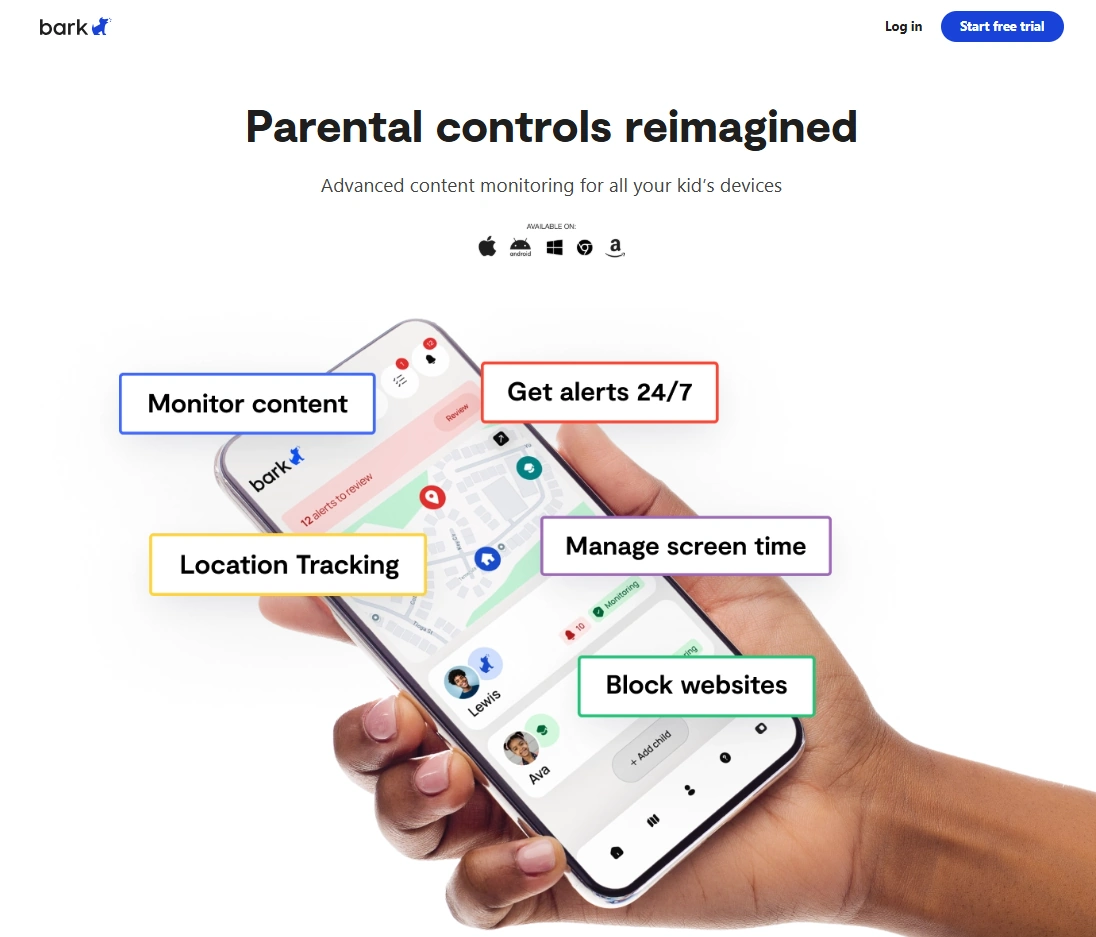
Bark is a family-oriented parental control option that balances screen time-style controls with broader “kid safety” coverage. If you want something that feels designed for parents (not power-users), it’s usually the easiest win.
Product highlights
- Parent-friendly dashboard and setup flow
- Good “everyday family” controls and guardrails
- Works well as a long-term baseline (not just a one-week experiment)
What’s to like
- Strong fit for typical families: younger kids, first phones, and “reasonable rules” setups
- Less “technical babysitting” once configured properly
What’s not to like
- Android reliability depends heavily on permissions + battery settings
- If you want maximum detail/monitoring, you may outgrow “screen time-first” tools
PROS
- Great starting point for screen time + safety together
- Good parent experience
CONS
- Needs a clean Android setup to stay consistent
- Not the best pick for deep “investigation-style” visibility
mSpy
Description
mSpy is better framed as a “visibility and oversight” tool than a pure screen time timer. If your problem is not the number of hours but what’s happening during those hours, this is often the more effective direction (used responsibly).
Product highlights
- Strong for monitoring-style oversight (when needed)
- Useful when limits alone don’t change behavior
- Can support stricter parenting policies—if you keep it legal and transparent
What’s to like
- More context than “just timers”
- Good for older kids/teens where rule-breaking is the real issue
What’s not to like
- Overkill if you only need bedtime schedules and app limits
- Requires careful setup and permission management on Android
PROS
- Best “beyond screen time” option in this list
- Useful for real behavior-change situations
CONS
- Not a lightweight screen-time-only tool
- Must be used ethically and legally
Parentaler
Description
Parentaler is a practical option when your main pain point is “what they can access” rather than just how long they’re on the phone. It’s worth comparing directly with Bark if you want a simpler, filtering-first approach.
Product highlights
- Web filtering focus
- Parental control basics in a straightforward package
- Good for parents who want guardrails more than dashboards
What’s to like
- Great “content safety” angle for Android
- Feels simpler than some monitoring-heavy tools
What’s not to like
- If you need deep visibility, you may prefer mSpy/Eyezy
- As with all Android control apps, setup quality matters
PROS
- Strong choice for web/content guardrails
- Good fit for non-technical parents
CONS
- Not the best “deep insights” option
- May require tuning to match your child’s device/usage
Eyezy
Description
Eyezy is best treated as a “visibility-first” parental control tool. It’s a reasonable pick when you want modern UX and more insight than a simple screen time limiter provides.
Product highlights
- Dashboard-driven oversight
- Good fit when you need context, not just limits
- Works as a complement to stricter device rules
What’s to like
- Good for parents who want to understand patterns, not just enforce time
- Can be useful for older kids and teens
What’s not to like
- Not the simplest “set limits and forget it” option
- Android permissions can be finicky if setup is rushed
PROS
- Great for insight-driven parenting
- Modern-feeling experience
CONS
- Overkill for basic screen time schedules
- Needs careful setup
uMobix

Description
uMobix is a solid “guided start” option if you’re not sure whether your family needs strict limits, stronger filtering, or more visibility. It’s useful when you want a direction quickly and don’t want to overthink the first step.
Product highlights
- Good starting flow for deciding what you need
- Works for parents who feel overwhelmed by options
- Can be evaluated quickly before committing long-term
What’s to like
- Great “first pick” if you’re stuck
- Helps you move from indecision to action
What’s not to like
- Make sure it matches your goal (timers vs visibility)
- Still requires proper Android setup to stay reliable
PROS
- Fast way to get started
- Good for unsure parents
CONS
- Not the most “screen time-only” focused option
- Confirm it fits your use case before paying
Legal & ethical notes (important)
Use parental controls only on devices you own/manage, and ideally with clear family rules and consent—especially for teens. Laws and platform policies vary, and “secret monitoring” can become a legal and relationship problem fast.
Read this before you install anything: legal phone tracking: what’s allowed and what’s not. If your child is under 13, you may also want: the safest parental control apps for kids under 13.
FAQ
What’s the best screen time app for Android overall?
For most families who want reliable limits + schedules without constant tinkering, Bark is the safest starting point.
Do these apps require root on Android?
In most normal family setups, you should avoid rooting. These options are meant to work without root, but reliability depends on permissions and battery settings.
Why do screen time limits “randomly stop working” on Android?
Most of the time it’s battery optimization, missing usage/notification permissions, or manufacturer-specific settings stopping background services.
If limits don’t change behavior, what should I do?
That’s usually a “context problem,” not a “timer problem.” Consider a visibility-first approach like mSpy or Eyezy, and combine it with clearer family rules.
Which one is best for web filtering?
Parentaler is a strong filtering-first option to compare against Bark.
Should I use Android’s built-in tools instead?
Built-in tools can be enough for light guidance. If you need stricter enforcement, schedules that stick, or multi-device parenting controls, dedicated parental control apps usually work better.