

Buying a kid’s first phone isn’t really about camera megapixels or “which brand is cooler.” It’s about built-in parental controls that actually hold up: app approvals, contact safety, time limits, location sharing, and fewer ways for a child to bypass rules.
The tricky part? Many “parental control” phones still behave like normal smartphones (and kids learn loopholes fast). This guide breaks down the best options by age and risk level—including a purpose-built kids phone (Bark Phone) and mainstream phones using Apple/Google controls.
If you want an even more “locked down” decision framework, read: Best first phone for kids.
Short on time? Quick verdict
- Best “kid-first” phone: Bark Phone (built for safety from day one—less messing with settings).
- Best mainstream iPhone setup: iPhone + Screen Time (good controls, but requires careful setup and ongoing checks).
- Best mainstream Android setup: Android + Google Family Link (strong control layer when configured correctly).
Quick jump: Decision checklist · Verdict · Comparison table · What really matters · Best for your situation · Setup tips · Reviews · Legal notes · FAQ
60-second decision checklist
- Age 8–12 and you want fewer loopholes? → Choose a kid-first phone (Bark Phone-style approach).
- Age 13+ and they “need iPhone” for school/social? → iPhone is fine, but only with proper Screen Time + Family Sharing setup.
- Android household? → Choose an Android model that plays nicely with Google Family Link and lock down permissions early.
- Main risk is social media/DMs? → Prefer a phone that supports tight app approvals and strong reporting boundaries.
- Main risk is location safety? → Make sure you have reliable location sharing (see: best GPS tracker apps for families).
- If you’re overwhelmed → A purpose-built kids phone usually reduces setup mistakes.
Verdict: what’s the best kids phone overall?
Best overall for most families: a kid-first phone (Bark Phone)
If your #1 goal is safer defaults and fewer bypass tricks, a phone built around parental controls is usually the best starting point. You spend less time “fighting the phone” and more time setting clear rules.
Best “mainstream” pick if your child insists: iPhone + Screen Time
Apple’s Screen Time can be strong, but only if you set it up correctly and treat it like a system you maintain (not a one-time switch). If you want a deeper framework (including iPhone realities), see: how to choose the right iPhone monitoring approach.
Best mainstream Android route: Android + Google Family Link
Family Link can be excellent for app approvals, time limits, and basic guardrails—especially when you lock down settings early and avoid giving admin control to the child’s account.
Comparison table: kids phones with built-in parental controls
| Option | Best age | What it does well | Watch-outs |
|---|---|---|---|
| Bark Phone (kid-first) | 8–14 | Safer defaults, fewer loopholes, parent-friendly controls | Less “freedom” than a full smartphone (which is often the point) |
| iPhone + Screen Time | 12+ | Strong ecosystem controls when configured correctly | Setup mistakes create loopholes; requires regular checks |
| Android + Google Family Link | 10+ | App approvals + time limits + solid guardrails | More device-to-device variability; battery optimizations can be annoying |
| Kids smartwatch/phone hybrid | 6–10 | Simple calls + GPS + fewer distractions | Not great for homework/apps; battery and coverage vary |
| Feature phone (“dumbphone”) | Any | Minimal distractions, cheap, durable | Limited GPS/app safety tools; not ideal for modern school communication |
What really matters (the stuff parents regret ignoring)
1) App approvals are the foundation
The single most important control is who can install what. If your child can freely install social apps, private browsers, VPNs, and “hidden” apps, everything else becomes cleanup work.
2) Contacts & communication rules beat “spying”
For most families, the best protection is a combination of: approved contacts, clear boundaries, and a phone that makes it hard to go off the rails. If you’re exploring monitoring tools, start with the safety-first perspective here: safest parental control apps for kids under 13.
3) Location sharing has to be reliable (not “sometimes”)
If you’re buying a phone partly for peace of mind, make sure location sharing is stable and easy. For alternatives and backups, see: best GPS tracker apps for families.
4) The “loopholes” are predictable
Most bypasses happen because of:
- poor initial setup (child account has admin power)
- weak passcodes / shared Apple ID
- unrestricted app store installs
- secondary browsers + VPN apps
- parents forgetting to review settings after phone updates
Best for your situation
Best for ages 8–12: kid-first phone (least loopholes)
If you want a “first phone” that’s safer by design and doesn’t rely on perfect parent setup, start with Bark Phone.
Check Bark Phone Read next: Bark Phone review
Best for ages 12–15: mainstream phone with strict setup
If school/social pressure makes a standard smartphone unavoidable, choose iPhone or Android—but treat parental controls like a system you maintain.
Use the first-phone framework Also useful: safest parental controls under 13
Best for ages 15+: boundaries + accountability
At this stage, you’ll usually get more impact from clear agreements (screen limits, bedtime rules, social media expectations) than from heavy restrictions.
Setup tips (so your controls actually stick)
- Use a parent-controlled account structure: the child should not have admin-level control over installs, permissions, or device resets.
- Lock app installs: require approval for every install (games, browsers, VPNs included).
- Set downtime + bedtime rules: don’t rely on “they’ll put it down.” Make it automatic.
- Review settings after updates: major OS updates can reset permissions or add new loopholes.
- Keep location sharing on: and test it from your phone once per week.
If you’re considering monitoring tools rather than a kid-first phone, start here for a realistic overview: best monitoring apps for Android & iPhone.
Reviews
Bark Phone (kid-first phone with built-in parental controls)
Description
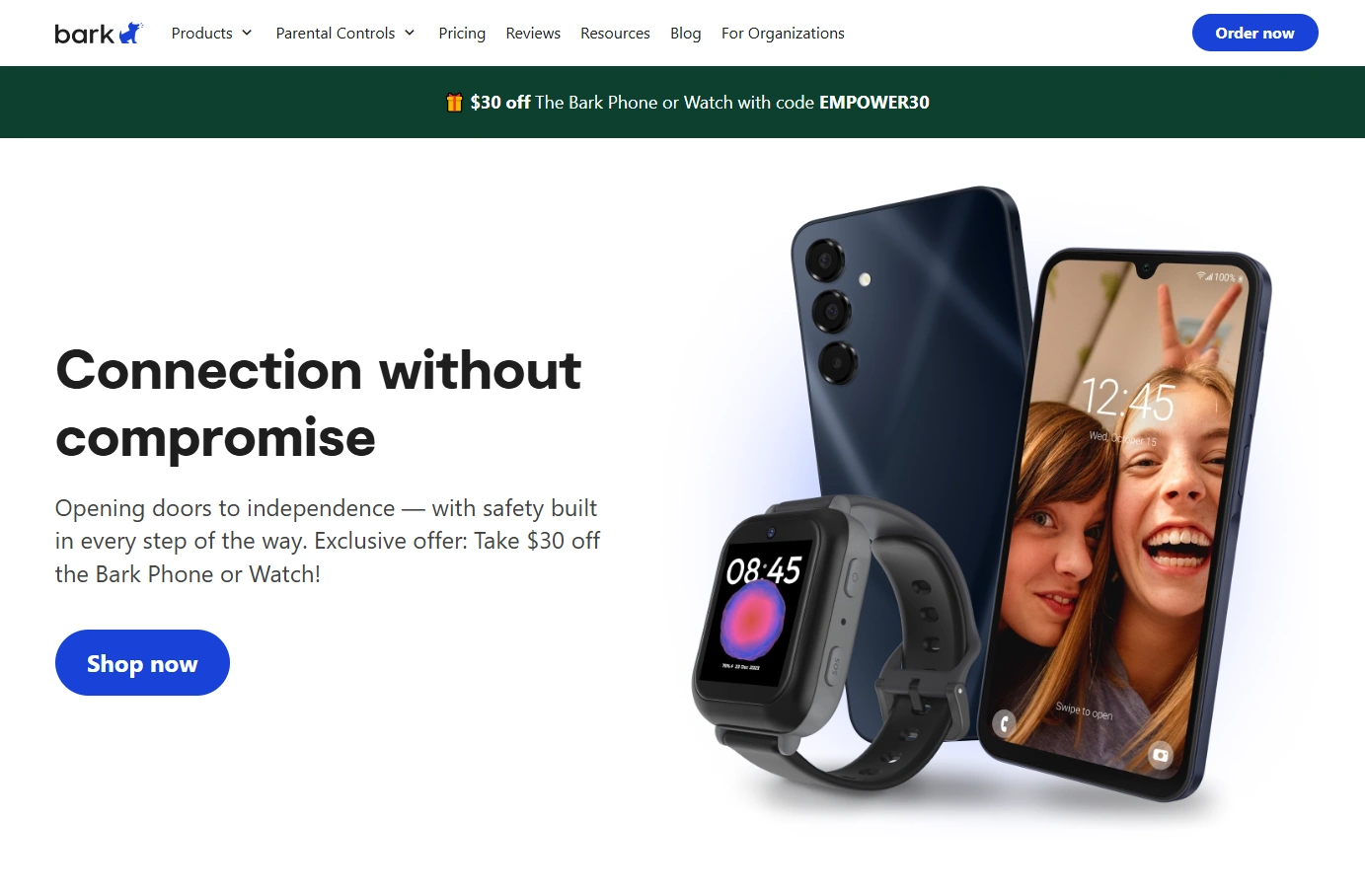
Bark Phone is designed as a safer “first phone” for kids—more guardrails out of the box, fewer loopholes, and a parent-friendly control experience. If you don’t want to spend hours tuning settings on a standard smartphone, this is usually the easiest path to a secure baseline.
Product highlights
- Kid-first setup with strong built-in parental controls
- Designed to reduce common bypass tricks (app installs, unsafe browsing, late-night use)
- Better “peace of mind” for younger kids who don’t need full smartphone freedom
What’s to like
- Safer defaults = fewer setup mistakes
- Great fit for ages 8–12 (and many 13–14-year-olds)
- Parents spend less time troubleshooting “why is this app installed?” moments
What’s not to like
- Not ideal if your teen needs full smartphone flexibility for advanced apps
- Some kids will complain it’s “too restricted” (often a sign it’s doing its job)
- As with any phone plan, the total cost depends on your chosen plan and usage
PROS
- Best built-in safety experience for most families
- Less loophole-hunting than mainstream phones
- Excellent first-phone choice for younger kids
CONS
- May be “too locked down” for older teens
- You’re choosing safety-first over maximum freedom
- Availability and plans can vary by region
Check Bark Phone pricing & plans Read the deep dive: Bark Phone review
iPhone + Screen Time (mainstream option with strong built-in controls)
Description
An iPhone can work well for kids—if you set up Screen Time correctly and keep the parent account separate. The benefit is familiarity and ecosystem support; the downside is that mistakes (shared Apple IDs, weak passcodes, unrestricted installs) create loopholes fast.
Product highlights
- Built-in Screen Time limits and downtime
- App approvals (when configured under Family Sharing)
- Strong device security and consistent updates
What’s to like
- Great for school + messaging + modern apps
- Less “device variability” than Android in many cases
- Strong baseline security and privacy features
What’s not to like
- More bypass opportunities if setup is sloppy
- Parents often misconfigure Family Sharing / Apple ID
- Social media risk depends on strict app approvals
PROS
- Powerful built-in parental controls (when done right)
- Excellent long-term support
- Good for older kids/teens
CONS
- Requires careful setup and ongoing checks
- Not a “set once and forget” solution
- Costs can add up depending on model and plan
Use the iPhone/teen setup framework
Android + Google Family Link (best Android built-in approach)
Description
Android can be a great kids phone choice if you commit to Family Link and lock down installs early. The biggest advantage is flexibility; the biggest risk is inconsistency across brands/models if you don’t configure permissions and battery settings correctly.
Product highlights
- Google Family Link app approvals and screen time controls
- Strong baseline for younger teens in Android households
- Works well when paired with clear rules and location sharing
What’s to like
- Lots of affordable device options
- Family Link can be strict with installs and time limits
- Good long-term upgrade path (hand-me-down Android phones)
What’s not to like
- Battery/permission optimizations can break background behavior if misconfigured
- Some devices ship with extra app stores or manufacturer features to manage
- Parents sometimes accidentally grant too much freedom early
PROS
- Excellent value for money
- Strong built-in control layer with Family Link
- Great for families already on Google services
CONS
- More variability across devices
- Needs a clean setup (child account + approvals)
- More “tuning” than a kid-first phone
See safest parental control approaches
Legal notes (please read)
Built-in parental controls are intended for parent/guardian supervision on a child’s device (or a device you legally control). Avoid any “covert tracking” use on someone else’s phone without permission. If you want a clear boundary guide, read: Legal phone tracking: what’s allowed and what’s not.
FAQ
What is the best kids phone with built-in parental controls?
For most families (especially ages 8–12), a kid-first phone like Bark Phone is the easiest path to strong controls with fewer loopholes. For older kids, iPhone Screen Time or Android Family Link can work well if configured properly.
Is an iPhone good for a kid’s first phone?
Yes—if you set up Screen Time correctly, keep the parent account separate, and require approval for installs. If setup is sloppy, kids can bypass rules more easily.
Is Android or iPhone better for parental controls?
Both can be good. iPhone tends to be more consistent across devices, while Android offers more budget options but more variability. The best choice depends on your household ecosystem and how strict you want the setup to be.
What age should a child get their first phone?
There’s no one answer. Many families start with a limited device (or smartwatch) around 8–10 for safety, then move to a more capable phone around 12–14 when responsibility and school needs increase.
How do kids bypass parental controls most often?
Common bypasses include unrestricted app installs (VPNs, private browsers), shared Apple IDs, weak passcodes, and parents not reviewing settings after updates. App-approval rules and separate parent/child accounts prevent most issues.
Do I need monitoring apps if I buy a kids phone with built-in controls?
Often, no. Built-in controls + clear boundaries are enough for many families. If you need additional tools, start with a safety-first overview: safest parental control apps for kids under 13.