

“Social media-free childhood” doesn’t mean your child never touches a screen. It usually means no Instagram/TikTok/Snapchat accounts, no private DMs, and no “unlimited internet in the pocket” before they’re ready.
The fastest way to lose that goal is buying a normal smartphone and hoping you’ll “figure out controls later.” Kids find loopholes. Friends show shortcuts. Updates reset settings. This guide gives you realistic phone choices that support a social media-free plan—without turning your home into a constant argument.
If you want a broader first-device framework, start here: Best first phone for kids.
Short on time? Quick verdict
- Best “no-social” starter device (age 6–10): a kids watch with calls + GPS.
- Best “first phone” that stays social-media resistant (age 8–14): a kid-first phone with strong app approvals.
- Best middle ground (basic phone vibes, safer than a smartphone): a flip-phone alternative plan designed for kids.
- If you must buy iPhone/Android: you can still do “social media-free,” but only with strict installs + downtime + ongoing checks.
Quick jump: Decision checklist · Verdict · Comparison table · What really matters · Best for your situation · Setup tips · Reviews · Legal notes · FAQ
60-second decision checklist
- If your child doesn’t need apps for school: start with a watch (calls + GPS) and delay the smartphone.
- If you want a phone but no socials: pick a kid-first phone or flip-phone alternative that makes installs hard.
- If you buy iPhone/Android: your plan must include install approvals + downtime at night + blocked new social apps.
- If your main risk is “DMs and strangers”: prioritize approved contacts and remove “private browser” options.
- If your child is techy/sneaky: choose the option with fewer loopholes, not “the cheapest smartphone.”
Verdict: what to buy for a social media-free childhood
Best overall: start with a kids watch, then graduate to a kid-first phone
For most families, the most peaceful path is two steps: a watch first (communication + safety), then a phone later when maturity and real needs catch up. This avoids the “we bought a smartphone, now we’re fighting about Instagram daily” problem.
Check Bark Watch Check Bark Phone
Best “phone now, but still no socials”: flip-phone alternative plan
If your child truly needs a phone for school pickups, sports, and family logistics—but you want to keep things simple—consider a flip-phone alternative style plan built around kid safety. It’s often easier than locking down a full smartphone.
See flip-phone alternative option
If you already bought iPhone/Android
You can still maintain a social media-free plan on a normal smartphone, but it requires consistency. For iPhone setup help, use: How to set up parental controls on iPhone. For an “automatic rules” approach, see: How to limit screen time automatically.
Comparison table: the best “no social media” kid device options
| Option | Best age | Why it works | Watch-outs |
|---|---|---|---|
| Kids GPS Watch (calls + location) | 6–10 | Delays social apps while keeping you connected | Not a full phone; limited features by design |
| Kid-first Phone | 8–14 | Built to resist installs/loopholes; easier parent controls | Less “freedom” than a normal smartphone |
| Flip-phone Alternative Plan | 8–14 | Simple communication focus; fewer social temptations | May not fit schools that require apps |
| iPhone (locked down) | 12+ | Strong system controls if Screen Time is set correctly | Setup mistakes create bypasses fast |
| Android (locked down) | 10+ | Great value + strong approvals with Family Link | More device variability; more settings to manage |
What really matters if your goal is “no socials”
1) App installs are the real battle
If a child can install apps freely, “no social media” becomes a weekly negotiation. Your system needs install approvals, and you should treat “private browsers” and VPN apps as high-risk installs.
2) The biggest risk isn’t content—it’s private communication
Even “clean” platforms can become risky through DMs, strangers, and group chats. Many families do better with a simple rule: approved contacts only (especially under 13), and no new chat apps without a parent conversation.
If you do allow YouTube/TikTok later, use tight controls: Best parental control apps for YouTube & TikTok.
3) Night-time is where most “secret installs” happen
Build in automatic downtime. Don’t rely on willpower. If you want a step-by-step rule set, use: limit screen time automatically.
4) Use a “graduation” model
Social media-free childhood works best when it’s framed as a phase: “You’ll earn more freedom over time.” Not “we’re banning things forever.”
Best for your situation
Best for ages 6–10: a kids watch (delay the smartphone)
If your child mainly needs to reach you, a watch is the cleanest social media-free win: communication + location without app drama.
Check Bark Watch Related: Best kids GPS watches
Best for ages 8–14: a kid-first phone that resists installs
If you want a phone now but no social apps, choose a kid-first phone setup that makes it harder to bypass app rules.
Check Bark Phone Also useful: Kids phones with built-in parental controls
Best “simple phone” vibe: flip-phone alternative
If you want texting/calls without turning a phone into a social media gateway, a flip-phone alternative approach can be a great compromise.
Setup tips (so “no socials” actually sticks)
- Lock installs from day one: require approval for every app install.
- Block “private browsers” and VPN apps: they’re common bypass tools.
- Use automatic downtime: no phone access at night means fewer secret installs and less drama.
- Approved contacts for younger kids: keep communication to people you actually know.
- Review weekly for 2 minutes: check installed apps and time spent (quick habit, big payoff).
If you’re working with iPhone specifically, follow: How to set up parental controls on iPhone. If your child is under 13 and you want safer, simpler tools, see: Best parental control apps for kids under 13.
Reviews
Bark Watch
Description
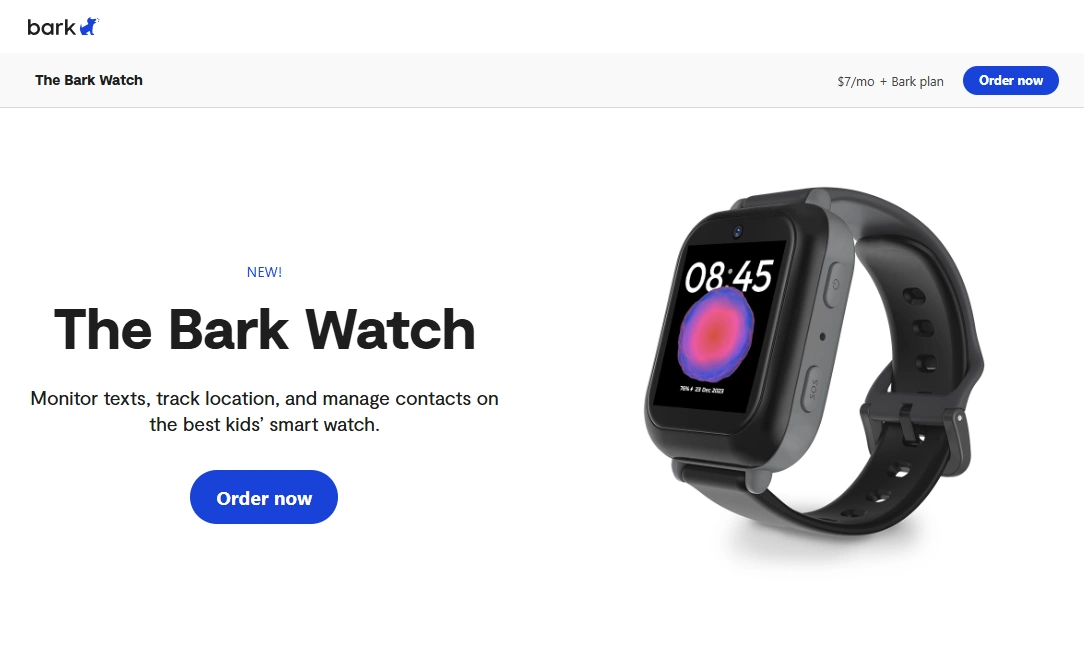
Bark Watch is a practical way to keep your child reachable without handing them a full smartphone. For social media-free families, it’s often the easiest win: kids can call/message approved contacts, and parents can keep location peace-of-mind.
Product highlights
- Great first device before a phone (communication + safety)
- Helps delay early exposure to social apps and DMs
- Works well for school pickup, activities, and commuting
What’s to like
- Less distraction than a smartphone
- Supports a social media-free plan naturally
- Usually fewer loopholes than “cheap smartphone + restrictions”
What’s not to like
- Not a full phone replacement if school requires specific apps
- Smaller screen and limited features (by design)
- Battery/coverage depends on environment and usage
PROS
- Best starter device for ages ~6–10
- Delays social media pressure
- Simple for parents to manage
CONS
- Limited app ecosystem (intentional)
- Not ideal for older teens
- Some families still want a full phone for school tools
Bark Phone
Description
Bark Phone is designed for families who want a phone that supports safety and boundaries by default. For a social media-free childhood, the key benefit is not “more features,” but less bypassing and less constant policing.
Product highlights
- Kid-first controls that make it easier to enforce “no socials” rules
- Better baseline against common loopholes (installs, late-night use)
- More parent-friendly day-to-day management
What’s to like
- Great for ages ~8–14 where peer pressure starts but maturity varies
- Less “settings chaos” than standard smartphones
- Supports gradual freedom (you can loosen rules over time)
What’s not to like
- Not ideal if your teen truly needs full smartphone freedom
- Some kids will dislike the restrictions (often the point)
- Total cost depends on the plan you choose
PROS
- Best “phone now, no socials” solution for many families
- Fewer loopholes than DIY setups
- Less ongoing parent troubleshooting
CONS
- Less flexible than a normal smartphone
- Availability and plans can vary
- May be “too strict” for some older teens
Check Bark Phone Deep dive: Bark Phone review
Bark Starter Plan (flip-phone alternative)
Description
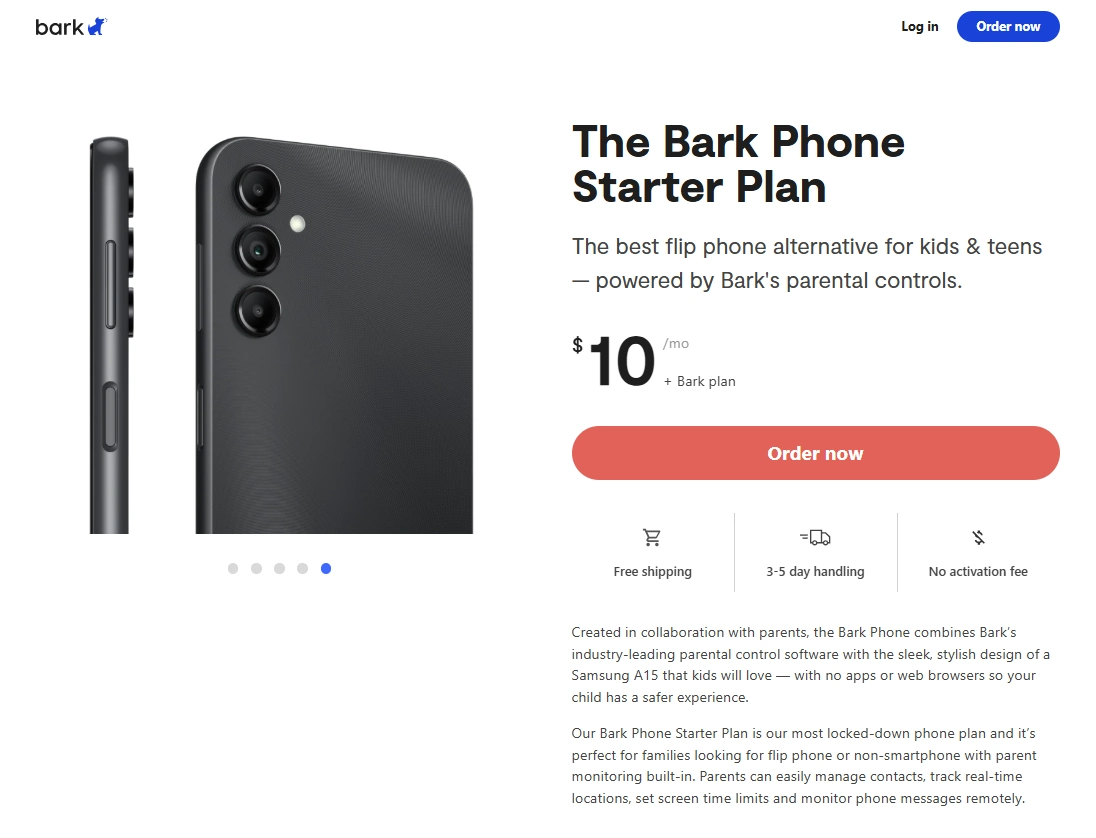
If your goal is “a phone for logistics, not a portal to social media,” flip-phone alternative style options can be a great compromise. You get basic communication benefits while reducing the temptation and access paths that drive early social app adoption.
Product highlights
- Communication-first approach
- Often easier to maintain “no socials” boundaries
- Good fit for kids who don’t need school apps yet
What’s to like
- Less drama than a fully featured smartphone
- Encourages real-life time and activities
- Practical for parents who want simplicity
What’s not to like
- Not ideal if school requires specific apps or portals
- Less “cool” than mainstream phones (peer pressure)
- May require a transition plan later
PROS
- Strong middle ground between “watch” and “smartphone”
- Supports social media-free goals
- Simple day-to-day expectations
CONS
- Limited functionality by design
- Not a long-term fit for all teens
- May not match every school’s tech needs
See flip-phone alternative option
Legal notes
Use parental controls only on devices you own or manage (like your child’s phone as a parent/guardian). Avoid any “covert tracking” of other people’s private devices without consent. If you want clear boundaries, read: Legal phone tracking: what’s allowed and what’s not.
FAQ
What is the best kids phone for a social media-free childhood?
The best option is usually a two-step approach: start with a kids watch (calls + GPS), then graduate to a kid-first phone that makes app installs and loopholes harder.
Can I keep my child off social media if they have an iPhone?
Yes, but you must lock installs, enforce downtime, and review settings regularly. The hardest part is preventing “new app installs” and bypass tools like private browsers and VPN apps.
What’s the easiest device for younger kids who just need to reach parents?
A kids GPS watch is often the simplest solution. It supports communication and safety without introducing social apps early.
What are the most common loopholes that break “no socials” rules?
The most common are unrestricted app installs, private browsers, VPN apps, shared account passwords, and parents not checking settings after phone updates.
What if the school requires apps and a smartphone?
Use a strict smartphone setup with install approvals and automatic downtime. You can also keep social media off while still allowing school-required tools.
Is it better to block social media or teach responsible use?
For many families, blocking early and using a “graduation” model works best: you delay social apps, build habits, then expand access gradually as maturity and needs grow.