

A kid’s first phone is less about the phone and more about the system: app approvals, contact rules, screen-time boundaries, and a setup your child can’t casually bypass in five minutes.
In real life, most parents regret one of two things: choosing a “normal phone” with weak guardrails (too many loopholes), or going too strict too fast (constant fights, secret second accounts, and no trust). The best first phone sits in the middle: safe by default, but still practical for school and family logistics.
This guide compares the three most realistic routes: Bark Phone (kid-first), iPhone + Screen Time, and Android + Google Family Link—with age-based picks, common loopholes, and setup tips.
Short on time? Quick verdict
- Best overall (least loopholes): Bark Phone — built around parental controls from day one.
- Best if your child “needs iPhone”: iPhone + Screen Time — strong controls, but only with careful setup.
- Best value route: Android + Family Link — great if you lock installs early and keep the parent account in charge.
Quick jump: Decision checklist · Verdict · Comparison table · What really matters · Best for your situation · Setup tips · Reviews · Legal notes · FAQ
60-second decision checklist
- Age 6–9: start with a watch (calls + GPS) before a full smartphone.
- Age 8–12: best “first phone” is usually a kid-first phone with strict app approvals.
- Age 12–14: smartphone is OK if you control installs, downtime, and contacts.
- Age 15+: shift from “lockdown” to boundaries + accountability (still keep app approvals and nighttime rules).
- If your child is sneaky/techy: avoid “normal phone + hope” — choose fewer-loophole options.
- If you want easiest setup: choose a kid-first phone (less configuration work).
- If your household is Apple/Google already: iPhone Screen Time or Android Family Link can work well—when set up correctly.
Verdict: the best first phone for kids (by real-life outcomes)
Best overall first-phone pick: Bark Phone
If your goal is “safe baseline with fewer loopholes,” Bark Phone is usually the cleanest solution. It’s built around parental controls instead of treating them as an optional add-on. That means fewer surprise installs, fewer late-night loopholes, and less constant troubleshooting.
Best “starter device” before a phone: Bark Watch
If your child doesn’t actually need a full smartphone yet, a watch can cover the essentials: staying in touch and location peace-of-mind—without handing over the full internet in their pocket.
Best mainstream alternatives
- iPhone + Screen Time: best if iPhone is required for school/social—but setup must be strict.
- Android + Google Family Link: best value route if you keep the parent account in charge and lock installs early.
Want a broader overview of safety tools (including app-based options)? See: Top parental control apps.
Comparison table: best first phone routes
| Option | Best age | Best for | Main downside |
|---|---|---|---|
| Bark Phone | 8–14 | Least-loophole first smartphone, easy parental controls | More restricted than a normal phone (often a plus) |
| Bark Watch | 6–10 | Calls + GPS without a full smartphone | Not a full phone; limited apps |
| iPhone + Screen Time | 12+ | Mainstream iPhone experience with strong built-in controls | Misconfiguration creates loopholes quickly |
| Android + Family Link | 10+ | Best value + strong app approvals if parent stays in control | More device-to-device variability; needs careful setup |
What really matters (and what parents underestimate)
1) App approval beats everything
If your child can install anything, parental controls become an endless game of whack-a-mole. The safest first-phone setup always includes: install approvals, no second app store, and no “private browser” installs.
2) Contacts and messaging rules are the real safety feature
Most problems begin with who can message your child and what they can access at night. The most effective baseline rules are:
- approved contacts (especially for younger kids)
- no new social apps without a conversation first
- automatic downtime at night
If your child is under 13, start here first: The safest parental control apps for kids under 13.
3) Location sharing should be boring and reliable
Location is often the main reason parents want a first device. Make sure you choose a setup that’s easy to maintain and check. If you want alternatives, see: Best GPS tracker apps for families.
4) Your goal isn’t “perfect control,” it’s a safe ramp-up
The best first phone is usually a phase: start strict, build habits, then open access gradually as responsibility proves itself. If you try to jump straight to “full smartphone freedom,” most families end up backtracking.
Best for your situation (fast picks)
Best for younger kids (6–10): start with a watch
If your child mainly needs to call you and you want location peace-of-mind, a watch is often the safest “first step.”
Best first smartphone (8–14): fewer loopholes
If you want a smartphone experience but don’t want to spend weeks tuning settings and chasing bypasses, a kid-first phone is usually the simplest win.
Check Bark Phone Related: Kids phones with built-in parental controls
Best if your child insists on iPhone: Screen Time with strict setup
iPhone can be a great first phone, but only if you treat Screen Time as a system you maintain (not a one-time toggle). If you’re considering monitoring tools later, read: How to choose the right iPhone monitoring approach.
Setup tips (avoid the common loopholes)
- Parent controls the account: do not give the child admin control “just for convenience.”
- Require approval for every install: games, browsers, VPNs, and “hidden” apps included.
- Downtime at night: schedule it automatically (no arguments at bedtime).
- Block new contacts for younger kids: new contacts should require a parent conversation.
- Re-check after updates: OS updates can change permissions and settings.
- Keep location sharing tested: check it once per week so it doesn’t fail when you need it.
If you’re exploring app-based solutions later (for older teens or specific scenarios), start here: Best monitoring apps for Android & iPhone.
Reviews
Bark Phone
Description
Bark Phone is designed for families who want a first smartphone that’s safer by design. The biggest benefit is not “more features,” but fewer loopholes and fewer setup mistakes. For many parents, it’s the best balance between “my kid can reach me” and “my kid doesn’t have unrestricted internet 24/7.”
Product highlights
- Kid-first parental controls built into the experience
- Stronger baseline against common bypass patterns (installs, late-night use)
- Parent-friendly controls that don’t require constant tweaking
What’s to like
- Less configuration stress than a standard smartphone
- Great “first smartphone” step for ages ~8–14
- Reduces the “why is this app installed?” surprise factor
What’s not to like
- Less freedom than a normal phone (some kids will complain)
- May feel restrictive for older teens who truly need full flexibility
- Total cost depends on the plan you choose
PROS
- Best overall first-phone path for most families
- Fewer loopholes than DIY Screen Time setups
- Easy day-to-day parent management
CONS
- Not meant for “unrestricted smartphone” use
- Plan/availability can vary by region
- Some kids prefer mainstream brands (peer pressure)
Bark Watch
Description
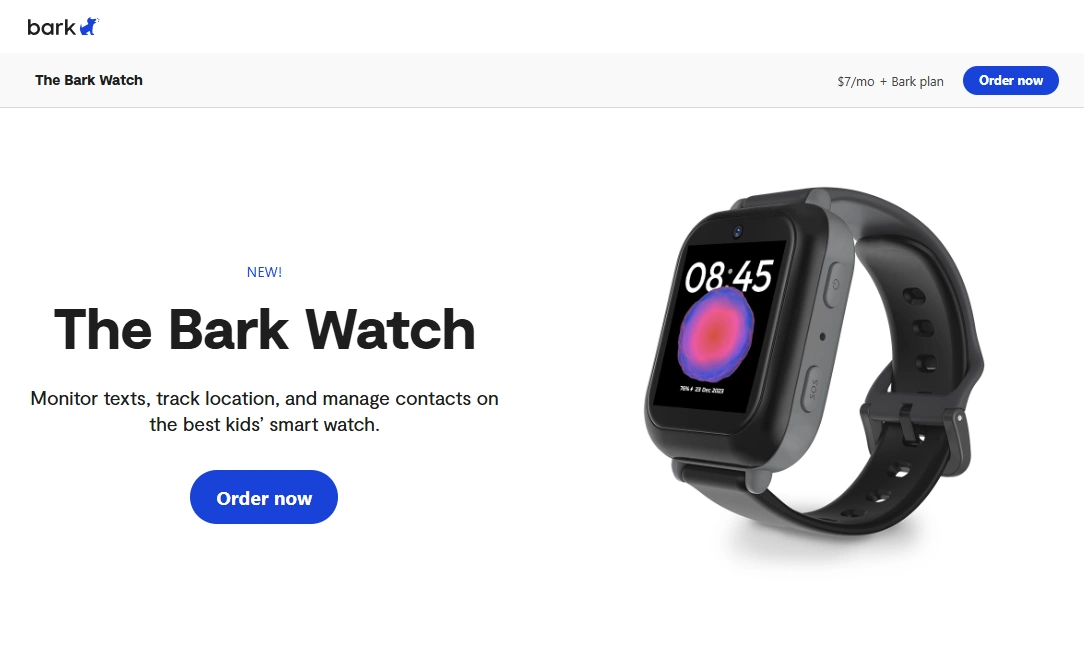
Bark Watch is a practical first-device option for younger kids: communication + location coverage without handing over a full smartphone. It’s especially useful when you want your child reachable after school, during activities, or when commuting—without apps and social media.
Product highlights
- Great starter device for ages ~6–10
- Often simpler for families than managing a full phone setup
- Helps delay the “full smartphone” transition
What’s to like
- Less distraction than a phone
- Good safety baseline for younger kids
- Parents keep control without constant policing
What’s not to like
- Not a replacement for a smartphone if school requires apps
- Smaller screen/limited features by design
- Battery and coverage vary by usage and environment
PROS
- Best “pre-phone” step for many families
- Reduces early exposure to social apps
- Easy for kids to carry and use
CONS
- Limited app ecosystem (intentional)
- Not ideal for older teens
- Some families still want a phone for school tools
iPhone + Screen Time
Description
An iPhone can be an excellent first phone if you set up Family Sharing properly, use Screen Time passcodes, and require approval for installs. The downside is that one mistake (shared Apple ID, weak passcode, unrestricted App Store) can open the door to bypasses.
Product highlights
- Built-in Screen Time limits + downtime
- Works well for school/social expectations
- Consistent updates and strong device security
What’s to like
- Mainstream phone your child is less likely to resent
- Strong built-in controls when configured correctly
- Good long-term support and resale value
What’s not to like
- Parents often misconfigure settings and create loopholes
- Kids learn bypass tricks faster than parents expect
- Social apps still require strict approval rules
PROS
- Great for older kids/teens
- Strong security baseline
- Good ecosystem integration for families
CONS
- Requires ongoing maintenance
- Easy to accidentally “set it up wrong”
- Expensive depending on model
Android + Google Family Link
Description
Android is often the best value route for a first phone, especially if you already use Google services. Family Link can provide strong app approvals and time limits, but you need to be careful with device settings, secondary app stores, and battery optimizations.
Product highlights
- Strong app approvals + screen time controls
- More budget-friendly phone choices
- Good option for “hand-me-down” family phones
What’s to like
- Cheaper devices with decent durability options
- Family Link can be strict if parent stays in control
- More flexibility for different family needs
What’s not to like
- More variation between devices and manufacturers
- Extra app stores and settings can create loopholes
- Battery optimization settings can interfere with reliability
PROS
- Best value for money
- Strong controls when configured correctly
- Wide device selection
CONS
- More setup complexity than kid-first phones
- More “tuning” over time
- Device-specific quirks
Legal notes
Parental controls are meant for parent/guardian supervision on a child’s device (or a device you legally control). Avoid any approach that involves covert monitoring of someone else’s private device without permission. If you’re unsure about boundaries, read: Legal phone tracking: what’s allowed and what’s not.
FAQ
What is the best first phone for kids?
For most families, a kid-first phone with strong built-in parental controls (like Bark Phone) is the easiest “safe default.” If your child needs a mainstream phone, iPhone Screen Time or Android Family Link can work well when configured strictly.
What age should a child get their first phone?
Many families start with a watch (calls + GPS) around ages 6–10, then move to a smartphone around 10–14 depending on maturity, school needs, and safety concerns.
Is an iPhone or Android better as a first phone?
iPhone tends to be more consistent across devices, while Android offers more budget choices but more variability. The best option depends on your household ecosystem and how strict you want app approvals and downtime rules to be.
How do kids bypass parental controls most often?
Common bypasses include unrestricted app installs (VPNs, private browsers), shared Apple IDs, weak passcodes, and parents not re-checking settings after updates. App approval rules and separate parent/child accounts prevent most issues.
Should I start with a watch before a phone?
Yes—if your main goal is communication and safety. A watch can cover calls and location without exposing a child to social apps and the full internet.
Do I need a monitoring app if I set up parental controls?
Often, no. For many families, built-in controls + clear rules are enough. If you later need extra tools for a specific situation, start with a safety-first overview: Top parental control apps.