

Searching for “hidden Android monitoring apps” usually means you want a calmer way to protect your child without checking their phone every day. Android allows more monitoring flexibility than iPhone, but it also shows permissions, accessibility settings, battery notices, and app-management screens that can make “fully invisible” claims unrealistic.
Here is the practical 2026 version: use monitoring only on devices you own or manage, such as your child’s Android phone or a company-owned device with proper notice. Do not use these tools to secretly monitor another adult.
For a broader Android shortlist, start with our Best Android Monitoring Apps guide. This page focuses on low-friction, hidden-style, parent-managed Android monitoring and what is realistic.
Best hidden-style Android monitoring apps for parents in 2026
- Best all-round Android monitoring dashboard: mSpy
- Best for social-heavy teen scenarios: uMobix
- Best clean dashboard for daily check-ins: Eyezy
- Best simple parent workflow: Parentaler
- Best safety-alert alternative: Bark
- Best free starting point: Google Family Link
Bottom line: for most parents, the best setup is Google Family Link for boundaries, then a parent-focused monitoring tool only if you need stronger location awareness, social risk signals, or a clearer dashboard.
Legal and safety note
Monitoring is safest when it is used on a device you own or manage. For parents, that usually means a child’s phone under your care. For workplaces, it means company-owned devices with clear written notice and appropriate policies. Secretly monitoring another adult without consent is usually illegal.
Before installing anything, read: Legal Phone Tracking: What’s Allowed and What’s Not.
What “hidden” really means on Android
On Android, “hidden” should not mean unlimited secret access. A safer and more accurate definition is:
- Low-friction parenting: fewer phone checks and fewer daily arguments.
- Discreet dashboard review: checking key safety signals at set times instead of constantly watching.
- Permission-aware setup: understanding that Android may show accessibility, battery, security, or app-management notices.
- Authorized use: using monitoring only on a device you are allowed to manage.
For feature expectations, see Monitoring App Features Explained: What You Can and Can’t Monitor.
Quick comparison table
| App | Best for | Android reality | Best fit | Refund or Trial |
|---|---|---|---|---|
| Google Family Link | Free boundaries | Visible family controls, not hidden | Younger kids and first phones | Free |
| mSpy | All-round dashboard | Setup and permissions matter | Parents who want broad Android visibility | See official site |
| uMobix | Social-heavy teen scenarios | Strong Android-focused monitoring angle | Parents focused on social app risk signals | See official site |
| Eyezy | Clean daily review | Good dashboard usability | Non-technical parents | See official site |
| Parentaler | Simple routine | Lower-overwhelm workflow | Families who want consistency | See official site |
| Bark | Safety alerts | Alerts-first, not spy-style | Parents who want fewer dashboard checks | See official site |
Best hidden-style Android monitoring apps
mSpy – best all-round Android monitoring dashboard
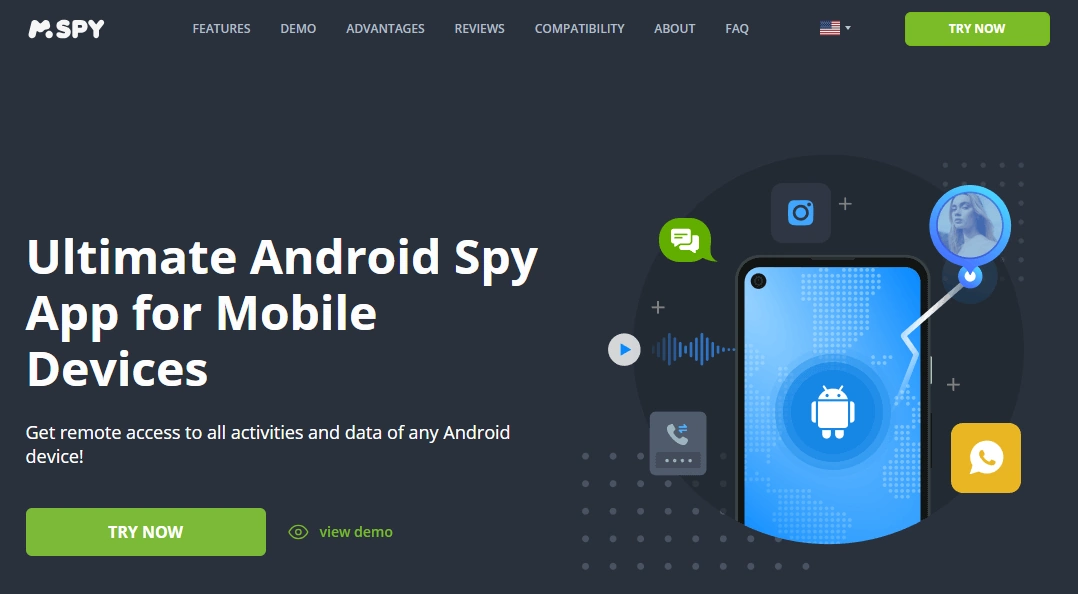
mSpy is the strongest fit if you want one dashboard for Android monitoring. It is best used for scheduled parent check-ins: review key signals, look for patterns, and talk with your child if something needs attention.
For Android specifically, mSpy makes the most sense when you want broader visibility than Google Family Link. It can be useful for families who need a clearer view of activity patterns, location habits, and possible social-app risks. The important part is setup discipline: Android permissions, battery optimization, and background behavior all affect reliability.
Use it as a parenting workflow, not a secret weapon. A healthier routine is to review the dashboard at agreed times, document what rules matter in your family, and only escalate when there is a real safety reason.
Key features
- All-round Android monitoring dashboard
- Useful for calls, messages, location, and activity review depending on setup
- Good fit for structured daily or weekly check-ins
- Works best when Android permissions and battery settings are configured correctly
PROS
- Strong broad-dashboard option
- Good Android-focused parent workflow
- Useful when Family Link feels too limited
CONS
- Requires careful setup and permissions
- Not a magic “monitor everything forever” solution
Ready to try mSpy? Check the latest plans on the official website.
uMobix – best for social-heavy teen scenarios
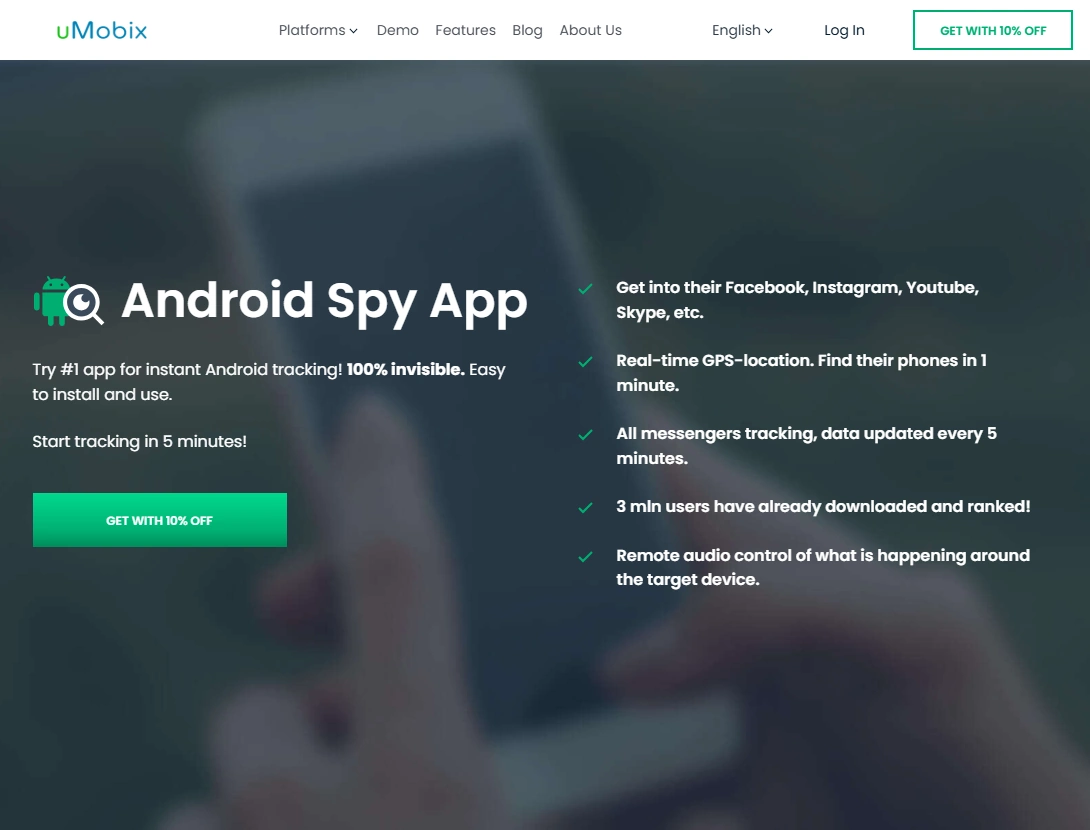
uMobix is worth shortlisting when your main concern is social-heavy behavior. Android generally gives monitoring tools more room than iOS, but feature reliability still depends on permissions, app versions, and battery settings.
uMobix is best treated as a focused comparison pick for teen scenarios where social apps, messaging habits, or risky contacts are the main concern. It is not the first tool I would choose for a younger child who only needs screen-time limits and bedtime rules.
Parents should also be realistic about deleted messages and live sync claims. Some signals may appear quickly, some may lag, and some may depend on whether notification access or accessibility permissions are still active after an Android update.
Key features
- Android-focused monitoring workflow
- Useful comparison pick for social app concerns
- Good fit for parent review routines around teen online activity
- Works best when setup stability is checked after Android updates
PROS
- Strong option for social-heavy Android scenarios
- Clear shortlist pick against mSpy and Eyezy
- Useful when social activity is the main concern
CONS
- Not the best first pick for simple screen-time limits
- Requires realistic expectations around sync and permissions
Ready to try uMobix? Check the latest plans on the official website.
Eyezy – best clean dashboard for daily check-ins
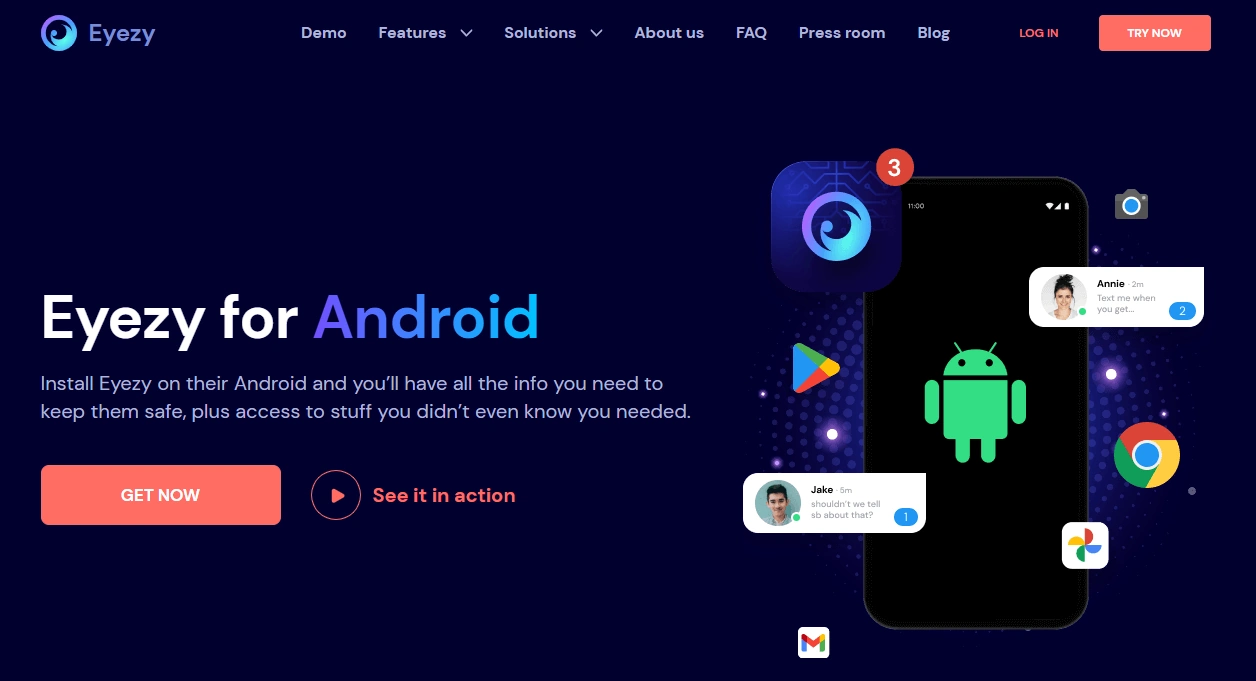
Eyezy is best for parents who want a cleaner dashboard and a simple routine. It is a strong fit if you care more about usability and pattern spotting than maximum technical control.
The biggest advantage is that Eyezy feels easier to review. For non-technical parents, this matters. A tool with too many tabs can create more anxiety than clarity. Eyezy is more useful when you want to check key signals and then move on with your day.
It is especially useful when your goal is to understand trends: unusual contacts, changes in location routines, or activity patterns that may be worth discussing. It should still be paired with clear family rules so the child understands why monitoring exists.
Key features
- Clean parent-friendly dashboard
- Useful for daily or weekly review routines
- Good option for parents who do not want a complex interface
- Better for calm check-ins than constant monitoring
PROS
- Easy for non-technical parents
- Good dashboard usability
- Strong alternative to mSpy if simplicity matters
CONS
- Feature depth depends on Android setup
- May feel lighter than more detailed dashboards
Ready to try Eyezy? Check the latest plans on the official website.
Parentaler – best simple parent workflow
Parentaler is a good fit if you want consistency more than complexity. Many families do not need every possible log; they need a simple way to manage boundaries and review safety signals without overwhelm.
Parentaler is strongest when the household needs a routine that can actually be maintained. That means clear rules, predictable review times, and fewer settings that can be forgotten or misconfigured. It is a better match for parents who want a calmer setup than for parents chasing every advanced feature.
Use it when the main goal is sustainable supervision: know enough to act when needed, but avoid turning every evening into a dashboard investigation.
Key features
- Simple family-monitoring workflow
- Good for parents who want less setup complexity
- Useful as a step beyond built-in Android controls
- Best when you want a sustainable long-term routine
PROS
- Easy to keep consistent
- Good fit for non-technical parents
- Lower-overwhelm approach
CONS
- May feel limited for advanced monitoring needs
- Not ideal if you want maximum dashboard detail
Ready to try Parentaler? Check the latest plans on the official website.
Bark – best safety-alert alternative
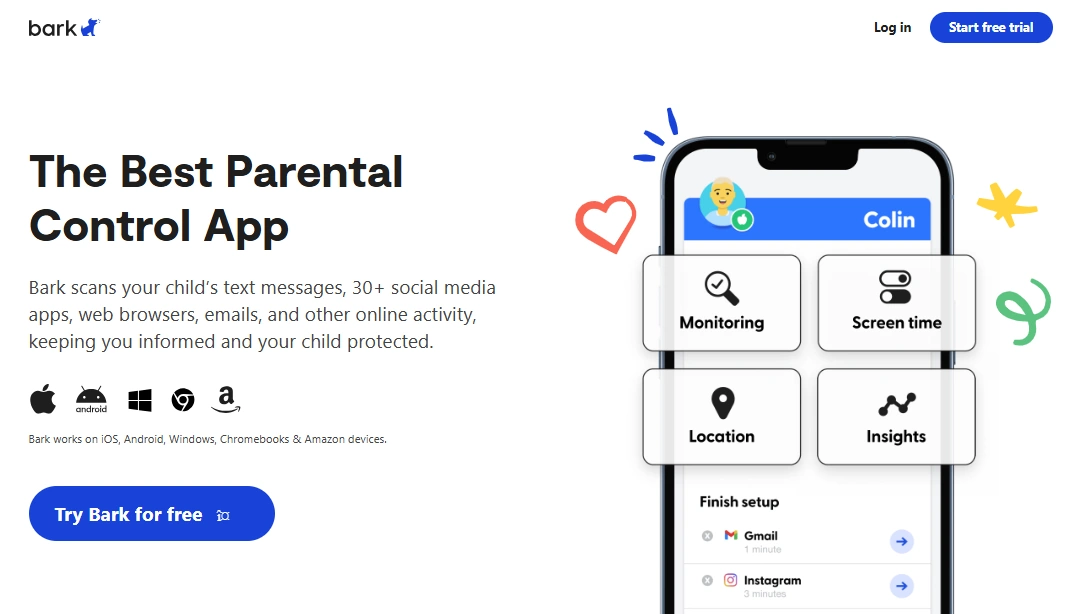
Bark is not the best pick if you want a detailed “hidden dashboard.” It is the best pick if you want safety alerts and fewer daily arguments. For many families, alerts-first monitoring is healthier and easier to sustain.
Bark is also easier to explain. Instead of saying “I am watching everything,” the conversation can be: “We use a tool that alerts us if something looks unsafe.” That framing can reduce conflict and make monitoring feel more like a safety net than surveillance.
For younger kids, Bark can work alongside Google Family Link. For teens, it can support a lighter-touch routine where parents are not reading everything but still receive signals when a conversation may need attention.
Key features
- Alerts-first parent workflow
- Useful for safety conversations
- Good alternative to constant dashboard checking
- Works well alongside Android family rules
PROS
- Best fit for parents who want less micromanaging
- Good safety-first positioning
- Often easier to explain to kids and teens
CONS
- Not a deep dashboard tool
- May feel too light for parents who want detailed logs
Ready to try Bark? Check the latest plans on the official website.
Which option should you choose?
If your child is younger or this is their first Android phone
Start with Google Family Link. Add a paid tool only when you need stronger alerts, location review, or a clearer parent dashboard. For many younger kids, visible controls are better than hidden-style monitoring because they teach rules and expectations early.
If you want broad Android monitoring
Choose mSpy. It is the best all-round dashboard option for many parents. Pair it with a review schedule so it does not become something you check compulsively.
If social apps are the main concern
Compare uMobix and Eyezy. uMobix is the stronger social-heavy shortlist pick; Eyezy is calmer and easier to review.
If you want fewer conflicts
Choose Bark or Parentaler-style routines instead of checking every detail every day. The best monitoring setup is the one your family can maintain without turning safety into constant conflict.
Android setup tips for safer monitoring
- Use the least invasive setup first: start with Family Link, screen-time rules, and web filters.
- Explain the rules: monitoring should support safety, sleep, school focus, and healthy habits.
- Check permissions after updates: Android updates can change battery, accessibility, and notification settings.
- Avoid “free hidden spy app” promises: many are low-quality, unsafe, or misleading.
- Do not monitor adults secretly: use consent-first tools for adults and family members.
Common Android reliability issues
Android monitoring can work well, but it is rarely a “set once and forget forever” setup. Battery optimization may stop background syncing. Accessibility permissions may be reset. Security apps may flag tools that request broad device access. Android updates may also change how notifications, screenshots, and background services behave.
The fix is not to chase a more aggressive tool. The fix is to keep expectations realistic and review the setup occasionally. After a major Android update, check whether the dashboard still syncs, whether location permissions are active, and whether the child’s device has changed battery or app-management settings.
This is also why parents should avoid buying based only on “invisible” claims. A tool that is honest about permissions and limitations is usually safer than a tool that promises impossible stealth.
Related Android monitoring guides
- Best Android Monitoring Apps for Parents
- Best Android Monitoring Apps
- Top Android Monitoring Apps
- Best Android Monitoring Apps Without Root
- How to Set Up an Android Monitoring App Safely and Legally
- Legal Phone Tracking: What’s Allowed and What’s Not
FAQ
Are hidden Android monitoring apps really invisible?
Not always. Android may show permissions, accessibility settings, battery notices, or app-management signals. Treat “hidden” as low-friction parent-managed monitoring, not guaranteed invisibility.
Is it legal to use an Android monitoring app for my child?
In many cases, parents can manage a child’s device for safety. Laws vary, so use the least invasive approach, keep the purpose family-safety focused, and avoid monitoring another adult without permission.
Do Android monitoring apps require root?
Most parents should avoid root. No-root options are easier and safer for normal family use, though some advanced features may depend on permissions, Android version, and app setup.
What is the best hidden-style Android monitoring app for parents?
For a broad dashboard, start with mSpy. For social-heavy teen scenarios, compare uMobix and Eyezy. For alerts and fewer daily conflicts, consider Bark.
Are free hidden Android spy apps safe?
Be cautious. Many “free hidden spy app” offers are misleading, low-quality, or risky. Start with Google Family Link, then compare reputable paid tools if you need more features.
Can Android monitoring apps track deleted messages?
Sometimes, but not reliably in every app or setup. Deleted-message visibility depends on app permissions, sync timing, notification access, Android version, and the messaging app itself.