

Bark is one of the few “parental control” tools that feels like it was made for real family life. Not just blocking everything—but helping you create rules your kid can live with, and rules you (as a parent) can actually keep consistent.
This Bark review focuses on the two features parents use daily: screen time controls (schedules, downtime, app access) and content filtering (reducing risky content + getting alerts when something looks serious).
If you’re comparing options first, see: best screen time control apps for kids’ phones.
Short on time? Quick verdict
- Best for: families who want screen time rules + protection without turning the home into daily negotiations.
- What Bark does best: a balanced “family rules” system: downtime schedules, safer browsing, and parent alerts.
- What Bark is not: the strictest “power user” lock-down suite (Eyezy can feel stricter; mSpy is more monitoring-first).
- Best next read: safest parental control apps for kids under 13 (good starting point for younger kids).
Quick jump: 60-sec checklist · Verdict · Comparison table · What really matters · Best for your situation · Setup tips · Reviews · Legal notes · FAQ
60-second decision checklist
- Age matters: under 13 usually needs clear downtime + safer browsing. Teens need more trust + accountability.
- Your goal: do you want strict blocking, or a “rules + protection” system? Bark is best at the second.
- Start with 2 rules: night downtime + homework window. Add more only if needed.
- Always allow essentials: calls, navigation, school apps, family messaging.
- Expect week-1 pushback: consistency is the feature. Kids test limits. If you hold the rules calmly, it gets easier.
Verdict: is Bark good for screen time and content filtering?
Yes—Bark is one of the best options for families who want screen time limits that feel like fair routines, plus content filtering and alerts that reduce the “I have no idea what’s going on” anxiety.
Bark is especially strong when you’re managing younger kids or early teens and your top priorities are: safer content, fewer late-night spirals, and rules that don’t require constant micro-management.
Consider alternatives if you want the strictest “lockdown suite” (Eyezy) or if you mainly want deep monitoring visibility (mSpy).
Comparison table: Bark vs top alternatives
Bark is a “family rules + safety” system. These alternatives win when you want stricter enforcement or deeper monitoring.
| App | Best on | Screen time | Content filtering | Alerts | Best for |
|---|---|---|---|---|---|
| Bark | Android + iPhone | Strong (routines) | Strong (safer browsing) | Strong (parent alerts) | Best overall for families |
| Eyezy | Android (most complete), iPhone (varies) | Very strong (strict) | Good (suite-style) | Moderate | Strict enforcement families |
| uMobix | Android (practical), iPhone (varies) | Good (simple workflow) | Basic-to-mid | Basic | Busy parents, quick checks |
| mSpy | Android + iPhone (varies) | Monitoring-first | Limited vs control-first | Low-to-moderate | Usage visibility and coaching |
What really matters (Bark’s “family rules” sweet spot)
1) Bark works best as a routine, not a punishment
If Bark becomes “I lock you down when I’m angry,” it turns into a fight. If Bark becomes “these are the normal rules,” it becomes easier for everyone. The best starting rules:
- Night downtime (phones off in bedroom if possible)
- Homework window (allow list for school apps + family contacts)
2) Content filtering is about reducing exposure, not controlling the internet
Kids are curious, algorithms are aggressive, and one weird search can spiral into weeks of junk content. Bark’s value is reducing exposure and making your home “less random” online.
3) Alerts are useful only if you know how you’ll respond
Bark alerts can help you catch serious issues early. But the best results come when you have a calm plan:
- Don’t panic on day one
- Look for patterns, not single events
- Use alerts to start conversations, not punishments
If you want a simple automation system, use: how to limit screen time on kids’ phones automatically.
Best for your situation
- My kid is under 13 and needs safe defaults: Bark is an excellent starting point.
- We need less late-night scrolling and better sleep: Bark downtime schedules are a strong fit.
- My teen pushes rules hard; we need stricter controls: consider Eyezy for stricter enforcement.
- I want quick checks, not a big “system”: uMobix can be simpler day-to-day.
- I mostly want visibility and accountability: mSpy is great for monitoring usage patterns.
More internal guides: safest parental control apps for kids under 13 · best parental control apps for teens · best screen time apps for Android · best screen time apps for iPhone
Setup tips (the difference between “works great” and “kids bypassed it”)
Tip 1: Start with one schedule + exceptions
Set night downtime first. Then add exceptions (calls, navigation, school apps). This prevents the “I couldn’t reach you” argument and reduces bypass attempts.
Tip 2: Test your first 48 hours
- Restart the phone (do rules still apply?)
- Turn on battery saver (does anything break?)
- Switch Wi-Fi to mobile data (do reports still make sense?)
- Try installing a new distracting app (do you notice quickly?)
Tip 3: Use weekly reviews, not daily negotiations
Tell your child: “We review on Sunday.” Kids stop negotiating daily when they know the rules aren’t changing every night.
Tip 4: Pair limits with real-world habits
- Phones charge outside the bedroom
- Family “no phone zone” at dinner
- Weekends earn time with good routines
Reviews
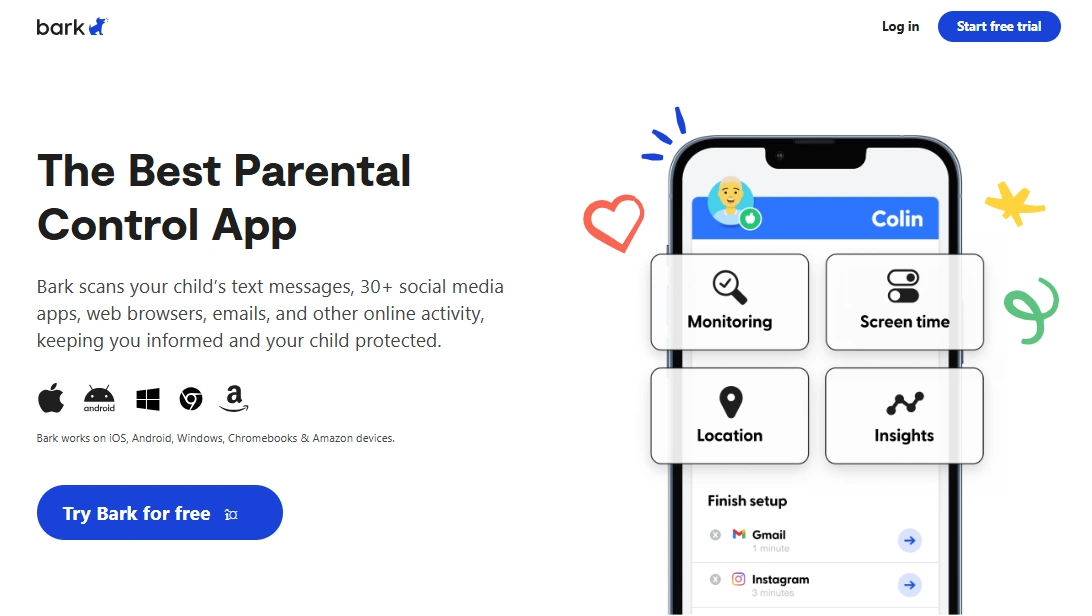
Bark (screen time + content filtering + parent alerts)
Description
Bark is best for parents who want to build consistent screen time routines while also reducing exposure to risky content. It’s less about constant monitoring and more about creating a safer environment with rules you can maintain.
Product highlights
- Screen time schedules (downtime routines)
- Content filtering for safer browsing
- Parent alerts that can flag risky situations early
- Family-first approach that often reduces daily conflict
What’s to like
- Best overall family-friendly system
- Combines screen time + safety without feeling purely “punitive”
- Great for younger kids and early teens
What’s not to like
- If you want the strictest “lockdown suite,” Eyezy can feel stronger
- Alerts require a calm response plan to avoid overreacting
PROS
- Excellent balance of control + safety
- Works well as repeatable family rules
CONS
- Not the most extreme strict-enforcement tool
Try Bark: Best Parental Control App · Bark for Kids · Bark Home
Eyezy (stricter routines alternative)
Description
Eyezy is a better fit if Bark feels “too balanced” and your situation needs stricter enforcement: tighter schedules, firmer app controls, and more levers to lock down distractions.
Product highlights
- Very strong scheduling and rule controls
- Suite-style parental control toolkit
- Good for older kids in high-conflict screen time situations
What’s to like
- Stronger enforcement than softer family-first tools
- Great for strict school-night structure
What’s not to like
- More settings fatigue than Bark
- Android tends to be most complete; iPhone results may vary by setup
PROS
- Best strict alternative
- Strong routines + controls
CONS
- Heavier tool to manage
Try Eyezy: Parental Control
uMobix (simpler “busy parent” workflow)

Description
uMobix can be a better fit if you want a faster “dashboard” feel and less complexity. It’s strong when your child isn’t constantly trying to bypass rules and you want “simple but real” boundaries.
Product highlights
- Guided onboarding for parental control
- Quick parent check workflow
- Good for simpler routines
What’s to like
- Less settings fatigue
- Works well as a starter system
What’s not to like
- Not as strict as Eyezy for high-conflict scenarios
- Validate iPhone expectations early
PROS
- Simple workflow
- Lower friction for busy parents
CONS
- May feel too light for strict enforcement
Try uMobix: Mobile Parental Control
Legal notes
Use parental control tools only on devices you own, devices you manage (for example, a minor child’s phone under your care), or where you have clear consent. Monitoring or controlling someone else’s device without permission can be illegal.
Practical overview: legal phone tracking: what’s allowed and what’s not.
FAQ
Is Bark good for screen time control?
Yes—Bark is one of the best overall family-friendly options because it supports consistent routines (downtime schedules) without turning parenting into constant “app policing.”
Does Bark include content filtering?
Yes—content filtering is a core reason parents choose Bark. It helps reduce exposure to risky content and makes online life less random for kids and teens.
How are Bark alerts used in real life?
Alerts are most useful when you look for patterns and respond calmly. They’re best used to start conversations and catch serious issues early—not to punish on the first trigger.
Is Bark good for teens?
It can be—especially for routine and safety. For high-conflict “strict lockdown” situations, some families prefer a stricter control suite like Eyezy.
How do I stop my child from bypassing screen time rules?
Keep rules simple, use downtime schedules, allow essentials, and avoid changing rules daily. Test restarts and battery saver in the first 48 hours to confirm enforcement stays stable.
Is it legal to use Bark on my child’s phone?
It depends on your country and context, but parents commonly manage a minor child’s device they own or administer. Monitoring or controlling other adults (or devices you don’t own) without consent can be illegal.