

Let’s clear up the biggest misconception right away: Bark is not a “monitoring app” you install directly on Xbox, PS5, or Nintendo Switch. Consoles are locked-down ecosystems, and most third-party monitoring apps can’t run as hidden agents on them.
So why do parents still look at Bark for gaming consoles? Because the real problem usually isn’t the console itself — it’s everything around it: chatting, browsing, social apps, screen time fights, and safety blind spots when kids bounce between console + phone.
In this review, I’ll show you what Bark can realistically help with for console households, where it falls short, and how to build a setup that works in real life (without turning your home into a surveillance state).
Short on time? Quick verdict
- Best choice: Use official console parental controls for playtime/spending/content + use Bark to cover the “messaging + web + alerts” side on devices your child actually uses.
- Don’t buy Bark if you only want “see every console chat message” — consoles generally won’t allow that.
- Do buy Bark if your child plays online and you want safer boundaries + smarter alerts across the family’s connected life.
Quick jump: Decision checklist · Verdict · Comparison table · What really matters on consoles · Best for your situation · Setup tips · Review · Legal notes · FAQ
60-second decision checklist
- If your #1 goal is limiting playtime, purchases, and game ratings: start with console parental control settings first.
- If your #1 worry is online interactions (toxic chats, risky messages, grooming attempts): use console tools for chat permissions + add Bark where your child actually messages/browses (often phone/tablet).
- If your kid uses Xbox/PS5/Switch plus a phone: you’ll get the best results with a combined setup: console controls + a family safety app.
- If you want full visibility into console DMs/voice chat: set expectations — third-party apps usually can’t read console-native chats reliably.
- If you want “set and forget”: pick one platform owner setup (Xbox / PlayStation / Nintendo) and keep rules simple + consistent.
Verdict: who should use Bark for gaming consoles?
Bark is best for…
- Families who want smart alerts + safer boundaries across devices (not just the console).
- Parents who care about online safety signals, not “read every single message.”
- Kids who game online but also use phone/tablet for chats, browsing, YouTube, Discord, etc.
- Homes where you want a clear plan: console rules + device rules + predictable consequences.
Bark is not ideal for…
- Parents who only want console-only monitoring and don’t care about anything else.
- Anyone expecting Bark to act like a hidden “console monitoring tool.” Consoles typically don’t allow that.
- Situations where there’s no consent and no device ownership/management.
Comparison table: Bark vs console parental controls (realistic expectations)
| What you’re trying to solve | Console settings (Xbox/PS5/Switch) | Bark (as a companion) | Best combined approach |
|---|---|---|---|
| Set playtime limits | Usually strong (platform-native timers/schedules) | Helpful on phones/tablets (depending on device/setup) | Console timers + consistent household schedule |
| Block mature games by rating | Strong (age ratings + store restrictions) | Not a console rating system | Use console rating locks and keep PIN private |
| Stop surprise spending | Strong (purchase approvals, wallet controls) | Not a console payment gate | Require approvals + disable saved cards |
| Manage multiplayer / voice chat | Good (permissions, friends-only, communication limits) | Not a direct console voice/chat reader | Lock comms settings + teach safe chat rules |
| Know when something “off” is happening | Limited (mostly restrictions, not proactive safety signals) | Best value: alerts and monitoring signals where supported | Bark alerts + periodic parent check-ins |
| Cover phone + console lifestyle | Console-only | Multi-device family safety approach | Combine console controls with Bark |
What really matters for console safety (and where Bark fits)
1) Console “risks” are mostly social, not technical
Parents often worry about “monitoring the console,” but the real problems show up as:
- Who your child is playing with (randoms vs friends)
- How they communicate (voice chat, party chat, DMs)
- What they get exposed to (mature content, toxic behavior, grooming attempts)
- When gaming crowds out sleep/homework (late-night sessions)
Console parental controls are great for permissions + limits. Bark’s value is strongest when it helps you catch risk signals on the devices and services your kid actually uses outside the console ecosystem.
2) Xbox vs PS5 vs Switch: what you can control (high-level)
If you haven’t done it yet, start here (these guides are written for non-techy parents):
- How to set up parental controls on Xbox
- How to set up parental controls on PS5 / PlayStation
- How to set up parental controls on Nintendo Switch
3) Reliability: don’t chase “perfect monitoring” — build a stable system
The most reliable setup is boring (in a good way): clear rules + locked console settings + a safety layer across phone/tablet. If you aim for “read every message on every platform,” you’ll usually end up with a messy, fragile setup that breaks with updates and causes constant family conflict.
Practical takeaway: Use the console’s tools for what they do best (time, spending, ratings, comms permissions). Use Bark to strengthen the parts most parents miss: web safety, cross-device visibility, and smarter alerts.
Best for your situation
If your child is 7–12 (early gaming years)
- Use strict console limits + require friends-only multiplayer where possible.
- Keep spending locked down (PIN + approvals).
- Consider a broader kid-safe ecosystem: best parental control apps for kids under 13.
If your child is 13–16 (online social phase)
- Focus less on “total control” and more on guardrails + transparency.
- Talk about voice chat, party invites, and DMs like real-world safety.
- Helpful read: best parental control apps for teens.
If the main issue is screen time battles
- Use console timers + a household routine.
- Don’t rely on willpower — use structure: how to limit screen time automatically.
If the main fear is “random strangers” in chat
- Set console communication to friends-only or approved contacts.
- Disable/limit voice chat for younger kids.
- Use a layered approach across devices: console controls + phone safety.
If you want the best overall console options (not just Bark)
Start with this hub: best parental control solutions for gaming consoles.
Setup tips (common issues parents run into)
Tip 1: Lock the console first, then add Bark
Parents often buy an app first and only later realize the console already had strong controls. Do it in this order:
- Set up console child account + family manager.
- Lock spending and mature content.
- Set playtime schedule.
- Then add Bark for cross-device coverage.
Tip 2: Keep one “family rules” page (so rules don’t drift)
Write 5 rules and keep them stable for 30 days. Example:
- No gaming after 20:30 on school nights.
- Friends-only chat. No random DMs.
- Spending requires approval.
- If you feel unsafe, you can always come to us — no punishment.
- We review settings together once a month.
Tip 3: Don’t skip the consent conversation
If you’re using a monitoring/safety tool, treat it like training wheels: explain why it exists, what it does, and what it doesn’t do. If you need a template, read: how to get consent for phone monitoring.
Review: Bark (as a family safety layer for console households)
Description
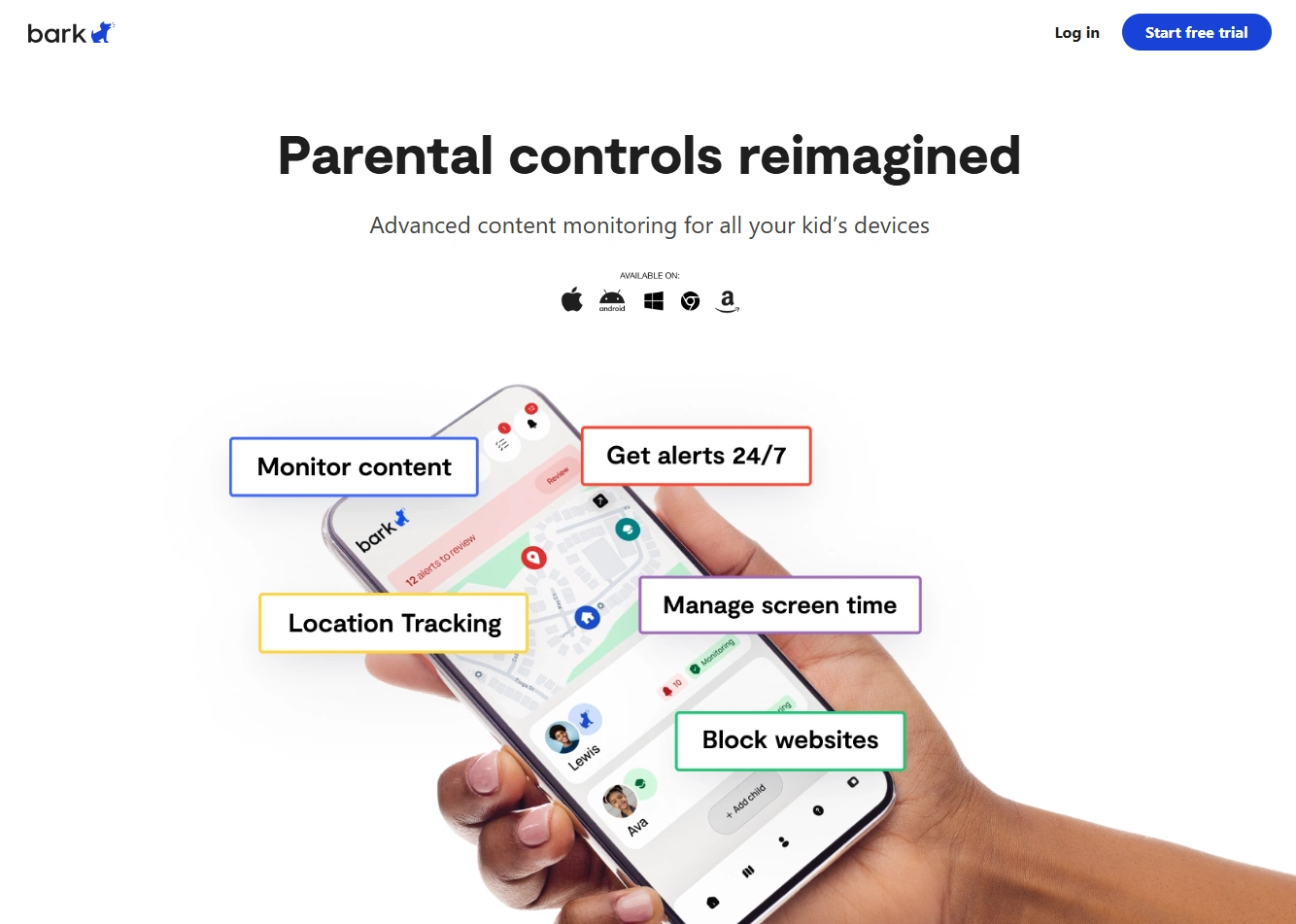
Bark is best understood as a family safety platform that helps parents set boundaries and receive alerts for potential online risks — especially when kids use multiple devices (which is basically every household with gamers).
Product highlights
- Parent-friendly approach: geared toward safety and oversight rather than pure monitoring.
- Works well in a layered setup: console controls + phone/tablet monitoring + web safety.
- Good for “risk signals”: helps you notice issues earlier instead of discovering them weeks later.
- Practical family tooling: supports the kind of structure most parents actually need.
What’s to like
- Reality-based: consoles are hard to monitor deeply — Bark shines when used as the missing puzzle piece across the rest of your child’s digital life.
- Helps reduce “I had no idea” moments: when your kid’s online world changes fast (new communities, new apps, new risks).
- Pairs nicely with Xbox/PS5/Switch controls: you use each tool for what it’s best at.
What’s not to like
- Not a console monitoring tool: you won’t get full visibility into console-native chats/voice in most cases.
- Still requires good setup: if you skip console restrictions, no app will save you from chaos.
- Parents must stay involved: tools reduce risk, they don’t replace parenting.
PROS
- Great companion to console parental controls
- Helps cover the “phone + web + alerts” side of gaming life
- More safety-oriented than typical monitoring apps
CONS
- Limited direct console visibility
- Best results require a layered family setup
- Not built for secret monitoring
Get Bark for your family View plans & pricing
Want the broader comparison first? See: the best parental control apps for gaming consoles.
Legal + ethical notes (important)
Use parental controls and monitoring tools only on devices and accounts you own or are authorized to manage (typically your child’s account/device). If you’re unsure what’s allowed in your country or situation, read: Legal phone tracking: what’s allowed and what’s not.
For teens especially, the healthiest long-term approach is transparency: explain what you monitor, why you monitor it, and how you’ll use the information (safety first, not punishment-first).
FAQ
Can Bark monitor Xbox chat messages?
Usually not directly. Consoles are closed systems, so third-party apps typically can’t read console-native chats like a phone monitoring app would. The most reliable approach is using Xbox parental controls for communication permissions, and using Bark where your child actually messages/browses (often on phone/tablet).
Does Bark work on PS5?
Not as an installable “PS5 app” that monitors everything. PS5 parental controls handle time limits, spending, ratings, and communication settings. Bark can complement that setup by covering the broader device ecosystem in your home.
Is there any app that can fully track Nintendo Switch activity?
For Switch, the official parental controls are usually the most dependable for time confirmation and restrictions. Third-party apps generally can’t run as hidden agents on the console. If your goal is safer behavior and fewer risks, pairing official tools with a family safety approach is typically more effective than chasing “total visibility.”
What’s the best setup for online gaming safety?
Use console parental controls (limits, spending, ratings, comms permissions) + keep multiplayer to friends-only when possible + set a simple home rules policy. If your child uses multiple devices, add a safety layer across phone/tablet and the home web environment. This guide helps: how to combine console parental controls with phone monitoring apps.
Is Bark better than console parental controls?
They’re different tools. Console parental controls are best for console-specific restrictions. Bark is best as a companion for cross-device safety signals, web safety, and broader family oversight. Most families get the best result by combining both.